

An error in the Microsoft Word previewer doesn't necessarily mean file damage. For Word 2010 or 2013's File > Open preview, use Windows Explorer or another Office app instead.
That workaround is for the file-selection window. Outlook attachment previews and Explorer previews need separate checks. Check where the error appears before trying to repair Word when it otherwise works.
In this guide
1. Move the preview out of Word's Open window
Cancel the Open dialog. Browse to the document's folder using Windows Explorer, then click the file once without opening it. Press Alt + P to show the Preview pane if it isn't visible.
On Windows 7, Organize > Layout > Preview pane also turns the pane on. The document's contents should appear beside the file list. Selecting another document should change the preview without opening a separate editing window.
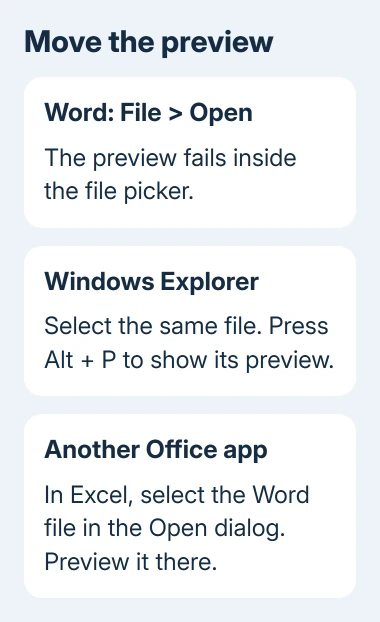
Microsoft says this Open-dialog fault can be worked around using Explorer or another Office program. The instructions cover Word 2010 and 2013, plus affected Excel and PowerPoint versions.
The window showing the preview matters. Word's file picker can reject a preview that Explorer displays correctly. If the contents appear in Explorer, you can browse documents there while leaving Word available for editing.
This won't repair the preview inside Word. Return to Explorer when you need to identify a document by its contents, then open the selected file normally to edit it. Repeating the failed dialog preview won't help with browsing.
If Explorer also shows an error, note that and try the next comparison. This workaround needs a working preview outside Word's Open dialog. The same previewer name can appear in errors that need different fixes.
2. Try the Word document in Excel's file dialog
Open Excel and choose File > Open. Browse to the same folder. If the Word document isn't listed, change the file-type filter to All Files so the dialog can display documents other than Excel workbooks.
Turn on the dialog's Preview pane with its preview control, then select the Word document once. You're checking whether its preview works. Don't click Open and try to import the document into a worksheet.
PowerPoint's Open dialog is another alternative described in the same instructions. Use whichever of those programs is already installed. Downloading another Office product just to test a preview isn't a sensible first move.
If the preview works in this dialog after failing in Word, you can use this workaround to browse your files. I'd use Explorer for everyday browsing because it keeps document selection separate from whichever Office app happens to be open.
If neither alternative can preview the file, try opening it directly in Word. A document that won't open needs different attention from a working document with a failed preview.
3. Check whether Word can actually open the file
Double-click a document you recognize and trust, or select it through Word's File > Open and click Open. A working document should appear in the normal editing window with its pages and text available.
Compare a second document too. If both open normally but their previews fail, keep working with the documents directly. Losing a preview doesn't, by itself, justify rebuilding files or running a document-recovery tool.
If only one document won't open, preserve the original and follow the Word document recovery checks. Those steps deal with file damage, including the Windows repair command and Mac text recovery.
If the application won't start even without a document, use the Word startup fixes. That problem is broader than the preview pane and needs its own startup and add-in checks.
One owner reported that Explorer's previews stayed reliable even when another program's file picker failed. That supports trying Explorer first. Changing between 32-bit and 64-bit Office isn't the documented workaround.
4. Treat an Outlook attachment error separately
An error after selecting an attachment in Outlook's Reading pane is outside the Word Open dialog described earlier. Save the attachment to a folder, then compare opening it in Word with previewing that saved copy in Explorer.
Only save and open an attachment when you trust its sender and contents. A preview error is never a reason to turn off document protections for an unexpected attachment.
If the saved document opens, you have a way to read it while the attachment preview is checked. Check whether Explorer's preview works too. That tells you whether only Outlook has the problem or previews fail in several programs.
The separate Outlook preview troubleshooting page addresses Office attachment previews and the Windows Firewall service. Use it for that specific Outlook symptom, rather than applying its service changes to Word's File > Open problem.
On a managed computer, give those results to IT before changing Windows services. Tell them whether the same attachment opens after saving, whether Explorer previews it, and which Outlook and Word versions are installed.
When the preview still fails
The selected answer linked to a workaround. Two years after asking, the original poster still reported the fault. Marking the answer as accepted hadn't meant that Word's own preview worked again.
Keep using whichever preview location works. If no preview location works but documents open normally, ask your Office administrator to check the installed preview components. Include whether the problem affects both DOC and DOCX files.
For newer Office releases, include the installed version in your report. An old Word 2010 explanation may not apply. Note what happens in Word's file picker, Explorer and Outlook, and when you open the document directly.
Ask Microsoft Support about the failing preview component, with the exact window and message. That gives them a concrete fault to check without sending a private document as the first troubleshooting step.
The Short Version
Use Explorer or another Office app for Word 2010 or 2013's Open-dialog preview error. If that fails too, compare direct opening and report the affected window. The workaround lets you browse without repairing Word's pane.
Checked November 16, 2026.
 If you have any business, I can build it online






