

Excel 2010 can reject a shared-drive PDF while linking its local copy works. One owner inserted a local linked object, then changed its path to the shared file. Clearing Link to file instead embeds a copy.
Close the PDF reader's document window and retry first. Keep track of whether insertion fails locally too. A PDF rejected from every location needs different checks from a network-only failure.
In this guide
1. Close the PDF and compare local with shared storage
Save changes in the PDF reader, close the PDF, then retry Insert > Object > Create from File in Excel. Browse to the shared file, select Link to file, and choose OK.
After insertion succeeds, double-click the object to verify which document opens. Closing the PDF helped an owner with insertion failures, though their report wasn't limited to a network share.
On an old Adobe Reader installation, the reader process can remain after its window closes. An owner reported success after ending AcroRd32.exe in Windows Task Manager; another owner later confirmed that result.
Only end that reader process after saving and closing its documents. In Task Manager, identify it by name rather than ending unfamiliar processes. Then retry the insertion once before reopening the reader.
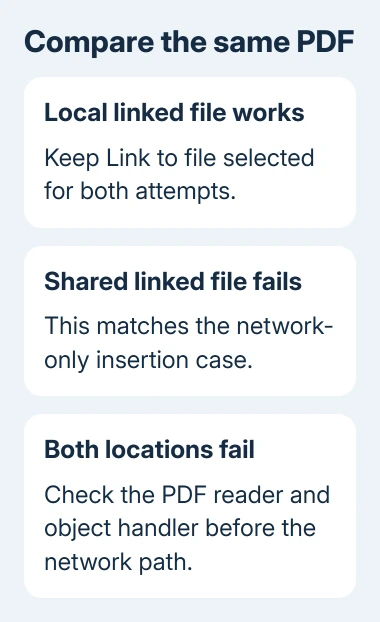
If the shared link still fails, make a local copy of the same PDF for comparison. In a separate test workbook, use the same insertion steps and keep Link to file selected. This compares locations using the same kind of linked object.
If both copies fail, skip the network-path workaround for now. If the local link succeeds and the shared link fails, continue to the next section with that working test object.
2. Change a working local object's path to the shared file
This workaround is for older Excel and Adobe versions when only the shared-drive insertion fails. Save a backup of the workbook before trying it. Use a test copy so you can inspect the result without replacing the working original.
Insert the local PDF through Insert > Object > Create from File, select Link to file, and finish the insertion. Select the resulting object once so its linked-object expression appears in Excel's formula bar.
The expression includes the local path and the PDF handler name, which tells Excel which software opens the object. The Reader XI example used AcroExch.Document.11. Yours can differ, so leave the text around the path alone.
Replace only the local path with the full shared-file path. For example, change C:\Test\report.pdf to Q:\Reports\report.pdf if Q is the drive containing the actual shared document. Use your real location, not the sample path.
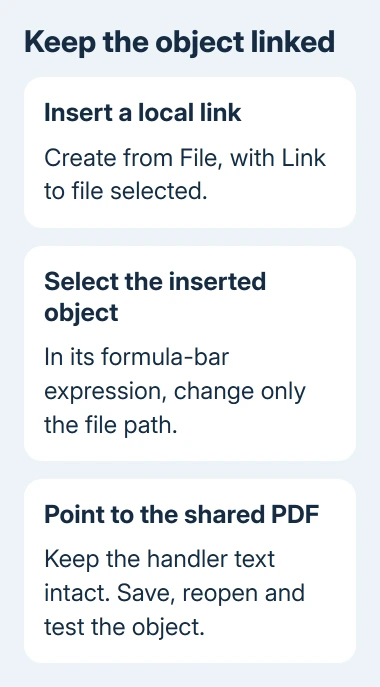
Save the test workbook, close it, reopen it, and double-click the object. The shared PDF should open from its network location. Check its contents so you don't mistake the original local PDF for a repaired network link.
An owner posted this shared-path workaround after other suggestions failed for their user. It gets around the failed network insertion; it doesn't repair the reason Excel rejected it.
If selecting the object doesn't expose an editable link expression, don't replace it with a formula copied from another computer. Tell IT that local insertion works but network insertion fails.
3. Keep linking separate from embedding
In Create from File, select Link to file to reference the external document. Display as icon controls how the object looks on the sheet. Choosing an icon doesn't decide between linking and embedding.
Microsoft's object insertion instructions describe both choices. A linked object's source needs to remain accessible in the expected location. Moving that file can break the link.
Clearing Link to file can let an insertion succeed while storing a separate copy inside the workbook. That may be acceptable for a fixed attachment, but it won't keep pointing at the shared document as that document changes.
The original asker specifically rejected a suggested Package or unlinked insertion workaround because they needed a link. Don't count a new icon appearing as success until opening it reaches the required source file.
Ask someone else who'll use the workbook to open the linked document too. A path that works on one computer can fail for someone without the same drive mapping or permission. Fix that access problem before sharing the workbook.
If Excel also reports a general access error for the source, the Excel file access checks cover names and locations. Fix that access problem before trying to create an object pointing there.
4. Use a file hyperlink when opening is all you need
If the worksheet only needs to open the latest PDF, a normal hyperlink avoids inserting a PDF object. Select a cell, press Ctrl + K, choose Existing File or Web Page, and browse to the shared file.
Set useful display text and confirm the link. Click it and check that the expected shared document opens. This gives readers a file-opening link; it doesn't provide a PDF object or a preview inside the worksheet.
Choose this only if opening the file is all your workbook needs. I'd use it for a document register whose entries just need to open files, rather than maintaining objects that add no useful worksheet behavior.
For a browser workbook asking for Ctrl+Click, the Excel link-opening checks explain its popup and context-menu options. That click requirement differs from an object insertion error.
5. Keep PDF protection on and escalate the right failure
Older replies suggested turning off Reader's Protected Mode. It helped some owners, but another needed to end the reader process instead. Keep PDF protection on while trying the process and path workarounds.
If every PDF insertion fails locally too, note whether you can insert other types of object. Give IT the Excel version, PDF reader version, file location and whether the reader was closed during the attempt.
For a network-only failure, include the test workbook and the results from the local-link comparison. Ask the Office administrator to check the shared path, installed PDF object handler and a supported combination of Office and PDF reader.
An Excel 2003 success in an old thread isn't a reason to downgrade an active computer. Keep a working file-opening method while your administrator replaces or repairs the legacy combination.
The Short Version
Close the PDF and compare local with shared-file linking. For the legacy network-only fault, try changing a working local object's path in a workbook copy. Keep Link to file selected; use a hyperlink only if opening the document is enough.
Checked November 16, 2026.
 If you have any business, I can build it online






