

Missing indent markers on a visible Word 2013 ruler can come from the Windows theme. In the Windows 7 Dell theme fault, selecting the standard Windows 7 theme restored them. The owner later said the fault returned with Dell's theme.
If the entire ruler is missing, turn on View > Ruler instead. That ordinary visibility setting is separate from the older display fault where the scale remains visible but its controls disappear.
In this guide
1. Match the missing controls before changing a theme
In Word, put the cursor in a regular body paragraph. Look at the horizontal ruler across the page, rather than the vertical scale down its side. Paragraph indent markers belong on the horizontal ruler.
Choose View > Print Layout, then make sure Ruler is selected. If that brings back the whole scale and its controls, the visibility option was the issue. Leave the Windows theme alone for that case.
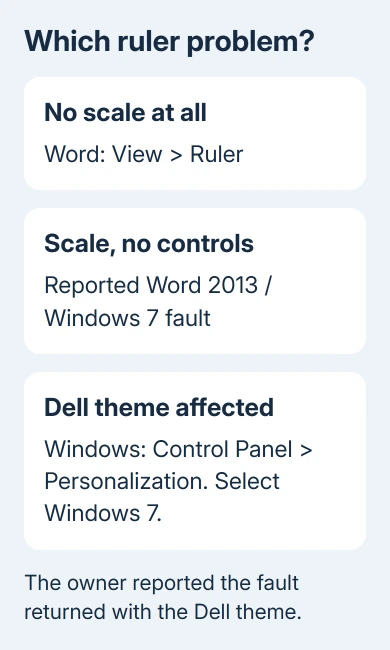
The Word ruler visibility guide covers the horizontal and vertical settings, including Mac differences. The theme fix applies when the ruler is visible but its indent markers or tab selector are missing.
Open a blank document and type one short paragraph. Click inside it and check the ruler again. If the controls are present in that file, duplicate the troublesome document before changing its layout or moving text into a new document.
If they're missing in every document, check Word or the display settings rather than one paragraph's indents. Try the theme check next if you're using Word 2013 on Windows 7, as in the original report.
2. Switch from the Dell theme to Windows 7
On Windows 7, close Word after saving your work. Right-click the desktop background, then select Personalize, or open Control Panel > Personalization. Note the selected theme so you know what was active.
Select the standard Windows 7 theme rather than the Dell-branded theme. Open Word again and inspect the horizontal ruler in the same document. Look for both the paragraph indent controls and the selector at the ruler's left end.
One owner got the controls back during a support session. They later reported that the fault returned when they selected the Dell theme again, while the Windows 7 theme continued working.
Leave that theme selected if it restores your PC's missing controls. The owner's later correction matters: switching themes and then returning to the Dell theme didn't keep the controls working.
This changes Windows' appearance, not the document's fonts, colors or paragraph indents. Design > Themes inside Word is a different setting. Changing the document theme won't reproduce the Windows theme workaround.
On Windows 10 or 11, Settings > Personalization > Themes is the current theme area, but those systems don't offer the same Windows 7 theme. Don't download an old theme pack to follow an instruction meant for another operating system.
On a newer PC, compare documents and use the display checks that apply to your Word version. The old report doesn't tell us whether changing themes will fix today's Word. Word 2013 and Windows 7 are also outside normal product support.
3. Use paragraph settings while the markers are unavailable
You can still set an indent by entering its size. Select the affected paragraph. On the Home tab, use the Paragraph group's small dialog launcher to open paragraph settings.
On Indents and Spacing, set Left and Right for the paragraph's edges. Under Special, choose First line or Hanging, then enter the amount in By. Select OK and inspect the paragraph on the page.
A first-line indent moves the opening line. A hanging indent places that line farther left than the rest. Choose the required layout instead of filling the start of each line with spaces.
Microsoft's indent controls describe those values. You can finish formatting this way while the ruler controls are unavailable.
If list levels won't change when you press Tab, the Word bullet indent fix deals with that separate behavior. A visible ruler and a working list-level shortcut aren't the same feature.
For tab positions, use Tabs in the Paragraph dialog when available. Tab stops control where the cursor goes when you press Tab; they aren't paragraph indent markers. A paragraph without custom tab stops still has indent controls.
4. Check the display without repeating failed repairs
The original report named Office build 15.0.4615.1002. Another person using that build still had a working ruler. The missing markers didn't affect all installations of that version.
The asker tried both repair modes without success. I'd try the Windows theme comparison before repeating repairs on a matching setup. Their successful change was the theme switch.
For Word 2013, File > Options > Advanced > Display can include Disable hardware graphics acceleration. A forum adviser suggested trying it temporarily, but the saved replies don't confirm it fixed this ruler fault.
Use that to check whether graphics acceleration makes a difference. Note the checkbox's starting state, change it, restart Word and check the same blank paragraph. Put it back the way it was if nothing changes.
Don't search indefinitely for that checkbox in current Microsoft 365 builds. The old Word 2013 setting isn't available in every modern edition. On a current system, have IT review Office support and the graphics driver instead.
5. Give support the theme comparison and a clear sample
If the markers are still missing, write down your Office and Windows versions and what happened in the blank document. Note whether the tab selector is also missing, or whether you simply don't see custom tab stops.
Send that description to your organization's help desk, or to Microsoft Support for a supported Office edition. A picture showing the whole horizontal ruler is more useful than a crop of an empty area with no Word window context.
For a legacy Windows 7 machine, ask the administrator about moving the document to a supported Office and Windows installation. Keep an unchanged copy of the file so its layout can be compared after the move.
The Short Version
Use View > Ruler for a missing scale. For the reported Windows 7 Dell fault, leave the standard Windows 7 theme selected: switching back brought the problem back. Enter indents through Paragraph settings meanwhile.
Checked November 16, 2026.






