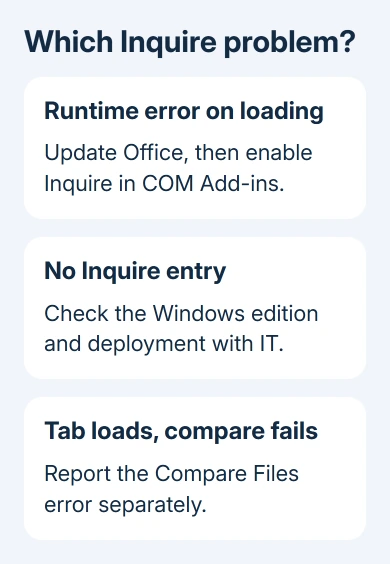
Excel's Inquire runtime error had a confirmed fix in an Office 2016 update. Install the available Office updates first, then enable Inquire under COM Add-ins. Repeated repairs didn't solve the original loading bug.
If Inquire isn't listed, check your Office edition and how it was installed before looking for replacement DLL files. Not every Excel license includes it.
If the message instead names 57121 during workbook startup, check the UserForm cell binding, rather than the Inquire loader.
In this guide
1. Update Excel before repairing the add-in
Save your work, then open File > Account > Update Options > Update Now in Excel for Windows. Choose Enable Updates first if that option appears. Let Office finish, then reopen Excel normally.
Microsoft's reply in the original Inquire runtime-error discussion identified 16.0.6528 or greater as the version containing the fix for that particular 2016 bug.
Open File > Account > About Excel to copy the full build number and the 32-bit or 64-bit label. Keep the product name from the Account page too. Those details help IT check which installation you have and how it gets updates.
That historical version number isn't a target for every Office installation. Different update methods use different build sequences. Don't downgrade a current installation or install an arbitrary old package just to match it.
Without Update Options, ask your administrator how that Office copy receives updates.
The Office update instructions distinguish installation types and managed updates.
Office 2016's support period ended October 14, 2025. The old fix still applies to affected installations, but if you rely on Office 2016, you'll need a supported replacement for future bug fixes.
Use the COM Add-ins controls next. Once the tab appears, open it and try the command you need. Loading the tab and successfully comparing two files are separate checks.
2. Select COM Add-ins, then enable Inquire
Choose File > Options > Add-Ins. At the bottom, change Manage to COM Add-ins, then select Go. Check Inquire and select OK. The expected result is an Inquire tab on the ribbon.
The Manage list also contains Excel Add-ins. That's a different list, so looking there can miss an installed Inquire COM add-in. Return to COM Add-ins before deciding it's missing.
If checking Inquire produces the runtime error again, copy the complete error text and its displayed location. Report it as a loading failure, with the version you recorded, rather than simply saying the ribbon button disappeared.
An inactive entry means Excel knows about the add-in but hasn't loaded it. Checking its box tells Excel to load it. If the error returns immediately, turning it on hasn't fixed the loading problem.
For other tools that appear in a different list, use the Excel add-in installation controls. Store add-ins, Excel add-ins and COM add-ins don't share one installation switch.
Once the tab appears, close and reopen Excel normally and check again. If it disappears on every launch, tell IT that activation lasts only until Excel closes. A tool that works only for the current session still needs attention.
3. Check the edition when Inquire isn't listed
Open File > Account and read Product Information. Don't rely on the Windows shortcut saying Excel 2016; that tells you the version, but not which edition you're licensed to use.
The current Inquire availability page limits the feature to Excel for Windows in Microsoft 365 Apps for enterprise and equivalent editions.
It also notes that an administrator can make it unavailable.
The original thread specifically involved Professional Plus 2016. Later replies describe people who couldn't find the entry at all. That doesn't mean the runtime-error update adds Inquire to every edition.
Have workplace IT compare your assigned license with the installed product and confirm that Inquire is included.
If your edition doesn't include Inquire, or IT left it out of the installation, changing ribbon settings won't install it.
These activation steps apply to Windows desktop Excel. Excel in a browser and Excel for Mac don't offer this Windows COM Add-ins route. Use a suitably licensed Windows installation when the task requires Spreadsheet Inquire.
If the edition qualifies and the entry is still absent, have IT review the deployment or repair the installation. That's a different report from an installed Inquire entry that shows the runtime error.
4. Skip another reinstall for the historical loading bug
Repair, Online Repair and a complete reinstall all left the original asker with the loading error. One owner also reported that repair and registry changes hadn't helped.
Updating the affected build is the useful first step for that old bug.
Several owners restored Inquire by changing from 32-bit to 64-bit Office. The product-team reply described that as a temporary workaround before the update, while warning that other add-ins might require 32-bit Office.
I'd update your existing Office installation before replacing the whole suite. Switching between 32-bit and 64-bit affects other Office tools too. Some owners in the thread also had 64-bit problems that needed different follow-up.
Don't copy NativeShim.dll from Office 2013 into an Office 2016 folder. The asker had already tried transferring older files; that wasn't the announced repair.
Give IT the folder path shown in the error so they can check your installed files.
If Excel also fails to open ordinary workbooks, follow the Excel file-opening checks. A general application failure needs broader repair than an Inquire-only loading error.
5. Report a comparison failure separately
When Inquire loads but Compare Files fails, say exactly that. Later posts in the thread described this different situation even on builds newer than the announced loading fix.
When Inquire still won't load
Send IT the full Excel build, licensed edition, architecture, error text and whether the Inquire tab survives reopening. Include whether an ordinary workbook opens, and whether the failure begins before or after choosing files.
For Office 2016, ask IT for a supported replacement that includes the required comparison feature.
For a supported enterprise installation, ask IT for an Office support case about the failed step: loading the COM add-in or starting a comparison.
The Short Version
For the historical loading error, apply Office updates before enabling Inquire through COM Add-ins. A missing entry needs an edition or deployment check. A working tab with a failing Compare Files command needs a separate report.
Checked November 16, 2026.