

Office 2013's yellow Account Error triangle can appear while Excel shows you're signed in. Open Word, choose File > Account > Switch Account, and enter the same account again. Owners confirmed that this cleared the warning.
The message Sorry, we can't get to your account right now means Office can't connect to your account. A title bar saying Unlicensed Product needs a different check. Start with the account switch when the warning requests a fresh sign-in.
In this guide
1. Refresh the account through Word
Save your open spreadsheets, then open Word 2013. Choose File > Account and look for Switch Account beside your signed-in account. Select it and enter the address and password for the account already listed.
Use Switch Account for this attempt. An owner in the original account-error thread cleared the warning with that button rather than signing out first.
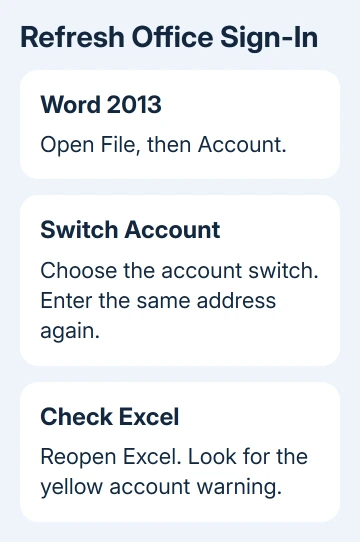
Let the sign-in finish, then switch back to Excel's account area. Close and reopen Excel after saving if its window hasn't changed. Success means the triangle disappears and the account page stops asking for another sign-in.
Other Office 2013 owners, including those using Office Professional, confirmed that it worked too. That makes this a useful first attempt even when Word itself looks healthy and Excel is the only app showing the triangle.
I'd try this before changing anything in Windows. It refreshes the account through Office's own controls, and you can check the result immediately without removing saved passwords or changing your Windows profile.
If the password is rejected, stop repeating the switch. Next, check whether your account can't sign in or Excel is still showing an old warning after a successful sign-in.
2. Follow the message after signing in
Watch what happens after entering the address. An unrecognized account, an incorrect password and a verification-code request are different problems. Write down the message you see, since each sign-in problem needs a different response.
For an address that Microsoft doesn't recognize, check the spelling and whether Office was bought with another address. For a password error, use the password-reset option offered by the sign-in screen for that account.
A work or school address belongs to your organization's sign-in system. Ask its administrator about a rejected password or blocked account. A personal account with the same-looking address can't take the place of your organization account.
The broader Microsoft account sign-in checks help when the address, password or verification step fails. Once sign-in succeeds, return to the Excel warning rather than continuing account recovery.
For a company installation, send IT the account address and error text, but never the password or a verification code. Include whether Word accepts that same account. That comparison tells them whether Excel alone is behaving differently.
If Word accepts your sign-in details and Excel still shows the triangle, your next useful check is the product information. A successful login doesn't identify the installed Office edition or its license owner.
3. Check Windows sign-in after a password change
If the warning began after a Microsoft account password change while you use a Windows PIN, check that connection too. One owner cleared it by signing in to Windows with the new password, then returning to PIN sign-in.
Save the changes in your apps, then sign out of Windows. At the sign-in screen, choose the password method under Sign-in options if offered. Enter the new account password, open Excel and check the warning.
Some PCs allow only Windows Hello sign-in. If the password choice is missing, ask IT before changing that policy. This is a narrower owner workaround for a password-change case, so skip it when no password changed.
4. Check whether this is also a licensing warning
In Excel, open File > Account and read Product Information. Note the edition and any activation message. Compare that with the small account warning so you don't confuse a connected-account problem with an unactivated product.
The asker later corrected the product name to Office Home and Business 2013, with a permanent license. Read the full product name; Office alone doesn't tell you which license the installation uses.
Check the purchase record or ask whoever set up Office which identity belongs to the purchase. Microsoft's account guidance explains how personal accounts differ from organizational identities.
For Unlicensed Product or disabled editing, follow the Office licensing checks. Those help check whether your license lets you use Office. Switching an account can't renew an expired subscription or supply a missing license.
If Product Information shows an activated product and spreadsheets still edit normally, keep the problem focused on the account connection. Don't buy another license just because the triangle remains after one unsuccessful attempt.
Write down both results before continuing: whether sign-in completes and whether Office reports an activation problem. Support can then address the account connection instead of guessing from Excel's general warning.
5. Keep old password and registry advice in context
Older replies suggest removing saved credentials or changing registry entries, but other owners reported failed remedies. Those suggestions aren't interchangeable with the confirmed Switch Account fix.
Stored Windows sign-ins can belong to other services too. If IT recommends removing a credential, ask which exact entry they mean and which account will need signing in afterward.
Leave Office's identity registry entries to an administrator with a plan for this installation. A forum path containing another person's address isn't a ready-to-run instruction for your PC.
At this point, work out exactly what still isn't working. Can Excel open and save a local workbook? Does Word accept the account? Does the warning return immediately, or only after reopening Excel?
Those answers help separate a persistent notification from a failure that prevents work. Keep saving local work normally while you arrange help with the account connection, provided Office still allows editing and saving.
Decide how to handle an unsupported Office installation
Office 2013 is retired. Owners confirmed the account switch worked when that edition was current. It isn't a new repair update. Repeating old fixes won't restore its support status or modernize its connection to online services.
For a company PC, give IT the edition, activation state and account-switch result. Ask which supported Office version the computer and organization can use, and whether they need to change the account setup.
For a personal installation, check current Office system requirements before buying a replacement. Keep your documents and license records, and plan the change around your PC's supported Windows version.
The Short Version
Use Word 2013's Switch Account control to enter the existing identity again. If the triangle remains, check whether sign-in is failing or Office is showing an activation warning. Give IT that result and plan a supported Office replacement.
Checked November 16, 2026.
 If you have any business, I can build it online






