

A missing OneDrive Download button often means the folder isn't selected or the page lost the control after a refresh. Go to the folder's parent location, select the circle beside its name, and choose Download.
A selected folder downloads as a ZIP archive.
If the ZIP download starts but fails, check its contents: file-count limits, protected files or a OneNote notebook can prevent a complete download. The old advice that OneDrive for Business can't download folders is out of date.
In this guide
1. Select the folder from its parent location
Open the folder's parent location in OneDrive on the web. Select the circle beside the folder name rather than clicking its name to open it.
Look for Download in the top navigation, or right-click the selected folder and choose Download.
The current folder-download procedure supports downloading folders from OneDrive and supported SharePoint services.
The button appears when files or folders are selected.
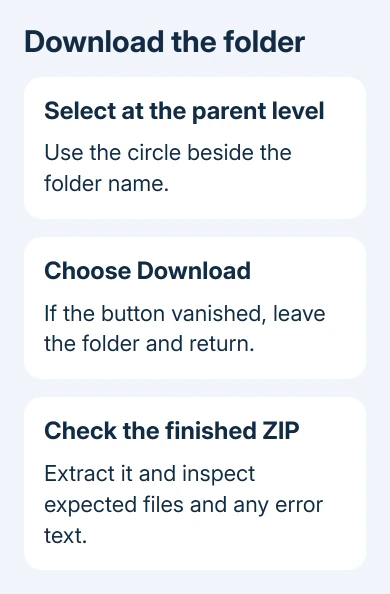
If you're already inside a folder, going up a level lets you select the folder itself. Selecting the items inside instead downloads that selection. Check which names you've selected before starting a large download.
When offered a destination, choose Save or Save As and select a local folder. Some browsers save automatically to Downloads. Open the browser's downloads list to check whether the ZIP is still transferring or has finished.
If one ordinary file produces no transfer either, check the inactive OneDrive download before reducing the folder size.
Afterward, extract the ZIP and open a few expected files. Don't assume every file made it into the ZIP just because the download finished. An error text file can explain a missing item.
If your goal is a separate local backup, save outside the synced OneDrive folder. The OneDrive file-state guide explains why keeping a synced file offline differs from making an independent copy.
If Download never appears after selection, try the page-refresh fix next. If the archive starts and then fails, move to the size and file-type checks.
2. Leave and reopen a page that lost Download
Go up one folder level and then return to the affected folder. Select the required folder or files again. Alternatively, close that browser tab and navigate back to the folder in a new tab.
Microsoft lists this workaround for a Download button that disappears after a page refresh. It refreshes the folder view without changing the contents or asking the owner to create a new share.
Try a small ordinary file from the same location. If that downloads but the folder doesn't, you know your account can download at least that file. The folder selection, its contents or the ZIP limits may still be causing the problem.
Use current Edge or Chrome for OneDrive for work or school folder downloads. Internet Explorer isn't supported for downloading folders or multiple files from that service. Installing it isn't the solution to a missing modern button.
If the folder belongs to someone else, check how you reached it. The Shared view has different download behavior from the folder's actual contents, which is the next distinction to make.
3. Open shared items instead of downloading the list
The Shared view isn't an ordinary folder containing local copies of everything listed. Current guidance says files can't be downloaded directly from that view: open the file and save a copy in your chosen location.
For a shared folder, open its invitation and inspect the folder contents. Ask the owner whether downloading is allowed if that control remains unavailable. A viewing permission isn't the same thing as permission to change the original.
Use the OneDrive sharing controls to check the audience and access the owner intended. Don't ask them to create a public link just to troubleshoot a private download.
For folders you use regularly, adding and syncing the shared folder can be easier than downloading a ZIP each time, if your account and the share offer that option. IT can help with a managed work folder.
Keep the difference clear: a downloaded copy becomes separate from later changes to the shared original. Editing that copy doesn't automatically update the document your colleagues are using.
If the invitation won't open the file at all, resolve access with the owner before testing archive limits. A download retry can't restore permission that was removed.
4. Reduce a download that exceeds the archive limits
Try downloading a smaller group of files from inside the folder. The documented limits include a 250 GB file-size limit, a 10,000-file total selection limit, and a 10,000-file folder limit.
A download near those limits can still take time. Check the contents and available local storage before starting another large archive, especially when the folder contains many small files.
For multiple already-compressed files, including ZIP or MP4 files, the documented limits are 10 GB per ZIP and 20 GB overall. A group of recordings can hit those restrictions even when individual files download successfully.
I'd try a small batch before repeatedly downloading the whole folder. If that succeeds, retrieve the remaining groups separately and keep track of which ones completed. Leave the cloud files in place while you build your local copy.
Some protected files larger than 4 MB can be left out of ZIP downloads. This can affect files encrypted by sensitivity labels or information rights management, which control who can use them.
Download an affected file separately and ask IT for help if its protection still blocks access.
Don't remove a company's protection label to force an archive download. Send IT the affected filename with its error, and ask which retrieval method its protection allows.
5. Handle OneNote and older SharePoint separately
A OneNote notebook can't be downloaded using this ordinary folder-download route. A ZIP containing a notebook may contain a text file with an error instead of a usable notebook. Open that message before assuming the archive is damaged.
Retrieve the ordinary documents separately and ask the notebook owner or IT for the appropriate notebook backup or transfer method. Repeatedly extracting the same archive won't turn its error message into the notebook.
Also check the service. SharePoint Server 2019 doesn't support downloading multiple files or folders this way. SharePoint on your organization's own servers has different download support from OneDrive or SharePoint in Microsoft 365.
The 2016 folder-download discussion suggested Internet Explorer's Open with Explorer because folder downloads weren't available there then.
An owner confirmed that historical workaround worked.
Current OneDrive guidance now supports folder downloads and tells work or school users to use Edge or Chrome. Use today's Download control instead of trying to recover the old classic ribbon.
When a small folder still won't download
If a small permitted folder still fails, send personal OneDrive support or workplace IT the exact error, account type, browser, folder size and approximate file count.
Include whether one file downloads and whether the same folder fails after reopening its tab.
The Short Version
For a folder ZIP, use Download after selecting the folder at its parent location. Reopen the view if the button disappeared. For failed ZIPs, use smaller selections and check protected files, notebooks and the SharePoint service type.
Checked November 16, 2026.






