

OneDrive's Download button can seem inactive when the browser saves silently or blocks the file. Press Ctrl+J to check Downloads. A completed entry, a failed transfer and an empty list need different fixes.
Start with one ordinary file you own. Folder archives, protected items and missing buttons have separate restrictions.
In this guide
1. Check whether the file already downloaded
Select a single PDF or document in your OneDrive file list and choose Download. Then press Ctrl+J in Edge or Chrome. Look for its name and the time you tried downloading it, rather than waiting for a Save As window.
A browser can save without asking where. If the entry says it finished, select its folder button and check the saved file. If that copy opens, OneDrive successfully delivered it.
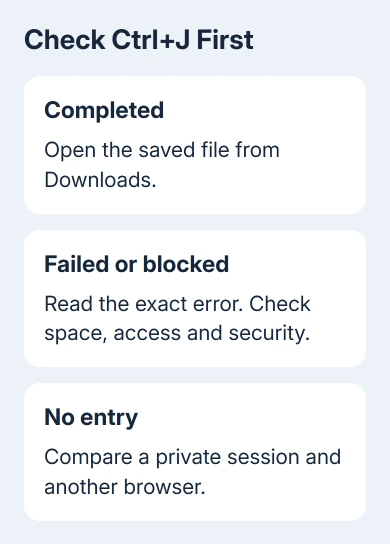
Let an active transfer finish; read the error on a failed one. If Downloads has no new entry, check the file selection, then compare a fresh session. The browser hasn't recorded a transfer yet.
Select the file from its parent folder instead of the preview toolbar. For a missing button or failing folder, use the guide for OneDrive folders that won't download. Those cases have separate selection and archive restrictions.
2. Follow the error recorded in Downloads
A security block and a full destination drive need different fixes. Expand the failed download or its menu and read the complete message. Save the wording in case you need your workplace IT team to check it.
Disk full means the destination drive needs free space. Insufficient permissions points to a location your account can't write to. A Network error means the transfer was interrupted, while Forbidden can point to an access restriction.
For an unsafe-file warning, keep it blocked and open Windows Security > Virus & threat protection > Protection history. A trusted sender can still share an infected file. Ask them for a clean replacement if a threat is reported.
Microsoft says download failures can come from the destination, security settings, policy or network. Follow the advice for the error you see. Don't turn off protection just to push an unexplained download through.
If a work browser reports an organizational restriction, give IT the complete wording. A missing permission can't be repaired by clearing cookies, and a managed download policy needs the administrator who controls it.
3. Retry in a fresh browser session
In Edge, choose Settings and more > New InPrivate window. In Chrome, choose the three-dot menu and New Incognito window. Use your usual OneDrive account, then retry the small file.
The private window starts without the OneDrive site data stored in your normal window. Extensions usually stay off unless you allowed private browsing. If it works here, check your normal browser profile, extensions or site data.
In the normal browser, temporarily disable page or download filtering extensions. Use Extensions > Manage extensions in Edge, or Extensions > Manage Extensions in Chrome. Retry after each change to find the extension responsible.
If an extension caused the failure, configure it to allow OneDrive or contact the extension maker. Restore unrelated protection afterward. If private browsing also fails, compare another installed browser before deleting saved browser data.
One owner reported that Edge and Chrome both failed even after clearing cookies. They didn't confirm that the accepted reply fixed it. Use this check to narrow down the problem rather than assuming it's caused by cookies.
4. Choose a download folder that works
Open Edge > Settings > Downloads, or Chrome > Settings > Downloads. Check the location shown there. A disconnected external drive, unavailable network folder, or old destination can prevent a download even when OneDrive opens normally.
Choose a writable local folder as the new destination. In File Explorer, open that folder and try creating a small text file there. If you can't save locally, solve that permissions or storage problem before retrying the cloud download.
Try downloading a harmless file from another trusted site as a comparison. If that fails too, the trouble extends beyond OneDrive. If only OneDrive fails, keep the working destination and continue with account access checks.
I'd keep this test to one small file. It gives a cleaner result than repeatedly requesting a large folder ZIP while changing settings. Once the single file works, larger downloads can be tested separately.
5. Separate shared-file restrictions from browser failure
Compare your own file with the failing shared item. If only the shared item fails, ask its owner whether downloading is permitted. Permission to view a file doesn't always include permission to download it.
For work or school files, the owner or administrator may have restricted downloading. Give them the file's sharing link and the account you're using. Ask whether that link permits downloads and whether any access policy blocks this device.
Don't install old Outlook or SharePoint plug-ins to repair modern browsers. The 2023 accepted reply suggested them, but the owner was still asking where to get them afterward. They didn't report that it worked.
If the fault affects your own files in more than one browser, try another permitted network. That result tells IT which connection to check for filtering. A failure everywhere needs the account or service checked next.
When a small personal file still won't download
Use OneDrive's Help options for a personal account. For workplace storage, give the Microsoft 365 administrator your filename, account, attempt time and browser error. Ask them to check download access.
If you already have a working sync app, copy an available file from its local OneDrive folder to another local folder. Check that copy opens. The OneDrive setup guide covers installing the app when you need that alternative.
The Short Version
Read Downloads with Ctrl+J and follow its error. Compare a private session and writable destination. Ask the owner about a failing shared file; send support the results when your own small files also fail.
Checked November 17, 2026.






