

When OneDrive sharing commands disappear, check its folder and Finder extension. Open the file inside the active OneDrive folder first. The Mac's Share menu differs from OneDrive's link-sharing command.
An older Mac discussion also tied missing commands to Files On-Demand. That setting changed across OneDrive releases, so don't hunt for a 2019 checkbox on a current installation before checking the app and extension.
In this guide
1. Open the file inside the active OneDrive folder
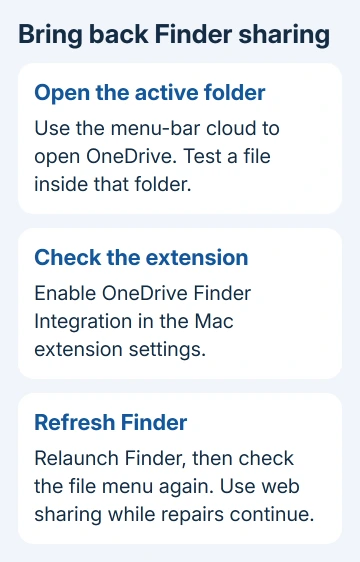
Select the menu-bar OneDrive cloud, then use its folder control to open the synced location. Choose the account holding the file if more than one cloud is present. Control-click a file inside that folder.
Look for a OneDrive sharing command, rather than only the Mac's general sharing choices. The wording can vary with the app release. An old guide may call it Share link, but your version can use different wording.
A copy in Downloads, an email attachment or an old folder left after disconnecting an account isn't necessarily in the active sync location. Open the folder through the running app; an old shortcut might point elsewhere.
Check whether the cloud reports a sign-in problem or paused sync. Finish sign-in if requested. Files can still appear in Finder even when the running app isn't connected to the account that owns them.
If that folder has the sharing command, use that location from now on. If it's still missing while the app is signed in, check Finder integration next. If OneDrive itself won't open, repair the app connection first.
2. Enable Finder integration for your macOS version
Microsoft's Mac setup instructions include enabling OneDrive Finder Integration so Finder can show its sync tools and overlays, the small status marks beside files.
On macOS versions with System Preferences, open Apple menu > System Preferences > Extensions. Select the Finder extensions area if shown and enable OneDrive Finder Integration.
On recent macOS releases, open System Settings > General > Login Items & Extensions. Find OneDrive in the extensions list and enable its Finder checkbox or switch where offered.
The extension must belong to the OneDrive app you're using. If it isn't listed, launch OneDrive in Applications, then complete account setup before returning to Extensions. Sharing needs both the app and its extension.
After changing the setting, close and reopen the Finder window. If its commands still don't refresh, save any file operations, press Option-Command-Esc, select Finder, and choose Relaunch.
Reopen the active OneDrive folder and check the same file. Restored status marks and a OneDrive share command show that Finder is using the integration. If sync works but sharing still doesn't, check the app version next.
3. Treat the old Files On-Demand fix as version-specific
The 2019 missing-link discussion contains a support reply reporting that enabling Files On-Demand, then relaunching Finder, restored status icons and link sharing on another Mac.
The asker had already said files were syncing online. Since their files already synced, repeatedly changing passwords wasn't the next thing to try. Check the account connection and Finder integration separately.
The reply describes a successful support test on another Mac. The asker left no follow-up confirming whether their own Mac worked afterward. For a current installation, start with the Finder integration steps.
On older releases with a Files On-Demand checkbox, check that setting in the app's preferences. Its absence on a current release isn't a fault. The storage controls and macOS file-provider system have changed.
Use the OneDrive settings guide to distinguish storage behavior from account settings. Changing which files stay downloaded is different from granting somebody access to a document.
4. Update the Mac app you actually use
Open Finder > Applications and check which OneDrive copy you use. For the store edition, use App Store > Updates. If you installed it directly or your company manages it, you'll need its update method instead.
Follow the OneDrive update steps for that installation. Installing another copy over a confusing setup can leave you opening one app while checking another app's extension.
The Mac sync troubleshooting page says running standalone and App Store versions side by side isn't supported. Have IT tidy up a managed installation rather than deleting company files yourself.
Restart OneDrive after updating and let it finish signing in. Open its folder, then check the context menu again. If Finder sharing returns, keep using the account and folder that now work.
For an unsupported old macOS version, check the current OneDrive requirements before downloading an installer. Updating the app depends on the operating system too. An installer for a newer app still needs a compatible version of macOS.
5. Share online during the repair
Open the same account's OneDrive website and locate the file. Select it and choose Share. Review the recipients and permission before copying a link; an existing link can grant different access from a new invitation.
If online sharing works, you can send the file without waiting for Finder's menu to recover. Tell support that web sharing works. It helps them focus on the Mac app and extension rather than whether the file is available online.
If sharing is unavailable online as well, ask your organization's administrator whether your role or sharing policy permits it. Finder integration can't override an owner's permissions or a work account's external-sharing restrictions.
Test a new document in your own OneDrive as well as the shared folder. Let support know which of those documents you could share. That comparison can narrow the problem to a document's permissions or sharing across your account.
For a continuing Finder-only fault, contact OneDrive support with your macOS version, OneDrive build, installation source and whether the Finder extension appears. Include whether status icons are missing and whether web sharing works.
The Short Version
Restore sharing by checking the active OneDrive folder, its Finder extension and the app version. Files On-Demand helped a 2019 support test; use web sharing while a current Finder-only fault is repaired.
Checked November 16, 2026.
 If you have any business, I can build it online






