

Excel 2016 had a bug that left Power Query stuck loading even a simple CSV into the Data Model. Update Office first, then check the query's load destination. The asker confirmed that a February 2020 update got loading working again.
A query that never finishes and one saved as a connection without a model table need different fixes. A third case is a model load that finishes eventually but takes much longer than a worksheet load.
In this guide
1. Update the affected Excel installation
Open Excel and choose File > Account. Note the product name, then open About Excel for the version and build. The Office16 installation folder alone doesn't identify Excel 2016, because later Office products use that folder name too.
Under Product Information, choose Update Options > Update Now. When Enable Updates appears instead, select it before checking for updates. Finish updating, exit Excel, then open the workbook again and retry the model load.
A missing Update Options button can mean company-managed updates or volume licensing. Ask IT which update method Office uses. Use Microsoft Update if that's how your installation gets updates, rather than a random downloaded patch.
The historical report involved Excel 2016 installations that stopped loading data in late 2019. One owner listed Version 1910 Build 12130.20390. The asker's February update restored loading.
Don't use that old affected build as a target to install. Office 2016 and Office 2019 reached the end of support on October 14, 2025. If Excel 2016 still won't load the model, plan an upgrade with IT. A new 2016 fix is no longer an option.
2. Add the query to the model, not just the connections list
In Excel, open Data > Queries & Connections. On older Excel 2016 layouts, the query pane may be labeled Show Queries in the Get & Transform group. Find the query and right-click it, then choose Load To.
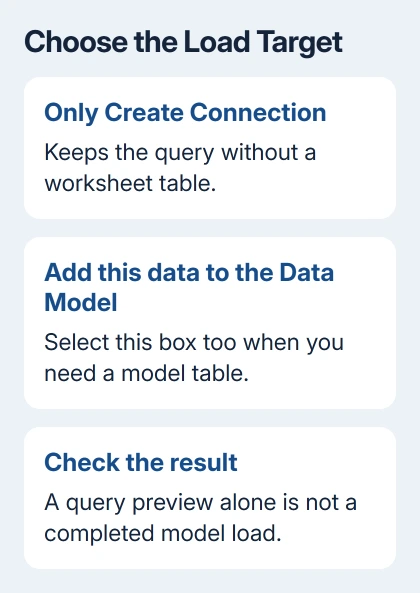
In Import Data, select Only Create Connection if you don't want a worksheet table. Also select Add this data to the Data Model, then choose OK. Without that checkbox, a connection alone won't create a model table.
Inside Power Query Editor, the corresponding route is Home > Close & Load > Close & Load To. These controls choose where Excel stores the result. Seeing data in the editor's preview doesn't mean it has reached the model.
The query loading instructions also cover a dimmed Load To command. Close and load the query first, then right-click it in the worksheet's query pane and choose Load To there.
When loading finishes, open Power Pivot > Manage if your edition has that add-in enabled. Look for a tab with the query's table name. Seeing the query in the connections list doesn't tell you whether its rows reached the model.
If Power Pivot isn't available, ask IT whether your Office edition includes it and whether it's enabled. The missing tab alone doesn't show a frozen import. Check the feature separately from a load that starts but never finishes.
A working model window with an unresponsive import button needs the From Other Sources repair, which addresses a different regression.
3. Compare a small worksheet load with the model load
Keep an untouched workbook copy before editing query settings. In a new workbook, import a small local CSV through Data > Get Data > From File > From Text/CSV. Older ribbons may show New Query > From File > From CSV.
Choose Load To and load the query to a worksheet first. If it completes, repeat with a copy of that query and choose the Data Model destination. Use the same source file and query steps so you're comparing only where the data loads.
A failed worksheet load points you toward the file, permissions or query steps before the model. A worksheet load that succeeds while the same tiny model load stalls is the pattern to report as a model-loading problem.
I'd make this small comparison before rebuilding a complicated workbook. It can show whether you're dealing with a general model problem or just one report, without changing the relationships and calculations your real workbook needs.
For a broader freeze during retrieval or Refresh All, the Excel query refresh guide covers cancellation and connection errors. Keep checking the model load here if the worksheet loads correctly but the model doesn't.
4. Change an expensive Contains filter when the result allows it
If the model eventually loads but takes much longer than the worksheet, open the query editor and review Applied Steps. Look for a filter using Contains on a text column or a column containing Lists, which are collections of values.
That particular filter can make Excel read the data set repeatedly for each row and prevent efficient use of multiple processing threads. The query-loading help page recommends trying Equals or Begins With instead.
Use Equals when the whole value must match, or Begins With when the value must start with that text. Neither means finding text anywhere inside it. Compare the returned rows before keeping the change.
If the filter needs Contains to return the correct records, leave its meaning intact and discuss another query design with whoever maintains the workbook. A faster import that drops required records isn't a successful repair.
5. Report the remaining failure with a small sample
If your company manages Office, send IT the product name, build, Windows version and both test results. Include whether the query preview works, whether worksheet loading works and whether Add this data to the Data Model was selected.
Provide a small CSV without private records and a workbook that repeats the failure. Ask IT to test it in supported desktop Excel. They can then try the same load themselves instead of guessing from a report that Excel is slow.
If loading succeeds but the resulting PivotTable rejects its source, use the PivotTable source checks. That's a later stage than the stalled import covered here.
If the imported model works but chart-containing files fail after an Office update, check Excel chart loading before rebuilding that model.
The Short Version
Restore the model load by updating Office and selecting Add this data to the Data Model. Compare a small worksheet load with a model load. Review Contains filters for slow loads. Move Excel 2016 work to supported Excel with IT.
Checked November 16, 2026.
 If you have any business, I can build it online





