
Word's Dictate button needs an active Microsoft 365 subscription and the right account. Check those first, then look on Home in an editable document. The Mac's separate Start Dictation command doesn't restore Word's button.
A missing button and a visible button that can't hear you need different fixes. Work through the account and app checks for a missing control. Move to microphone permissions only when Dictate is present but won't record speech.
In this guide
1. Check the account that activates Word
Open Word > About Microsoft Word and note the version and license information shown. Check the account signed into Word as well. A work email in a document's sharing list isn't necessarily the account activating the app.
Microsoft's dictation instructions say the feature requires a Microsoft 365 subscription. A one-time Office purchase doesn't include every feature you get with a Microsoft 365 subscription.
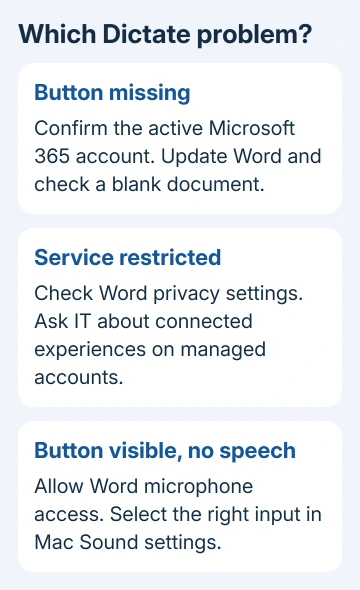
Use your subscription account to activate Word. For a work or school installation, ask IT whether that account's license includes the desktop apps and whether speech services are allowed by your organization's settings.
A missing Dictate control isn't a reason to purchase a second subscription. First have the account owner or administrator confirm the existing license. Two Macs with similar-looking Word versions can be activated by different accounts.
Once the correct account is signed in, reopen Word and an editable document. If Home > Dictate appears, select it and allow microphone access when asked. If it remains missing, check the app and document next.
To convert an existing recording, find Word Transcribe in the supported web app; Dictate is a separate speech-entry feature.
2. Use a current app and an editable document
Choose Help > Check for Updates in Word. For a Microsoft-downloaded installation, this opens Microsoft AutoUpdate. For the store edition of Word, check App Store > Updates instead.
Save your work, install the offered update and reopen Word. Use the Office for Mac update instructions if AutoUpdate doesn't open or your organization manages updates.
Select File > New Blank Document and click in the document body. Expand the Word window so you can inspect the Home ribbon. Check its overflow controls if the window is narrow and commands have been tucked away.
Use a document you can edit to check dictation. In a shared document, confirm you have editing permission. In a new blank document, you can check the button without your original file's permission limits getting in the way.
If the button appears in the blank file, return to the original document and check whether it is read-only. If it is missing everywhere with the correct subscription account, keep going with the account's privacy settings.
The Word for Mac equation-tool guide covers another missing command whose old instructions don't match modern Word. Adding an unrelated object or add-in won't bring Dictate back.
3. Check whether connected speech services are allowed
Dictate uses an internet connection to turn speech into text. Office calls features that use an online service connected experiences. They don't work entirely inside the document on your Mac.
Open Word > Preferences, then Privacy under Personal Settings. Choose Connected Experiences > Manage Connected Experiences where shown. Check Turn on experiences that analyze your content.
Your company may control these settings. Ask IT whether experiences that analyze content are permitted for Word dictation. Changing unrelated diagnostic or advertising preferences won't bring back the speech feature.
After changing a privacy setting, reopen Word and check the blank document. If the button returns, the account or app setting was part of the problem. If nothing changes, tell support exactly which settings you checked.
Once Dictate appears, a reliable connection matters too. For a connection error, check whether other online Office features work. Tell IT if dictation fails only on the organization's network.
4. Fix microphone access when Dictate is visible
Select Home > Dictate and wait for the listening indicator before speaking. If a permission request appears, allow Word to use the microphone. Say a brief sentence, then look for its text in the document.
On recent macOS releases, open Apple menu > System Settings > Privacy & Security > Microphone. Allow Microsoft Word if it is listed. On older releases, the route is System Preferences > Security & Privacy > Privacy > Microphone.
Then check System Settings > Sound > Input, or System Preferences > Sound > Input on the older interface. Select the microphone you're actually using and check whether speaking moves the input meter.
If the input meter stays still, fix the microphone selection, mute control or connection before changing Word. A Bluetooth headset can be connected for playback while another input is selected for recording.
If the meter responds but Word can't hear you, quit other apps using the microphone and reopen Word. The Office dictation troubleshooting page separates microphone detection from missing-button problems.
Use these microphone checks once Dictate appears. Microphone access won't replace the Microsoft 365 license Word needs for that feature.
5. Use Mac dictation separately or send a precise support case
For text entry without Word's own button, macOS Dictation is another option. It has its own setup and shortcut. Use the Mac dictation steps for enabling speech input and choosing its microphone.
In Word, click the editable document body and use Edit > Start Dictation when that command is available. This starts the operating system's speech input. It won't tell you whether Word's own Dictate feature is working again.
The 2019 discussion mixed those two features during an early rollout. One owner could use Word web dictation in Chrome but not Safari; that historical result isn't a current browser requirement.
I'd keep the support request focused on Word's own Dictate control if that's the feature you need. Include the Word build, macOS version, license type and whether the button is also missing in a new blank document.
For a work account, ask IT to confirm the assigned license and connected-experience policy. For a personal subscription, use Help > Contact Support if available in Word, or Microsoft Support's Microsoft 365 account and app support route.
The Short Version
Check the Microsoft 365 account, update Word and open Home in a blank document. Check connected experiences for a missing button, or microphone access for a visible but silent button. Mac dictation is a separate text-entry option.
Checked November 16, 2026.






