Mac Dictation lets you type by speaking into your microphone. Enable it in System Settings > Keyboard, click inside the text, then choose Edit > Start Dictation. Speak after the listening indicator appears.
This is for entering text into an app, not recording an audio file. Voice Control is the separate choice when you also want spoken commands to operate the Mac.
In this guide
Enable Dictation and choose the right microphone
Open the Apple menu > System Settings > Keyboard. Scroll to Dictation, turn it on, and confirm Enable if asked. On older macOS releases with System Preferences, look under Keyboard > Dictation instead.
Sharing recordings to help improve Dictation is a separate choice. Select Not Now to decline sharing. You can still use Dictation without sharing them.
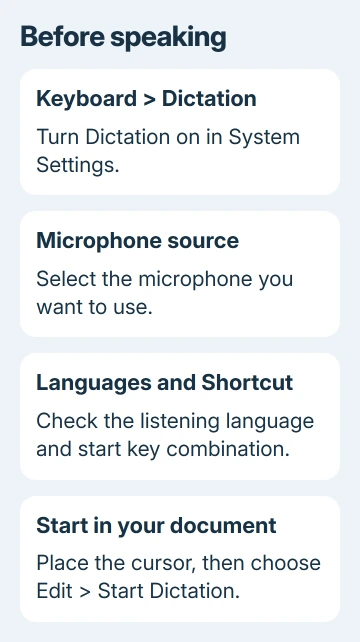
Check Microphone source in the Dictation section. Select your preferred microphone, or leave Automatic selected to let macOS choose the input. A headset can be selected even while you're looking at the laptop's built-in screen.
This matters when an external display, dock, or headset changes your audio setup. Speaking toward the Mac won't help much if the selected microphone is across the desk or muted on the headset.
For privacy details, read the text in Keyboard settings while Dictation is enabled. It tells you whether general text inputs are processed on the device. Where your words are processed can depend on the Mac and how you're using Dictation.
Put the cursor in the document and start listening
Open an app such as Notes or TextEdit and click in an editable text area. Look for the text cursor before starting; it shows where your spoken words will go.
Choose Edit > Start Dictation from the app's menu. Or, press and release the keyboard's microphone key when it has one. Holding that key can open Siri instead, so use a quick press for Dictation.
Wait until the cursor highlights and pulses, or the Mac plays its ready tone. Speak a short sentence at your normal pace. Check that words appear at the cursor; the microphone indicator alone doesn't tell you that text is being entered.
I'd try a harmless note before dictating into a message addressed to someone else. It's a quick check of your microphone and language without putting unfinished words into a conversation.
With an Apple silicon Mac, you can type while Dictation remains active. The cursor stops pulsing while you're typing and resumes afterward. For an Intel Mac, finish the spoken passage and stop Dictation before making keyboard corrections.
The Mac shortcut guide explains how menu commands display their key combinations. Check your shortcut setting rather than assuming every Mac uses the same keys.
Speak punctuation and paragraph breaks
Say a punctuation command when you need a specific mark. For example, say comma, question mark, or exclamation mark. Use new line for a line break and new paragraph to begin another paragraph.
Those line and paragraph breaks appear when you finish dictating the passage. Give the text a moment to settle before deciding that a spoken formatting command was inserted as ordinary words.
In supported languages, Dictation can add punctuation automatically. If it keeps inserting marks where you don't want them, return to System Settings > Keyboard > Dictation and turn off Auto-punctuation.
Apple lists more choices in its dictation command reference, including symbols and capitalization commands.
Pick the few you actually need instead of trying to learn the entire list before writing a note.
Keep names, addresses, and unusual technical terms in mind when reviewing the result. A word can have perfect spelling and the wrong meaning, and Dictation doesn't know what you intended to tell the recipient.
Stop, correct, and move the finished text
Press Escape, the microphone key, or your Dictation shortcut to stop. Dictation also stops automatically after 30 seconds without hearing speech, so restart it if you pause to think and the listening indicator disappears.
Read the passage from the beginning. For a word the Mac marks as uncertain, click it and look at the suggested alternatives. Choose the intended word, or select and replace the text yourself.
Correct punctuation and paragraph breaks as part of that read. A long stream of accurate words can be difficult to read when it lacks the pauses and structure you meant while speaking.
To move a passage into another app, select it and use the Mac cut-and-paste controls. Check the receiving text field before pasting so the passage doesn't replace the wrong selection.
Take a moment to check the text before sending a message or submitting a form. Dictation creates the text; read the recipient and the finished wording before choosing the app's Send or Submit button.
Change the language or start shortcut
Return to System Settings > Keyboard > Dictation. Next to Languages, choose Edit and select the language and region you want. Availability and extra features vary with the language.
When several dictation languages are enabled, use the language indicator beside the cursor to switch, or the Globe key when available. Changing the keyboard layout alone doesn't select the language Dictation is listening for.
Open the Shortcut menu to see or change the start-and-stop combination. Customize lets you enter another combination. Avoid choosing keys that already perform a task you use often in that app.
Some keyboards have Fn, some have a Globe key, and some have a dedicated microphone key. The shortcut setting is the reliable reference when the physical key labels differ.
When speech produces no text
First confirm that the cursor is in an editable field and the listening indicator has started. Try the same short sentence in Notes or TextEdit. If it works there, check the original app's text field and permissions.
If neither app hears you, check Microphone source, the headset's mute switch, and nearby noise.
Apple's Dictation troubleshooting steps also cover microphone placement and connection needs.
Check System Settings > Accessibility > Voice Control if you've enabled voice operation of the Mac. While Voice Control is on, it handles dictating text; you can't start ordinary macOS Dictation separately.
If the correct microphone still produces no text across apps, send Apple Support your Mac model, macOS version, dictation language, and microphone choice.
Say whether audio recording works in another app and whether the listening indicator appears.
The Short Version
Enable Dictation in Keyboard settings, choose the microphone and language, and start it with the cursor in your text. Speak punctuation when needed, stop with Escape, and review the finished words before sending or moving them.
Checked November 11, 2026.