
OneDrive missing from Office Mac Online Locations can mean Office hasn't connected to the right account. Check its sign-in, then add that OneDrive account in the save dialog. A syncing Finder folder uses a separate connection.
The older fault returned to Save As after sign-in without adding OneDrive or showing an error. Focus on Office's storage connection for that silent failure. Sync errors, missing local folders and failed sign-ins need different checks.
In this guide
1. Add the account that owns the OneDrive files
In Word, Excel or PowerPoint, open File > Save As with a spare document. If the dialog shows local Mac folders, switch to Online Locations when offered. Look for the personal or work OneDrive account you expect to use.
Select Add a Place if OneDrive isn't listed. Choose the OneDrive option for your account and sign in: use your personal Microsoft account for personal storage, or your work or school account for your organization's storage.
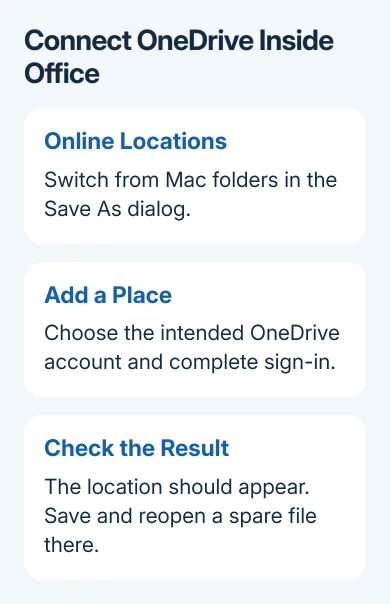
Newer Mac Office also offers Home > OneDrive to connect storage. Choose it and finish sign-in with the intended account, then check Save As again. Use that route if your app no longer shows Add a Place.
Complete sign-in and return to Save As. A successful connection adds OneDrive so you can browse its folders. If the dialog closes but adds nothing, note that behavior before attempting another change.
The OneDrive service instructions describe adding storage to Office. The sync app's account and the Office app's account are separate places to check, even if their email addresses match.
Once connected, the Word for Mac save guide explains local and online destinations. These checks address a different failure: Office not adding the destination at all.
2. Compare Office's account with OneDrive's account
Check the account in OneDrive's menu-bar settings or preferences, then compare it with Office's account. With multiple accounts, compare their organization names too.
An old SharePoint location doesn't mean the intended OneDrive account has connected. In the original report, SharePoint appeared while OneDrive was absent from Word, Excel and PowerPoint.
Save and close Office work before signing out of an incorrect account. Sign into the intended account, then retry OneDrive in Add a Place. Have its password and any required verification method ready.
Use one Office app for this attempt. Once the location appears, save a spare file there, close it and reopen it through the online location. That checks that the connected account can actually save and retrieve a file.
If it works in one Office app but another still fails, record the app names and versions. If all three apps fail, tell support that too. They'll know the problem isn't limited to one document's Save As dialog.
3. Understand the old Skype account workaround
One owner in the 2018 discussion found Skype signed into an older account rather than their current OneDrive subscription account. They signed out of Skype, connected OneDrive successfully, then signed back into Skype.
That worked for the owner's old setup, so conflicting accounts are something to check. It doesn't mean Skype causes every missing OneDrive location or that the same fix works in current Office.
Microsoft retired consumer Skype on May 5, 2025. Don't install Skype to follow a 2018 workaround. The useful current action is to check the account connected to Office and the account connected to OneDrive.
If your old Mac has that combination, tell the person helping you about the account mismatch. Plan an upgrade to supported Office and macOS versions rather than setting up retired Skype to try the old workaround.
The Office on Mac guide covers current desktop compatibility and license choices. Check the Mac's supported software before choosing a replacement for an obsolete Office installation.
4. Save locally when the cloud destination stays absent
Keep unsaved work safe while sorting out the connection. Choose On My Mac in the save dialog, select a known local folder and save a clearly named copy. Reopen it once to confirm that the document is there.
This gives you a saved local document. It doesn't restore Online Locations, and editing that local document won't update a separately stored online copy. Continue editing the saved local file until the online connection works.
If Finder's OneDrive folder syncs correctly, saving there can use the sync app's route to the cloud. Check its status and reopen the saved file before relying on that route for important work.
If the folder isn't syncing or its cloud icon shows an error, follow up on that OneDrive message separately. Signing into Office won't fix every OneDrive sync problem, and working sync doesn't fix Office's account connection.
5. Avoid the unconfirmed container-deletion repair
The discussion also suggested clearing keychain entries and deleting Office Group Containers. The asker returned to say that removing the suggested files hadn't helped and the old SharePoint connection remained.
Those folders can include Outlook data. Don't clear the Office containers as a casual next step for a missing save destination. The thread warns to back up email first, so those short deletion steps risk more than they suggest.
For supported Office, check Help > Check for Updates, or the App Store for a store installation. Retry the account check in one app afterward. An old, unsupported edition may need an upgrade rather than another sign-in reset.
When the location still won't appear
Ask workplace IT or Microsoft 365 support to check the Office storage connection for the affected account. Include the macOS and Office versions, account type and whether OneDrive syncs normally in Finder.
Say that Add a Place accepts sign-in but adds nothing, if that's what happens. Include which Office apps fail and whether unexpected SharePoint accounts remain. Those details tell support which connection to check.
The Short Version
Check Office's account and confirm that its OneDrive location appears. The Skype workaround is historical; deleting Office containers didn't fix the original report. Keep a local copy while support checks the connection.
Checked November 16, 2026.






