
OneDrive error 8004ded0 on a Mac can block sign-in before the password prompt. Clear the saved sign-in and reconnect. If the message tells you to contact IT, check that your account has access first.
Reinstalling the same app repeatedly didn't settle this fault for several owners. A separate report succeeded after changing from the App Store edition to the standalone edition, though another owner said that change failed.
In this guide
1. Check whether the account itself has access
Open the OneDrive website in your browser and enter the affected email address. For a work-issued or school-issued address, choose organizational sign-in. Even with a similar name, a personal account has its own separate storage.
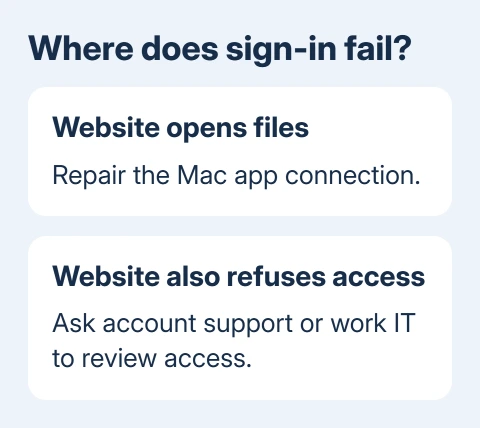
If the website opens your files, the account has access there. The next step is to repair the Mac app's saved connection. Working browser access doesn't mean the app's sign-in settings are correct too.
If the website also refuses access, record the complete message. Your organization needs to check any IT restriction or missing work-account access. Reinstalling the Mac app won't give your account that access.
For work or school, have IT check whether the account includes OneDrive access and which sign-in policies apply to this Mac. Include the error code and the time it appeared.
For a personal account, follow the account-help link on Microsoft's OneDrive support page if browser sign-in fails. Get access to that account working before changing local sync settings.
The OneDrive service-status checks help when several devices or accounts start failing together. A single Mac that rejects an otherwise working account needs the local checks that follow.
2. Remove the saved OneDrive credential and reconnect
Microsoft's Mac connection repair steps include unlinking the account, deleting its cached credential and signing in again. This clears a saved sign-in problem without deleting your cloud files.
Before changing the connection, copy any local work that hasn't uploaded to a separate folder outside OneDrive. A file visible in Finder can still contain changes that haven't reached the website.
- Open the menu-bar OneDrive cloud. Open Help & Settings > Preferences, then the Account tab.
- Select Unlink this Mac for the affected account. If sign-in never finished and that control isn't available, continue with the saved credential.
- Open Keychain Access using Spotlight. If it doesn't appear, look in Applications > Utilities.
- Search for OneDrive. Delete the entry named OneDrive Cached Credential.
- Open OneDrive again and enter the affected account's email address and password.
Delete only that named credential, leaving your other passwords and login keychain alone. An older forum reply suggested different Office entries, but the current instructions name the OneDrive credential.
Choose Use this folder when setup recognizes the existing OneDrive directory. Let the app compare it with the online account, then check the cloud menu for a completed connection or a specific new error.
Open one file from the website and the matching file in Finder. If both are accessible and OneDrive begins transferring pending changes, the connection is working again. If a different error appears, record that message for the next check.
3. Reset the installed Mac edition if sign-in still fails
I'd use the app's own reset before another uninstall. It rebuilds OneDrive's local setup, giving you a clearer result than repeating the same installation.
- Use the cloud menu to quit the app. The reset instructions list Preferences > Pause > Quit OneDrive.
- Open Applications in Finder and find OneDrive.
- Control-click the app and select Show Package Contents.
- Open Contents > Resources.
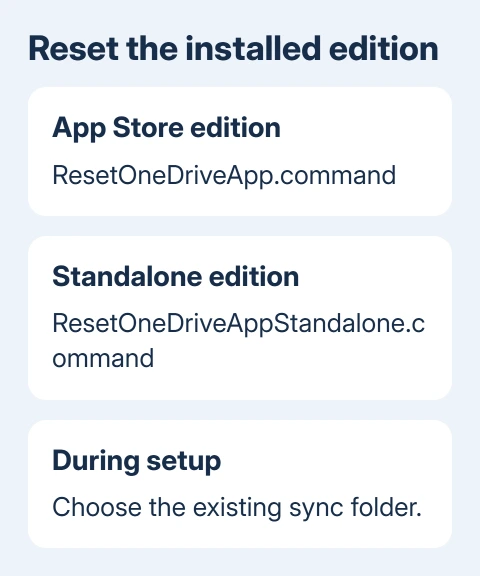
- Run ResetOneDriveApp.command, or ResetOneDriveAppStandalone.command for the standalone edition.
- Start OneDrive and complete account setup again.
Your Mac's processor doesn't change these steps: Intel and Apple silicon use the same app-package procedure. They don't use the Windows reset command or a processor-specific startup-key sequence.
Choose the previous sync location during setup. The Mac OneDrive reset guide also explains the existing-folder choice when a disconnected app prevents Finder from opening cloud files.
A reset disconnects the app's existing sync connections. Finish setup for each personal or work account that was connected, and choose the folders you previously selected for syncing.
If the reset command is missing, update the app. Older OneDrive versions can lack these scripts. If the script fails to run, note its exact message instead of downloading a replacement command from an unfamiliar site.
4. Keep only one OneDrive edition installed
The reset instructions distinguish the App Store and standalone editions. Running both side by side isn't supported, so check which copy you're actually opening before replacing anything.
An owner in the 2020 discussion restored sign-in after App Store reinstalls failed by cleaning up that installation and installing the Microsoft download. Another owner later reported error 8004ded0 with the standalone edition too.
That makes changing editions an option for a persistent app problem, rather than a fix you can count on whenever this code appears. Don't keep switching back and forth after the result stays the same.
When changing editions, follow the vendor's Mac instructions to run the existing app's reset script first, remove that edition, and install the current version from your chosen source. Keep the local OneDrive data folder intact.
After installation, finish sign-in, choose the existing folder and check one pending file. Follow a successful download with an upload check using a document you've edited.
Give support the exact point where sign-in stops
If 8004ded0 remains, use Contact Microsoft Support from the linked help page when using a personal OneDrive account. Work or school users should give their IT helpdesk the browser and app results.
Include your macOS version, OneDrive version, installation source, account type and the point where 8004ded0 interrupts sign-in. Say whether credential removal and reset changed the result.
Keep the error's wording intact. The original thread used an access-denied message, while a suggested reply discussed a different connection code. Using the advice for that different code can lead to an unrelated repair.
The Short Version
Check account access, then clear OneDrive's cached credential and reconnect the Mac. Use the installed edition's reset script if needed. Keep one edition installed and send persistent access-denied errors to the right account support team.
Checked November 17, 2026.





