The UCSI PPM failed UCSI command error can accompany an unresponsive ASUS USB-C port. A controller reset restored it for several owners. Use the model's 40-second or 20-second procedure, with accessories removed and power connected.
A log entry without a broken port is a different situation. Check charging, display output, and connected USB devices before treating the message as a hardware failure.
In this guide
1. Reset the controller on an affected ASUS laptop
An embedded controller (EC) manages basic laptop functions, including power. This procedure resets the controller rather than reinstalling Windows. Save open documents, then shut down before starting.
One owner in the UCSI PPM discussion reported that holding the power button for 40 seconds restored USB-C on an ASUS ROG M15. Later replies reported success too, including one for a Vivobook Pro 14 OLED.
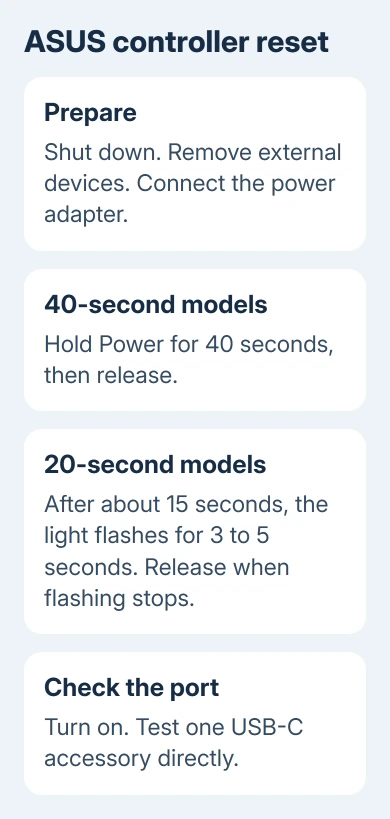
ASUS says to use its EC and RTC reset procedure for your model. Remove external devices, including the dock, USB drives, and external displays. Connect the power adapter before doing the reset described there.
For a model using the 40-second procedure, hold the power button for 40 seconds, then release it. Start the laptop again. Reconnect the USB-C accessory once Windows is running.
Some ASUS models use a 20-second design. At roughly 15 seconds, the power light begins a rapid flash lasting 3 to 5 seconds. Once that flashing ends, release Power according to the model's procedure.
Don't apply ASUS's timing to a different manufacturer's laptop. Use that manufacturer's model-specific power-reset instructions. A procedure intended for one controller design isn't a universal command for all USB-C computers.
2. Reconnect one USB-C device and check what recovered
The first startup can involve memory training, when the laptop checks and sets up its memory.
If the screen stays dark with power on, leave the charger attached. Wait through your model's training period, generally 5 to 10 minutes, without forcing another shutdown.
After Windows starts, plug a single accessory straight into the laptop. Try the device or function that failed before the reset. If the dock was the problem, test the laptop port without the dock first.
For charging, check whether the battery indicator now shows external power. For a display, check whether the monitor detects a signal. For a USB drive, check whether it appears in File Explorer and opens normally.
If the accessory works without the dock but fails when the dock is connected, reconnect the dock with its own power supply and the correct host cable. Continue with the dock's setup if the direct connection works.
Test another known-working cable that supports the function you need. A USB-C connector describes the plug shape; it doesn't promise that every cable carries video or the charging power your laptop requires.
The USB connector and capability guide helps distinguish those differences. Match the laptop port, cable, and accessory specifications before deciding that Windows is causing the video or charging problem.
If the reset worked, use the laptop normally and check whether USB-C fails again. Record whether the next failure follows sleep, a restart, or connecting a particular dock. Tell support what triggered it when asking for firmware help.
3. Check whether the error matches a current failure
Open Event Viewer from Start and look under Windows Logs > System. Find the UCSI message and check its time. An entry from before the reset doesn't tell you whether the port is still failing now.
The reported message includes GetConnectorCapability and Status:0xc0000001. Keep the full text when asking for support. The status alone doesn't identify a failed cable, a particular Windows update, or a part that must be replaced.
UCSI is Windows' communication interface for the USB-C connector manager. The error means Windows couldn't complete that exchange. That leaves several possible causes: firmware, a stalled controller, or damaged hardware.
In Device Manager, expand USB Connector Managers, if present. Look for a warning on UCM-UCSI ACPI Device. Right-click it, choose Properties > General, and record Device status before uninstalling anything.
If USB devices are failing more generally, use the USB device recognition checks for that wider symptom. A single dock failing while other USB-C accessories work needs checks focused on that dock.
4. Update the software for the exact laptop and dock
Run Settings > Windows Update > Check for updates and restart after any offered installation. Then check the support downloads for your laptop model, looking for chipset, USB-C, Thunderbolt, and firmware packages, where available.
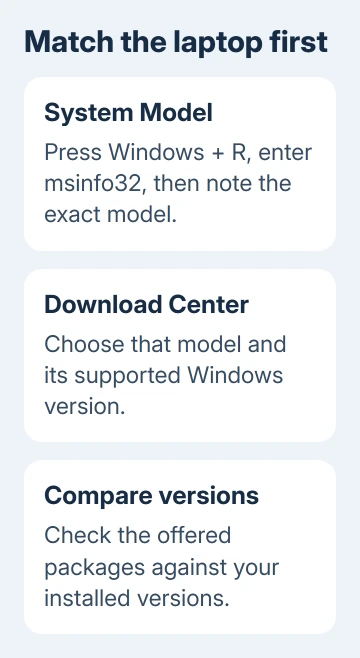
For an ASUS laptop, press Windows + R, type msinfo32, and note System Model and BIOS Version/Date. Use those details when comparing the downloads offered for your machine. Don't choose a BIOS based only on a similar product-family name.
For ASUS, open Download Center and choose that exact model. Select its supported Windows downloads, then compare the packages with your installed versions.
Read the BIOS update instructions before starting and keep the laptop on reliable external power. For an encrypted device, keep its BitLocker recovery key ready: a firmware change can prompt for it.
Check the dock maker's firmware and compatibility notes too. Use the updater for that exact dock. Afterward, compare the accessory both directly and through the dock to see what changed.
The discussion includes advice to update the BIOS, but the fix owners clearly confirmed was the power-button reset. Treat firmware updates as the next supported maintenance step, not as a repair that every participant confirmed.
5. Escalate a port that still fails after the reset
Contact the laptop maker if a supported port function still fails. Send its system model, BIOS version, full UCSI event, and Device Manager status. Include what happened without the dock and with a replacement cable.
Ask about known controller or firmware faults for that model. For failed charging, report whether its original adapter works through another supported charging port. Support can then assess whether the hardware needs inspection.
I'd get the model's reset and firmware advice before reinstalling Windows for a controller or dock fault. If support recommends hardware repair, ask about warranty coverage before authorizing a port or motherboard replacement.
The Short Version
Use your ASUS model's controller-reset procedure first. Owners restored USB-C with a 40-second hold; some models use a 20-second design. Test the accessory directly, then check current errors and matching firmware before arranging repair.
Checked November 17, 2026.