

Word freezing when you select a print range can be an app fault, even with a working printer. Export a PDF and print the pages from that file first. This bypassed a reported Mac Word fault involving documents with references.
The older reports started after Word 16.49 on macOS Big Sur, and also involved 16.50. If you're using a current version of Word, check its behavior too. Those old reports don't explain every printing freeze.
In this guide
1. Export a PDF to get the pages printed
Save the editable Word document if Word responds, then cancel the print dialog. Owners described long pauses, so give the dialog time rather than repeatedly clicking its page-range control.
If Word remains unresponsive, press Option+Command+Esc, select Microsoft Word and choose Force Quit. Unsaved changes can be lost. Open Word again. If it offers a recovered copy, save that copy before exporting it.
In Word, choose File > Save As, name the PDF separately and choose PDF in File Format. Select Export, or the save button shown in your version. Keep the original Word file for later edits.
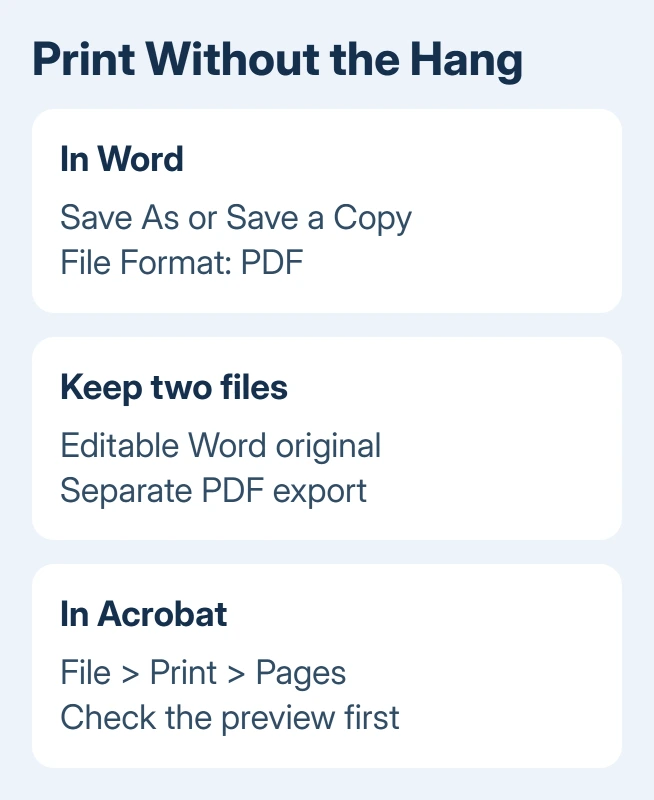
Use Word's export route rather than opening its failing print dialog to make the PDF. If Save As appears as Save a Copy in your installation, use that command and choose PDF as the output format.
Open the PDF and inspect the required pages before printing. Check the page count, footnotes and references that matter to the job. Check that the exported PDF includes the required text and layout before printing.
An owner on Microsoft's forum used a PDF export to print selected pages in Adobe Acrobat, avoiding Word's frozen range control. This lets you finish the job before repairing Word's dialog.
In Acrobat, open File > Print and choose Pages, then enter the PDF page numbers you need. Start with one short range. If it prints, use the PDF route for the remaining pages while you check Word.
PDF page positions may differ from the numbers printed on your document, especially with an unnumbered cover or opening pages numbered with Roman numerals. Check the preview and first printed sheet before printing a long report.
2. Match the freeze to the reported Word fault
In the older reports, Word froze when the owner selected the range option, before they entered page numbers or pressed Print. Printing the entire document could still work. Other apps could also print selected pages to the same printer.
Documents containing a table of contents or references were involved in the reports. One owner could trigger the delays with REF fields. These display information from a bookmarked part of the document.
Another owner reported that Word eventually responded after several minutes, then paused again at the next interaction. That spinning cursor can mean a slow print dialog rather than a lost printer network connection.
Create a short Word document with ordinary text to compare against the report that freezes. Save it, open File > Print, and select a range that exists in that test document. Don't use the full report for every attempt.
If the simple file works but the report stalls at the range control, keep the report's references and contents page in mind when reporting the fault. If every document fails, move to app updates and the broader printing checks.
For a different print-layout problem, such as a page that shouldn't be present, check the extra Word page before selecting a range. Removing an unwanted page won't repair a frozen range selector.
3. Install the available Word update
Record Word's build and version numbers from Word > About Microsoft Word. The 16.49 and 16.50 reports are from 2021. They explain the old workaround, but they aren't a reason for installing an old Office package today.
If you downloaded Word from Microsoft, choose Help > Check for Updates, then use Microsoft AutoUpdate to install the available Word release. Save and close open documents when the updater asks so it can replace the app files.
With an App Store copy of Word, open App Store > Updates and use Word's Update button. When a company controls Office updates, have IT review your build against the release approved for that Mac.
After updating, reopen the affected document and test its print range once. If it responds normally, check the preview and print a small selection. Keep using the PDF workaround until the affected document prints correctly from Word.
If Word opens no print dialog and PDF export also fails, print a copy through Pages after checking its imported layout.
An owner restored printing by returning to 16.48. I'd use the PDF route before changing Office versions now. An old installer can bring compatibility and security problems while leaving a different current fault unresolved.
4. Check range choices only after the dialog responds
A working dialog still needs the right range setting. In File > Print, Current Page prints the page shown in the quick preview. From and To select a continuous run of pages.
For separate pages and ranges, choose Page Range and enter the numbers separated by commas, such as 3, 4-6. These choices appear in the Word for Mac printing instructions.
A range-entry mistake can produce the wrong output or an error after typing. It doesn't explain the historical freeze that starts before you can enter a number. Keep those two situations separate when deciding what to change.
If Word's document has different numbering in different sections, check its section and page numbering before choosing what to print. The Word page-number setup helps explain why a cover and main text can count differently.
5. Follow the printer route when the PDF also fails
If Acrobat can't print the exported PDF either, test a different small file in that app. Confirm the chosen printer is your intended output device and that it isn't paused or showing a device error.
A failure across apps needs the printer maker's Mac driver and connection checks. On its support page, choose your printer's model and the macOS release you use, rather than repeatedly removing Word's references or reinstalling Office.
When only the original Word report fails after updating, contact Microsoft support through Word's Help menu or your Microsoft 365 administrator. Ask why Word for Mac freezes at the print-range control in a file with reference fields.
Provide the Word build, macOS version, printer model and whether PDF printing succeeds. A sample document that keeps the troublesome fields but replaces private text will help support reproduce the pause without sharing the complete report.
The Short Version
Export a separate PDF and print its page range in Acrobat. Update Word and compare the report with a simple file. A frozen range selector, with PDF printing working, points to Word's document or dialog rather than the printer connection.
Checked November 17, 2026.
 If you have any business, I can build it online






