

When Word's Print command does nothing on a Mac but other apps print, use Pages to open and print a duplicated document. That got pages printed for owners whose Word 2016 print dialog wouldn't open, even after reinstalling Office.
A missing print dialog differs from a job stuck in the printer queue. Start with the Pages workaround if you need the document now, then check whether the failure affects one Word file or every document.
In this guide
1. Print a separate copy through Pages
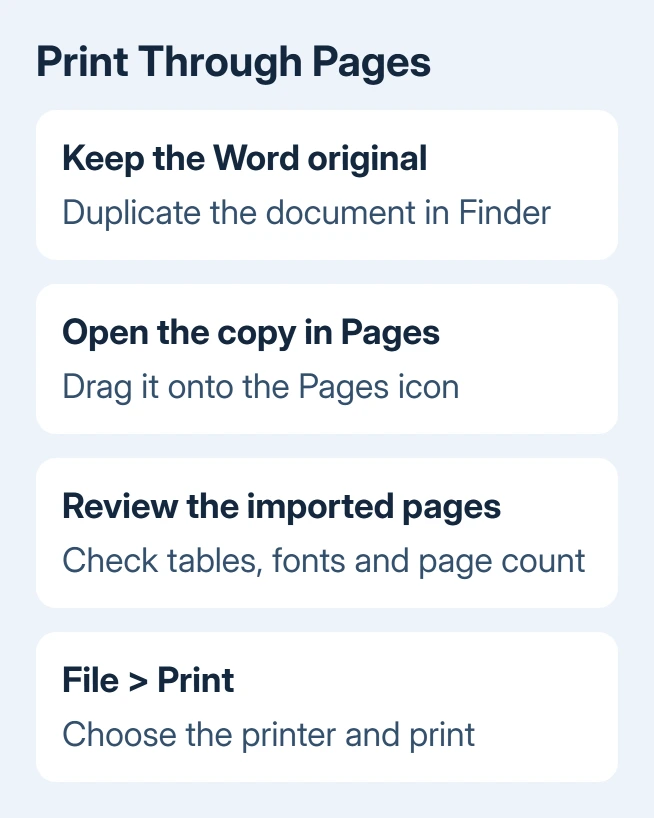
Save the Word document, then duplicate it in Finder with File > Duplicate. Use that copy so any changes Pages makes when opening it won't affect your Word original. Make sure your recent edits are saved before switching apps.
Drag the copied .doc or .docx file onto the Pages icon on the Dock or inside Applications. Double-clicking the file normally opens Word again when Word is its default app, so choose Pages directly.
Apple's document-opening instructions confirm that Pages can open Word files. If Pages shows a warning when it opens the file, read it and check the document before sending a long print job.
Inspect the page count, tables, headers, footnotes and anything that needs exact positioning. Imported files can change layout when fonts or features differ. Print a representative page before sending an important long job.
In Pages, choose File > Print, select the intended printer, set the required copies or page range, then select Print. A working preview and printed page let you finish the immediate job without waiting for Word's dialog to respond.
Owners in the original Word discussion confirmed that the same Word files printed in Pages. This is a way around Word's failure, rather than a repair to Word itself.
If Pages isn't installed or changes the layout too much, use Word on another trusted computer when the layout needs to stay exact. Keep the original file intact instead of making unreviewed changes just to produce paper.
2. Separate a dead Print command from a printer failure
Return to Word and create a new blank document with one short sentence. Choose File > Print once. Also try Command+P. Note whether the print dialog appears at all, before checking which printer it offers.
If neither command opens a dialog, that matches the old symptom. If the menu works but the shortcut doesn't, check keyboard shortcuts. If the dialog opens and the job then fails, follow the printer route instead.
Print a short item using Notes, Pages or another app to the same printer. Success there shows that the Mac can reach that printer. It narrows the immediate problem to Word or its document rather than the basic connection.
If the new Word document prints but the original doesn't, focus on the original file. The Word PDF and print-range workaround covers a different case in which a document's print-range control hangs.
If several apps fail, check the printer's display and the Mac's queue. Request driver or connection help using the printer's exact model and your macOS release. A printer showing its own error needs attention at the device.
3. Record the version and install available updates
In Word, select Word > About Microsoft Word and write down the version plus the full build number. The original report involved 16.9.1 on macOS High Sierra 10.13.3. Other owners reported similar failures in later 2018 builds.
Those old build numbers identify the report, not a version to install today. The accepted reply recommended 16.15, but the thread has no confirmation from an owner that this update brought the dialog back.
For Office downloaded from Microsoft, choose Help > Check for Updates. Install the release offered by Microsoft AutoUpdate, closing documents when prompted. Reopen Word and try the short test document.
For an App Store copy, open App Store > Updates and update Word there. On a managed Mac, ask IT which Office build is approved for that computer rather than installing an old package linked in a forum reply.
Office 2016 for Mac is out of support. An old Mac may also lack the macOS version needed by current Office. Have IT match a supported Office edition to your Mac hardware and macOS release before choosing an installer.
A successful update should restore the dialog for a fresh document and your actual file. If it still does nothing, use the app that can print and note which apps work so you can tell support.
4. Avoid repeating the resets that already failed
The original owner replaced Word's container folder, reset the print shortcut and reinstalled Office. Later replies said Print still didn't respond. Reinstalling isn't a confirmed cure for this case.
I'd keep the document safe and use Pages before deleting Word's Library folders. Those folders can hold settings and other app data, and the original owner's attempt hadn't restored the print dialog.
PDF export isn't always an escape either. Some owners couldn't save a PDF from Word as well as being unable to print. If that happens, open the copied document in Pages instead of retrying Word's failed export.
When a PDF does export correctly, open it and check its layout before printing. For an unwanted blank sheet rather than a dead command, the Word extra-page checks address the document's content separately.
A Word-only failure doesn't justify reinstalling macOS. Open an Office support case with your build number and explain that another app prints to the same device.
Ask support to check the missing dialog itself
Request Office app support through your Microsoft 365 subscription or company administrator. Describe the failure as File > Print and Command+P open no dialog, rather than simply saying the printer doesn't work.
Include the Word build, macOS version, printer model, result with a new Word file, and result from Pages or Notes. Mention separately whether Word can export PDF. These details keep the case focused on the action that fails.
If only one file fails, share a small copy without private text that retains the problem. If every Word file fails, say so. Use the working app for urgent printing until support finds a repair for your version.
The Short Version
Duplicate the document, open it in Pages, check its layout and print. Compare a fresh Word file with another app, update supported Office, and report the missing dialog. The thread confirms this workaround, not a repair for Word itself.
Checked November 17, 2026.
 If you have any business, I can build it online






