

A Brother HL-5340D that prints a Windows test page already has a working connection for that job. Select that same printer in your document's print dialog and try a short text file before replacing the driver or the printer.
If the text prints but your document doesn't, concentrate on the document or app. If every app fails, clear the queue and repair the Windows printer setup. Both can look like a printer refusing to print.
In this guide
1. Send a text file to the same printer
Open Notepad, type a short sentence, and choose File > Print. Select the Brother HL-5340D entry that produced the Windows test page. Don't rely on whichever printer is selected automatically.
If there are several Brother entries, compare their names with Settings > Bluetooth & devices > Printers & scanners. Open the working entry and check Printer properties so you can identify the same queue in the app.
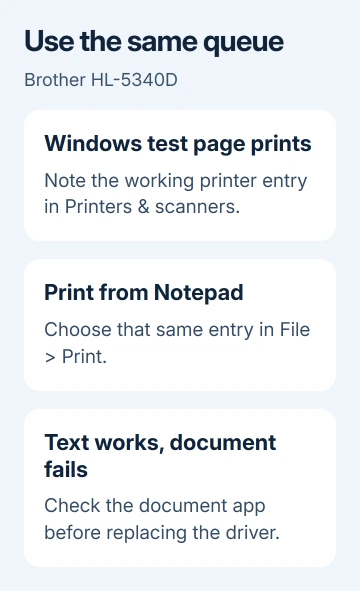
A text-file print succeeded for one owner in the HL-5340D discussion. They had been advised to try another app, but their reply didn't say that a driver change or queue repair helped.
A Windows test page and a page generated by the printer's own controls tell you different things. A built-in printer page checks the printer itself; a test page sent from Windows also checks that Windows can send a job.
If Notepad prints, open the troublesome document again and select that exact Brother entry. For a browser document, try the same document in another browser or save its printable file and open it in the matching app.
If only one app fails, update or repair that app before changing the printer installation. If a single document fails across apps while other files print, get another copy or request a fresh export from its sender.
If the app hangs before printing in the Save As window check startup software rather than changing the working printer queue.
2. Make the working queue the default
In Windows 11, open Settings > Bluetooth & devices > Printers & scanners. Turn off Let Windows manage my default printer, select the working Brother entry, and choose Set as default.
Windows 10 uses Settings > Devices > Printers & scanners. Clear Let Windows manage my default printer, select the printer, choose Manage, and then Set as default.
Reopen Print in the document app and check its selection again. Some apps remember their last printer. After changing the Windows default, check the printer name again in any document that's already open.
Send one small job. If it reaches the correct queue and prints, the document was going to the wrong place. Keep the working driver installed.
If a job reaches the correct queue but stays there, continue with the queue repair. Repeatedly pressing Print just creates more jobs waiting behind the first one.
3. Clear stuck jobs and restart the spooler
Select the Brother printer in Printers & scanners, then choose Open print queue. Cancel the waiting jobs. In the older queue window, select a document and use Document > Cancel.
Press Windows+R, enter services.msc, and press Enter. Find Print Spooler, right-click it, and select Restart. This Windows service manages the jobs waiting to print.
Try one short document again. If it prints, the queue was blocked. If canceled jobs refuse to disappear, use the manual clearing procedure rather than adding another copy of the document.
Stop Print Spooler in Services. Open File Explorer and enter %WINDIR%\System32\spool\PRINTERS in the address bar. Delete the files inside that folder, then return to Services and start Print Spooler.
This clears pending jobs for printers using that PC's spooler. Check that the queued jobs can be discarded, and delete only the folder's contents, not the PRINTERS folder itself.
Microsoft's stuck print queue steps describe that cleanup. If the queue empties but new jobs still fail, check the printer setup and selected port next.
4. Re-add the USB printer when every app fails
Switch on the printer and plug its USB cable into a PC port. If it's connected through a hub, try a PC port for this check. The HL-5340D needs no Wi-Fi setup for a direct USB connection.
Note the working queue's driver and port in Printer properties > Advanced and Ports before removing it. This helps avoid rebuilding a different printer entry while leaving the faulty one selected in your app.
In Windows 11, select the printer under Printers & scanners, choose Remove, and confirm. Then choose Add device and let Windows search for the connected machine.
If it isn't listed, choose Add manually > Add a local printer or network printer with manual settings. Select the existing port associated with the USB printer, then continue to the driver list.
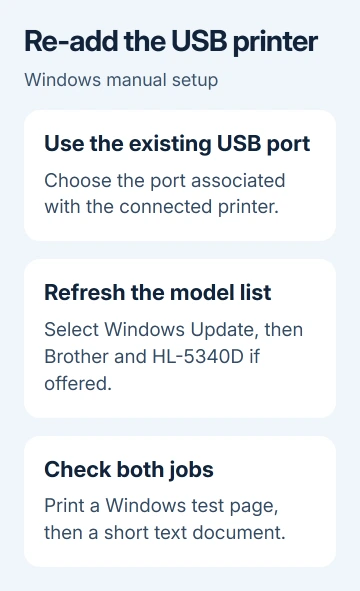
Select Windows Update to refresh the model list, then choose Brother and the matching HL-5340D model if offered. Don't substitute a similarly named printer just to get through the wizard.
Follow the remaining prompts and print a Windows test page. Then try printing the text file again. Both need to work before you return to the document that originally failed.
Windows 10 offers automatic discovery through Add a printer or scanner. The manual link is The printer that I want isn't listed. Choose the local-printer option and check the port and model as described for Windows 11.
The Brother connection guide explains the connection choices. For this model's USB fault, keep your attention on the Windows queue instead of changing router settings.
Before replacing an otherwise working printer
I'd keep the HL-5340D while testing a different app and a clean queue. If a test page prints, I'd check where the document is being sent before paying for another machine.
Finding a driver doesn't mean the manufacturer fully supports your Windows version. A Windows Update driver can print without every feature of an older full software package. Don't force an old installer just because its name matches.
If a text file still won't print, run the Windows printer troubleshooter. Give Brother support the model, Windows version, driver name, port, and results from both page tests.
Ask whether they support that exact Windows build and driver combination. If the machine won't print its own internal page either, tell them that separately so they can check the printer itself.
The Short Version
Choose the same Brother queue that printed the Windows test page. Try a text file, check the app's printer selection, then clear stuck jobs. Reinstall the USB queue only when the problem affects every app.
Checked November 17, 2026.






