

Outlook's automatic reply settings can show a server-unavailable error even while email works. For a shared mailbox in classic Outlook, install current Office updates first: a known bug was fixed in Version 2508, Build 19127.20000.
For your own mailbox, check whether the problem follows the account or stays in the desktop app before replacing its profile.
In this guide
1. Update classic Outlook if this is a shared mailbox
The full message says your automatic reply settings cannot be displayed because the server is currently unavailable. Outlook couldn't retrieve those settings, but Exchange may still be delivering your email.
A shared mailbox is a team address, such as sales or reception, that several people use. The known bug affects shared mailboxes added as an additional account or the primary account in a classic Outlook profile.
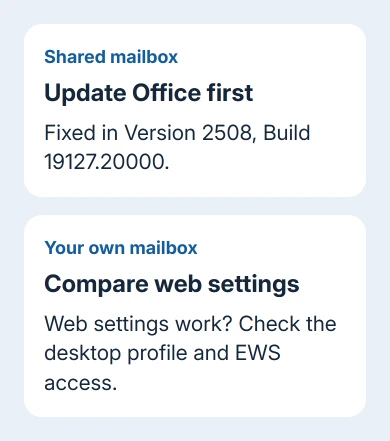
Microsoft's shared-mailbox fix notice identifies the corrected build. Open File > Office Account, note the version under Product Information, then choose Update Options > Update Now.
Once Office finishes updating, exit Outlook, then start it again. Select the affected mailbox and try File > Automatic Replies again. A working dialog lets you choose the reply period and edit the message instead of showing the error.
If your company controls updates, send IT the version number and the shared-mailbox fix notice. Don't switch update channels or install an old build just to follow a workaround written before the correction arrived.
If this happens to your own mailbox, or an updated shared mailbox still fails, continue with the next check. The same error has several causes, so that update won't fix every account.
2. Save the absence message through the mailbox's web settings
I'd get the absence message saved before spending time on the desktop repair. Open your organization's Outlook webmail using its normal trusted address and sign in to the same work account.
For your own mailbox, open the settings cog and look under Account > Automatic replies. Turn replies on, enter the text and dates, and save. The out-of-office setup guide covers the message and audience choices.
For a shared mailbox, select your profile picture or initials, choose Open another mailbox, enter the shared address, and open it in its own browser window. Change Settings > Account > Automatic replies there.
Check the mailbox address before saving. Editing your personal absence message won't set one for a team inbox. Shared-mailbox access must already be granted; ask the mailbox administrator if the address won't open.
If the web settings open and save, your absence message is ready while you work on the desktop problem. If webmail also fails, give IT both errors rather than repeatedly reinstalling the desktop app.
These settings require your account sign-in. The layout can differ between your organization's Exchange setup and Microsoft 365. Search the settings for Automatic replies if you don't see that category.
3. Check whether other mail features are affected
Send a colleague an email and ask for a reply. Note whether Outlook receives it and read the connection state in the status bar. Working mail rules out a complete connection failure, but doesn't test the service for absence settings.
If sending, receiving and webmail are all affected, follow the Outlook service-status checks. A work account's administrator can see tenant-specific service incidents that a public status page won't show.
If only Automatic Replies fails, tell IT that this is the only affected feature. Have IT check Exchange Web Services (EWS), which Outlook uses for these settings. An EWS error can appear while your internet still works.
Microsoft's automatic-reply troubleshooting steps identify EWS access as a check for this exact message. The administrator can also set the mailbox's absence state directly when necessary.
If IT turns EWS back on, give the change time to take effect. The troubleshooting page notes that re-enabling it might take several hours. Retest the settings dialog after IT confirms the change has taken effect.
4. Try a separate profile without removing the working one
A profile holds your Outlook account settings and data-file connections. Trying a second one lets you check the current setup while keeping the original available to reopen.
Close classic Outlook. Press Windows + R, type outlook.exe /profiles, and press Enter. Select Options in the picker. Turn on its profile-choice prompt, then select New.
Give the profile a name you'll recognize, then enter your normal email address. Complete the organization's normal sign-in, open that profile, and try Automatic Replies. Keep the original profile until mail and local archives are checked.
One owner restored the setting by entering their organization's onmicrosoft.com address first when creating a profile, then signing in with their normal address. They confirmed it worked on Outlook 2013.
Ask IT whether that older workaround fits your account. They need to confirm the mailbox's organization address; don't guess a tenant name or substitute an unrelated login.
If a new profile works with your normal address, tell IT. If it fails too, keep your original setup and have IT check the mailbox and connection instead of making more profiles.
When the setting still won't open
Send the Microsoft 365 administrator the mailbox address, whether it's shared, the Outlook version and build, and the result in webmail. Ask them to check the shared-mailbox fix, EWS access and the account's automatic-reply configuration.
For a business subscription, have the administrator submit those results in a Microsoft 365 support case. Copy the error text and say how many computers show it. That makes the desktop-versus-mailbox difference clear.
The Short Version
Get the Office update that corrects the shared-mailbox error. Save the reply through the correct web mailbox if needed, then check EWS access and a separate profile for a persistent desktop failure.
Checked November 17, 2026.
 If you have any business, I can build it online






