

A message that opens from Outlook search but won't move can still be moved from its original folder. Clear the search, locate the message in the folder list, and try the move there first.
One owner with this exact error confirmed that route worked, while repairing or rebuilding the file hadn't helped.
In this guide
1. Move the message from its actual folder
The error can read Cannot move the items. The message you specified cannot be found. First notice where it happens: only in search results, or during an ordinary move from the Inbox as well.
If it happens only in search, that detail matters. In the original report, the owner could open and forward affected messages. Moving failed, and a deleted search result returned when the search ran again.
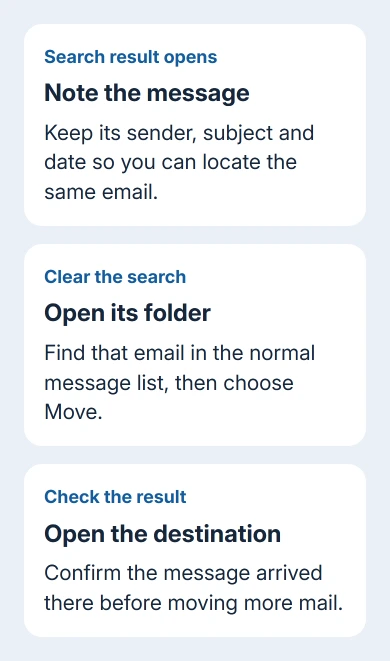
Record the result's sender, date and subject before clearing search. Clear the search using the search box's close control, then open the folder containing that message through Outlook's folder pane.
Find the email in the folder's normal list, with search cleared. Right-click it, choose Move > Other Folder, and select the destination. Check the destination afterward and open the message there to confirm the move actually happened.
If you don't know its folder, look for an In Folder field in the search results where available. Expand the mailbox's folder list if needed. Avoid moving a whole group of results until a single affected message works.
Moving from the folder avoids the search problem. A failed move from search doesn't mean the server lost your message. If moving from the ordinary list also fails, try the update and account checks instead of searching again.
2. Check whether the affected mail is outside the local copy
With Cached Exchange Mode enabled, classic Outlook stores mailbox data on your PC. Its sync slider controls how much email is stored offline, so older search results can involve mail that isn't in that local copy.
The original owner saw this difference: moves failed for search results that existed only on the server. Newer local messages and moves from an ordinary folder list behaved differently.
Open File > Account Settings > Account Settings, choose your Exchange address from the list, then click Change. Note the offline-mail range. The older-email sync guide explains that slider and its storage trade-off.
With IT's approval and enough storage, extend the offline range to include the affected dates. Finish the account dialog, follow any restart prompt, then wait for the extra messages to download before checking one message again.
If you can move a downloaded message but not a server-only search result, tell IT. Keep using the folder-list route if downloading more mail doesn't help.
Don't turn off Cached Exchange Mode across a work installation as a general fix. Microsoft recommends keeping it enabled for Microsoft 365 mailboxes, and organization policy can manage the setting.
That cache checkbox belongs to classic Outlook and is absent from new Outlook. If you're using new Outlook, skip this section and compare the same message through webmail or the ordinary folder view.
3. Update Outlook when moves fail outside search too
Microsoft has also addressed a broader Cannot move the items fault. That problem affects moves from ordinary folders too. It's different from a move that fails only in search.
In classic Outlook, choose File > Office Account > Update Options > Update Now. Save any documents, then reboot the PC so pending Office or Windows changes can finish.
Try moving a single affected message from its source folder again. If it works, check the destination before returning to bulk cleanup. If it doesn't, note whether every folder fails or only one destination.
If updates are controlled by IT, send them the build shown under File > Office Account. Ask them to compare it with current fixes rather than copying a registry workaround for a different startup problem.
For a failure involving just one destination, also tell IT whether it's a shared mailbox, your own mailbox or a local archive. That tells them exactly which move is failing.
4. Use webmail for mailbox-to-mailbox-folder moves
Open your organization's Outlook webmail through its usual trusted address. Find the same message in its original folder, choose Move to, and select a destination inside that mailbox.
Webmail lets you finish the move during the desktop repair. Confirm the message appears in the destination, then let desktop Outlook sync before judging the result there.
This route can't move a message into a PST archive stored only on your PC. To move mail into a local archive, try the normal folder list in classic Outlook instead. Tell support if that is the only route that fails.
If your organization blocks webmail, skip this check. The original owner couldn't use it because their IT department had disabled access. You can try moving from the folder list without changing that restriction.
I'd finish an urgent move through a route that works before rebuilding Outlook. A disappearing search result alone isn't enough: the message should be visible in the destination folder you selected.
5. Compare a new profile while keeping your current setup
If updated classic Outlook still fails, close it and press Windows + R. Run outlook.exe /profiles, select Options, enable the profile-choice prompt, and select New. Add the same mailbox to that new profile.
Keep the original profile available, including its archive connections. Test a mailbox message and destination first. If the move works in the new profile, something in the old desktop setup differs. The message itself isn't missing.
If both profiles fail, stop rebuilding local files without a clearer reason. The Outlook search guide covers absent results; if a result opens but won't move, give support the move-error details instead.
What to send support if every route fails
Have your company's Microsoft 365 admin submit a case containing the complete message, Outlook build, source and destination folder types, and whether moving from the ordinary list works. Include the webmail result when access is allowed.
State whether the fault affects only older server-only search results. Include any repair or profile checks that failed. Those details help support see that Outlook finds the messages but can't move them.
The Short Version
Clear search and move the message from its folder first. Check the destination, update Outlook for wider move failures, and use webmail for server folders when allowed. Tell support whether the destination is a local PST or a server folder.
Checked November 17, 2026.
 If you have any business, I can build it online






