

A missing trusted root in an Oracle wallet can cause an SMTP certificate error even with the correct server and port. Check the script's wallet before changing Outlook settings or importing the server certificate again.
Adding the missing root fixed the original smtp.office365.com case. A connection timeout or a rejected sign-in needs a different route, so use the complete error to decide which steps apply.
In this guide
1. Check whether the failure is certificate validation
Read the full error from the application sending your mail. In the reported case, the sender was an Oracle database using UTL_SMTP, a database package for sending messages, rather than the Outlook desktop app.
A certificate-validation error means the application couldn't verify the server's identity. A timeout means it couldn't complete a connection. An authentication rejection means the server refused the account or sign-in method.
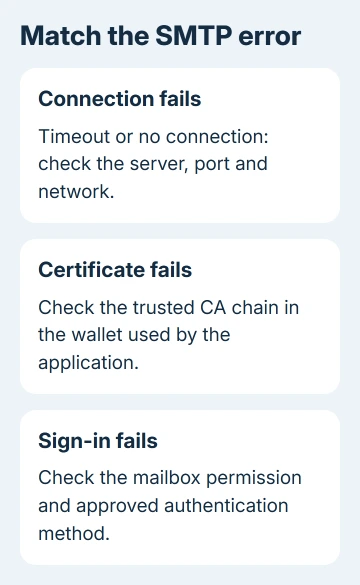
Don't change all three at once. Keep the server name, port and full error in your notes, then work on the part that failed. A successful incoming-mail connection doesn't confirm that the separate sending connection works.
One owner in the original SMTP thread had already tried port 587 and TLS. Changing the personal-account server name also left the certificate error unchanged.
A DigiCert root CA certificate was missing from their wallet. A root CA is the trusted authority at the top of a certificate chain. Adding it resolved their reported problem.
2. Inspect the wallet the application actually uses
Ask the database administrator to identify the wallet path configured for the failing mail process. Checking a different wallet on an administrator's computer won't change the database's connection.
Open that existing wallet in Oracle Wallet Manager using Wallet > Open. Review its Trusted Certificates list. Compare it with the certificate chain required by the server your application currently contacts.
An Oracle wallet is a separate store for certificates and credentials. Trusting a certificate in a Windows browser doesn't mean the database's wallet has the same trusted roots.
Back up the wallet before changing its contents. That protects the existing credentials and trusted certificates used by other connections, and gives the administrator a known copy to restore if the edit is wrong.
The missing root must match the certificate chain the server uses now, which may differ from the 2019 DigiCert root. Have the administrator check who issued it and its fingerprint, the identifying code, before importing it.
If the required root is already present, check whether the mail process opens this wallet successfully and whether the chain needs an intermediate certificate. Reimporting a certificate into the wrong file won't change the result.
3. Import the missing trust certificate
Have the administrator get the verified certificate from the issuing authority or your approved certificate repository. They need to add the missing trusted CA certificate. Creating a new client identity for the mailbox won't fill that gap.
With the correct wallet open, choose Operations > Import Trusted Certificate. Select Select a file that contains the certificate, choose OK, and open the certificate file supplied for this connection.
Confirm that the certificate appears in Trusted Certificates, then save the wallet through Wallet > Save. Oracle's Wallet Manager instructions describe this import separately from importing a user certificate.
Retry the same mail operation using that wallet. If the certificate error disappears, the trust check has passed. If you get a sign-in error instead, move to step 5 rather than continuing to change certificates.
The old thread used an OpenSSL command with -showcerts to inspect the connection. Its output didn't include the missing root. A server's returned certificates aren't automatically the complete set of trust certificates your wallet needs.
Don't turn off certificate verification to get past this failure. The useful repair is a valid trust chain for the intended server, so the application can check which service it has reached.
4. Match the SMTP settings to the account type
For a licensed Microsoft 365 organization mailbox using client SMTP submission, check smtp.office365.com, normally port 587, with STARTTLS. STARTTLS upgrades the mail connection to encrypted communication.
Your sending application must support TLS 1.2 or TLS 1.3 for this method. Check the actual application's capabilities, including the database and TLS components it uses, rather than relying on another program on the same PC.
The application-sending requirements distinguish client submission from relay and other sending methods. Those methods have different requirements; they aren't interchangeable port choices.
A personal Outlook.com or outlook.de account needs its own current provider settings. The original asker used a personal outlook.de address as well as discussing business customers, which is why an adviser checked that distinction.
For a normal desktop account whose settings dialog is the obstacle, use the Outlook server and port instructions. Those controls don't edit an Oracle database wallet.
5. Handle sign-in failures after the trust check passes
Ask your mail administrator whether SMTP AUTH is allowed for the sending mailbox and whether the application supports OAuth. OAuth gives the app permission to use the account rather than signing in with only the saved mailbox password.
Even a correct password won't get past an organization policy that blocks that sign-in method. Security defaults, mailbox settings and the chosen sign-in method all matter once the connection reaches authentication.
Use the administrator's approved sending method if SMTP AUTH is intentionally disabled. Don't disable tenant-wide security simply to copy an old example script that used a username and password.
If receiving through POP also fails, the POP login guide covers that separate connection. A working SMTP send tells you nothing about whether the incoming-mail settings are correct.
Choose support based on the remaining error
Ask Oracle support to review a continuing certificate failure. Include the wallet path, database version, server and full error, plus the CA certificates checked. Keep wallet passwords and private keys out of the report.
For an authentication failure, ask your organization's mail administrator to review the sending mailbox and approved SMTP method. Give them the full status message, the time you tried sending and whether the certificate check now passes.
The Short Version
Check the trusted CA chain in the wallet used by the mail script. Adding a missing root certificate fixed the original case. Check the server, TLS support and approved sign-in method if sending still fails.
Checked November 17, 2026.






