

An Outlook 553 5.1.3 recipient address error means the server rejected the address format. Remove the recipient and type their full email address again.
If every contact fails, especially after account settings were changed, check the sending account and its mail provider before editing your address book.
Odd characters in a contact's display name don't tell you which part is wrong. Try typing the address yourself: if that works but choosing the saved contact doesn't, check the saved entry.
In this guide
1. Send to one freshly typed address
Compose a short test email without attaching a file. Remove any existing recipients from To, Cc, and Bcc. Type one complete address that you know is correct, including the part after @.
Don't select the suggested name as you type. Outlook can replace fresh text with the same saved entry that's causing the rejection. Check the finished recipient before sending the message.
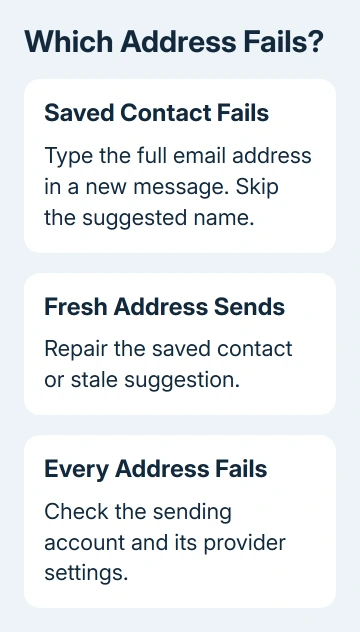
If the message sends, the account can send to that address. Return to the failing message and replace its recipient the same way. You can also compare that working message with a forward that still fails.
If the new message fails too, keep the full error. Note whether it names the recipient you just entered or a different address. If the failure names an address the recipient forwards mail to, that forwarding address needs checking.
Microsoft's 5.1.x delivery-error steps include retyping the address and removing a bad saved suggestion. They also cover recipient forwarding to an invalid address.
I'd try this single-address message before changing a whole contact list. It tells you whether the saved entry is actually involved, and it leaves the rest of your contacts alone.
2. Correct the saved contact that fails
Open People in Outlook and find the affected person. In classic Outlook, open the contact and inspect its email field. The display name and the email address are separate fields; a familiar name can still point to a damaged address.
If the contact won't accept corrections, review its linked directory information to see which fields belong to your private address book.
Compare the email field with an address supplied by that person. Replace unwanted spaces, pasted punctuation, or a partial name with their complete address. Use Save & Close in classic Outlook when you've finished.
In new Outlook, open People, select the contact, and choose Edit contact. Correct the email address and save it. Work from the saved contact itself rather than repeatedly changing the text on one outgoing message.
Create another test message and choose that corrected contact. If it sends, the contact repair worked. If typing the address works but choosing the contact still fails, remove the stale suggestion separately.
The steps for removing an Outlook suggested address differ by account type and Outlook version. That page covers the missing X as well, so you don't have to clear the entire suggestion list for one bad entry.
Avoid deleting your whole address book to fix a single recipient. If many entries contain unexpected text, keep an export or other backup before making broad changes, and check the account next.
3. Check which account sends the forward
Open the failing forward and inspect its From address. With several accounts in Outlook, a new message and a forward can use different sending accounts. Compare this with the account used by the successful test.
In classic Outlook, show the field through Options > From if it's hidden. Choose the intended account from From, then try sending to the freshly typed recipient again. In new Outlook, check the sending address in the compose window.
A forward that works after switching accounts points to the original sending account's configuration. It doesn't call for another round of edits to every recipient.
One owner in the original 553 5.1.3 discussion reported that correcting a Yahoo-versus-Verizon account setup resolved their problem. Their reply didn't list the server settings changed.
The owner saw strange contact text and could reply, but couldn't forward messages. Check the provider setup in that situation. Their reply doesn't give Yahoo settings you can copy for every account with this code.
If ordinary outgoing mail also stays queued, use the Outlook sending checks to handle the stalled account. Keep this address error separate from a message waiting because Outlook is offline.
4. Match POP or IMAP settings to the actual provider
For POP or IMAP in classic Outlook, open File > Account Settings and choose Server Settings when offered. Compare the outgoing server, username, port, encryption, and authentication with your provider's instructions.
An address ending in an older internet provider's domain doesn't always tell you which company now hosts the mailbox. Use the provider responsible for that specific account rather than guessing from another person's setup.
The alternative classic route is Control Panel > Mail > Email Accounts. Select the affected account and choose Change. For some account types, you'll find the port and encryption choices under More Settings > Advanced.
Write down the existing values before changing anything. Enter only the replacement settings your provider supplies, then use Test Account Settings if that dialog offers it. Green check marks show that its account test completed.
The Control Panel Mail profile belongs to classic Outlook, not new Outlook. In new Outlook, check the connection in account settings. Ask your provider how to change those settings in new Outlook if the server controls aren't available.
For a managed Microsoft 365 or Exchange mailbox, send the error to IT rather than replacing its server with a consumer SMTP address. Ask them to check the rejected recipient and any forwarding address named in the failure.
When the address still gets rejected
Give the mail provider the full 553 5.1.3 response, the sending account, and the result of the freshly typed single-recipient test. Say whether all recipients fail, or only saved contacts and forwards.
Ask them to verify the outgoing server and authentication for your mailbox and identify the address their server rejected. That tells you which part was rejected before you start erasing text from contacts.
The Short Version
Type one complete recipient address without choosing a suggestion. Correct the contact if that works. When all contacts or only forwards fail, check the sending account and its provider settings before changing the whole address book.
Checked November 17, 2026.
 If you have any business, I can build it online






