

An Office 365 contact can display read-only details from your company's directory alongside your saved information. Open People to check whether you're editing your personal record or looking at fields managed by IT.
A missing Edit button and a Save error need different checks. Try a small change in your personal contact and reopen it. For a directory field, ask the person managing that information to correct it.
In this guide
1. Open your saved contact in People
Open People > Your contacts on the Outlook website. In new Outlook, use that same location. Search there instead of using a suggested address in the email composer. Results can show a company profile alongside your saved contact.
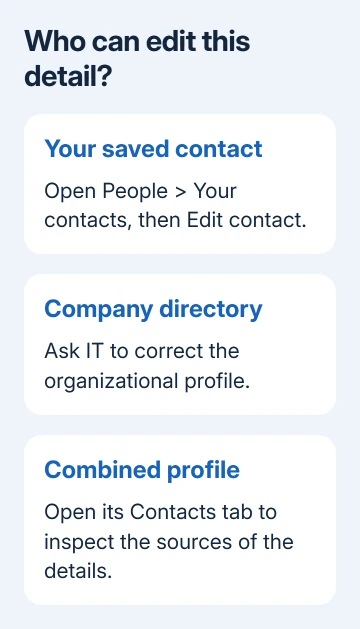
Select the personal contact and look for Edit contact beside Contact Information, or Edit on the toolbar. Change one nonessential detail, choose Save and reopen the same entry to confirm the saved value.
In classic Outlook, switch to People, open the mailbox's Contacts folder and double-click your saved contact. After editing, choose Save & Close.
If the change stays saved, you can edit that record. Return to the field you meant to update and check whether it belongs to the same saved record. A phone number displayed on a combined profile can come from another source.
If Edit is missing, don't create several copies hoping one will unlock. Move to the source check next. If Edit opens but saving fails, compare a newly created personal contact before changing or deleting the existing one.
The original thread mixed editing failures, duplicate entries and contacts missing from a phone. Those symptoms can happen together, but editing a web contact and syncing it to a device are separate checks.
2. Find out who owns the field that won't change
For work and school accounts, Outlook can link your saved contact to a matching organizational profile. The top of the profile card shows company information first, even when your saved contact has a different number or job title.
Microsoft's linked-contact guidance explains that directory information is managed by IT. You can save a private note or another personal detail, but you can't overwrite the company's fields that way.
Using web Outlook, select the combined profile card in People and choose its Contacts tab. Hover over a detail, such as the phone number, to see whether it comes from your contact, the organization or both.
If Manage sources appears under Contact Information, select it. The Manage linked contacts and people page lists the records behind the card. Check which one is your saved contact and which belongs to the company.
For an incorrect directory number, send the correct number and the affected person's work address to your IT help desk. Ask them to update the organizational profile rather than remove your saved personal contact.
Older web Outlook also displayed contacts from Skype for Business or social accounts without Edit. Those contacts had to be edited in the service they came from. Current accounts without those connections won't have the same controls.
3. Separate linked records when you need your own version
If the combined card hides the difference between your details and the company's, Outlook on the web lets you separate linked sources. On Manage linked contacts and people, select Unlink for the personal source you want separate.
Unlinking makes that source a separate People entry. Searching can then show two results: the contact you saved and the profile managed by your organization. It doesn't edit or erase the organization's profile.
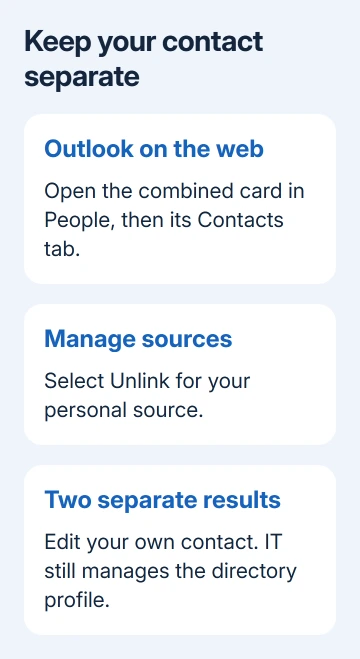
Open your separate saved record, edit the personal detail and save it. Check that record again before comparing a profile opened from an old email. Otherwise it's easy to mistake the directory result for an unsaved change.
Do not use an administrator's Remove-MailContact command to clean up personal duplicates. It manages a recipient entry in Exchange, not the personal address-book record you're trying to edit.
If just the Notes box is locked in classic Outlook, use the contact Notes repair. That fix addresses a locked Notes field. It won't give you permission to change a company directory record.
4. Compare one new contact without deleting the old ones
In People, select New contact. Enter a recognizable test name and a nonprivate detail, save it, then reopen and edit that detail. Keep the existing contact unchanged while you make this comparison.
If the new contact saves normally, the whole address book isn't read-only. Return to the affected entry and its sources. Troubleshooting one combined card isn't the same as dealing with an address book that won't save any edits.
For a web-only Save error, compare a different supported browser using that account. If it saves there, write down which browser failed and the error it showed before changing any browser data. The thread didn't confirm a cache repair.
For duplicate personal entries, copy any unique phone number or note into the record you intend to keep, then confirm it saved. Delete an extra personal entry only after you know which source it represents and have kept its needed details.
Contact lists are collections of email addresses, rather than full personal contact cards. Editing a list's membership won't update someone's mobile number. Open the individual contact when the field you need isn't part of the list editor.
5. Check the phone only after the saved contact is correct
Once the web record saves, reopen it there and confirm the number. Then check the phone's account and contact list. Saving a contact to one Microsoft account doesn't automatically add it to another account's list.
On an iPhone using the Contacts app, open Lists and select the list for the account that holds the contact. Older iOS versions called that list selector Groups. Compare the account name before adding the person again.
For Outlook on iOS or Android, an organizational profile's Edit Contact screen can offer only some fields. Missing fields can belong to the directory even though the full profile card displays them.
If a corrected email address still produces a sending rejection, the recipient-address checks help separate a saved contact from an outdated address suggestion. A visible saved change doesn't update every old draft.
When personal contacts still won't save
Ask the IT team responsible for your mailbox to review its People records and arrange a Microsoft 365 support case. Include the exact error, whether a new contact saves, the record's source and which apps show the old information.
I'd keep a copy of unique numbers and notes before any support-led cleanup. Before agreeing to removal, ask support whether the entry is a personal contact or a directory recipient, especially when the same name appears twice.
The Short Version
Edit your own saved record in People, then check its linked sources. IT controls directory fields. Separate a personal source when necessary, and verify saving on the web before treating a phone's missing contact as the same fault.
Checked November 17, 2026.
 If you have any business, I can build it online






