

Typing @ in Outlook only creates a mention when you choose a person from the suggested contacts. If that works but the inbox has no @ marker, check the account type and Mention column instead of repairing Office.
A missing name suggestion, a missing inbox marker and an empty Mentioned Mail filter are different failures. Check the part that isn't working for you. The Outlook 2016 licensing problem in the original report needs a separate check too.
In this guide
1. Select the suggested person in the message body
Create a new email in Outlook and click inside its body. Type @ followed by a few letters of the person's first or last name. When a matching contact appears, select that suggestion.
The name should become highlighted in the message, and the person's address should be added to To. Check that address before sending, especially when your organization has several people with similar names.
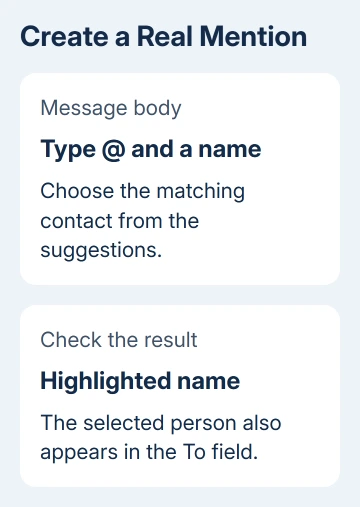
A name you've typed after @ without selecting a suggestion isn't the same check. Nor is putting an address in To or Cc: that chooses a recipient, but it doesn't create a mention inside the message.
In both classic and new Outlook for Windows, you need to select the suggested contact. Microsoft's mention instructions show the contact selection and the resulting recipient change.
If your draft highlights the person and adds their address, creating the mention is working. Continue with the inbox controls if the recipient can't spot it there. If suggestions never appear, go to the version and account checks first.
2. Separate a missing marker from a missing feature
Ask a colleague to mention you in a fresh email using the contact-selection step, then send it to the mailbox you're checking. Open the received message and compare the highlighted name with the inbox row.
A fresh message lets you check a real mention, rather than ordinary text after an @. Compare the mention as the sender creates it with what arrives in your inbox to see which part fails.
The Mentioned Mail feature is available for recipients using Exchange Server 2016, Exchange Server 2019, Exchange Online or Outlook.com. The @ indicator has a narrower requirement: Exchange Online or Outlook.com.
A Gmail or another IMAP account added to Outlook doesn't become an Exchange Online account. Buying an Outlook app license also doesn't change the service hosting that mailbox. Check the mailbox, not just the application's name.
For a work account, ask IT which mail service holds it if that isn't clear. For a personal account, an Outlook.com or Hotmail mailbox is different from using Outlook to read a third-party provider's email.
If the mailbox doesn't support the indicator, repeated repairs won't add that account feature. Keep important requests clear in the subject and message text rather than depending on a marker the recipient can't see.
3. Add the Mention column in classic Outlook
Select the mail folder in classic Outlook, then choose View > View Settings > Columns. Look for Mention in the displayed columns. If it's already included, the missing marker needs a different check.
If Mention isn't displayed, change Select available columns from to All Mail fields. Select Mention, choose Add, then accept both dialogs with OK. Inspect the fresh test email in the updated message list.
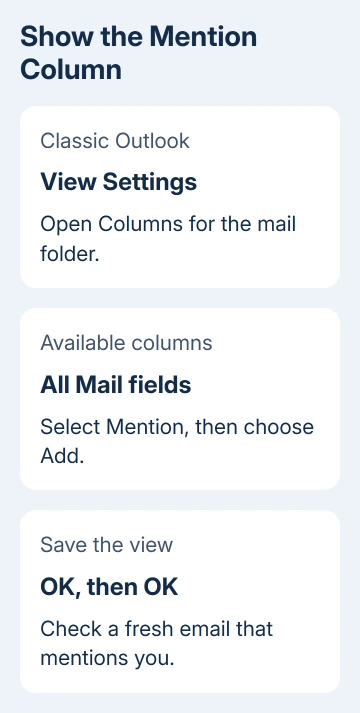
Adding the column gives Outlook a place to show the mention indicator; it doesn't turn ordinary @ text into a mention or remove the account restrictions. Check the test message you received to see whether the marker appears.
New Outlook shows mention tags automatically in its message list. It doesn't use this classic Columns dialog. If those menu names are missing, follow the next section's new Outlook controls instead of hunting through the old dialogs.
A broader layout change can hide other familiar controls too. The Outlook view guide helps with the folder and reading-pane arrangement while you keep this specific mention check separate.
4. Choose the mention filter for your Outlook version
In new Outlook, open the message list's Filter menu, then choose @ Mentions me. Use the folder containing the test email. A filter in another folder won't show a message that isn't stored there.
In classic Outlook, open the label for the message list's current filter. Under Filter, choose Mentioned Mail. Compare the filtered list with the fresh message you opened earlier.
If the message appears, the filter is working. Return to the normal message list when you're done so other mail isn't hidden from view. A mention filter is a viewing choice, not a way to stop delivery of unmentioned mail.
If a message is absent even from the unfiltered list, use the Outlook delivery checks. Find out why the message isn't showing up before checking its mention tag.
5. Check the installed edition before repairing it
In classic Outlook, open File > Office Account and inspect Product Information. Open About Outlook too and note its build and version. Similar version numbers can belong to different licensed products.
The 2018 report involved Office 2016 Home & Business and a separate Office 365 Business Essentials subscription. The accepted answer said the retail and subscription versions had different features. It didn't point to a hidden switch.
The owner also reported that Online Repair didn't restore mentions and led to an activation problem requiring reinstallation. I'd check the edition first, rather than repeat a repair that didn't help that owner.
Check the current feature instructions for supported editions. Have IT compare your edition, account and build with those requirements. Don't assume every version sold as a one-time purchase has the same limits as that 2018 edition.
If Update Options is available, choose Update Now, install offered updates and reopen Outlook. Repeat the contact-selection check. On a managed PC, send IT the version details if updates are controlled centrally.
When mentions still fail on a supported account
Have your organization's mail administrator compare the same account in another supported Outlook client. Say exactly what fails: the contact suggestions, highlighted name, automatic To address, inbox marker or filter.
Include the product name, build, mailbox provider and a private screenshot of the control. For Outlook.com, use the Help support option. That gives support the exact feature to check, instead of a general report that Outlook isn't working.
The Short Version
Choose a contact suggestion after typing @. Check the highlighted name and To field. For missing inbox tags, check mailbox support, the classic Mention column and your version's filter. Verify the edition before repairing Office.
Checked November 17, 2026.






