

Old emails can fail to resend after an Exchange move because they retain the previous mailbox identity. Reselect your address through From > Other Email Address, then ask IT to repair the old identity's X500 mapping.
This applies to your own migrated work mailbox, especially when the error denies permission to send on behalf of the specified user. A shared mailbox that never allowed sending needs a separate permission check.
In this guide
1. Compare an old message with a new one
In classic Outlook, create a fresh message from your own work account. Use one harmless recipient you can check, send it, and confirm it arrives. Keep the sender address the same as the one used in the failed resend.
Next, open one affected old message and choose Message > Actions > Resend This Message. Review From, recipients, and attachments before attempting to send that copy.
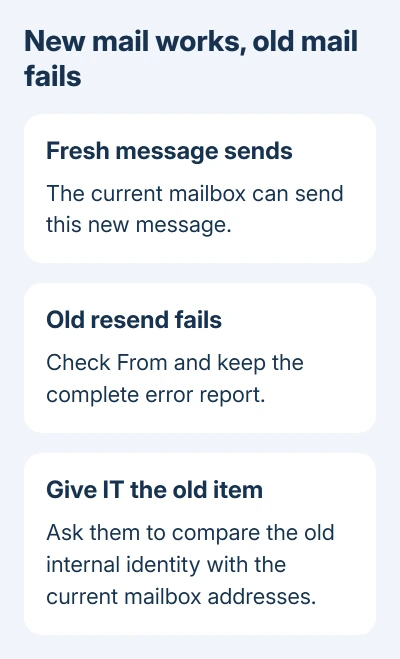
If the old copy fails while the new one sends, keep both results. That tells IT you can send a new message, but the old one still needs attention.
If even a new message fails, don't assume an old migration reference is responsible. Tell IT that the new message failed too and include the complete error. They'll need to check for a wider delivery or permission problem.
The Outlook resend instructions explain where the command appears in each Outlook version. Use classic Outlook's command for this comparison rather than forwarding an old email and calling it a resend.
2. Check the sender before changing permissions
In the resend window, check whether From names your mailbox or someone else's. If the field is hidden in classic Outlook, use Options > From to display it.
An email saved years ago can have a different sender from the one you intend to use today. Compare the full address, especially when the company has changed domains, renamed accounts, or combined mailboxes.
If the sender is another person's mailbox, ask IT whether you should be able to send from it. Being able to open the saved message doesn't grant permission to use its original sender.
For your own mailbox, select From > Other Email Address and re-enter your current work address. Review the message, then try sending. The original owner confirmed that retyping the sender let the affected emails send.
In the original report, the sender was the user's own mailbox. New emails sent normally, and old saved messages failed after directory synchronization. Repairing the data file and running the recovery assistant hadn't fixed it.
For the shared-mailbox case, use the shared sending-permission checks. That page covers Full Access versus Send As, rather than starting with this own-mailbox comparison.
3. Ask IT to compare the old internal mailbox identity
LegacyExchangeDN is an internal Exchange address used to identify a mailbox. It's different from the familiar email address you type into the To box. Older saved items can retain that internal identity after a move.
An X500 alias lets Exchange recognize an old internal address as belonging to the current mailbox. IT needs the real old value from the item or migration records, rather than a guess based on your email address.
Ask IT to compare the old mailbox identity with the addresses kept on your current mailbox. Send them one affected message and the full failure report so they have the actual item to examine.
Microsoft explains how to preserve a previous LegacyExchangeDN as an X500 address in its old internal-address repair.
That page covers an IMCEAEX error when sending to a recipient's old internal address. Its steps for converting the error into an address don't apply to every sending-permission error.
For this resend fault, ask IT whether the move kept the required old identity. Let the Exchange administrator decide which address needs to be kept and where to change it in your organization's setup.
Don't replace directory values yourself. If your organization syncs its account records, IT needs to change the address in the right system then check the updated address on your current mailbox.
4. Include old meeting failures in the same support report
If you also can't update meetings created before the move, mention that. Older organizer details can help IT examine whether the same mailbox identity is involved in both failures.
An owner reported that correcting an old organizer identity's link to the migrated account restored recurring-meeting updates. That makes the old identity something for IT to check, though it won't explain every calendar error.
For an affected meeting, open the organizer's event and select Scheduling Assistant in classic Outlook. An administrator can inspect the organizer entry and its Outlook properties, alongside the current mailbox's directory details.
Keep the original event available while IT checks it. Recreating a recurring series immediately can leave attendees with the existing series plus a replacement, making later updates harder to follow.
Give support one failing old meeting and one new meeting that works, if those examples exist. Include their dates and the exact action that triggers the failure, such as sending an update rather than opening the event.
5. Retest the original item after the mailbox correction
Once IT has checked or corrected the old address mapping, wait for their confirmation that any required synchronization has completed. Synchronization timing depends on the organization's setup.
Reopen one of the affected old messages and use Resend This Message again. Review the recipient and sender, then send a controlled copy. Confirm receipt instead of treating a closed compose window as confirmed delivery.
For a meeting problem, ask IT which existing event to test and agree on a test with the attendees before sending an update. The result that matters is the old item working after the correction, not just a new event saving successfully.
If the old message still won't resend, give IT its complete new error. Tell them whether its From address remains your own and whether a fresh message still sends. That helps them choose what to check next.
I'd keep one failing example until support has finished. It gives the administrator something concrete to inspect instead of trying to reconstruct a migration problem after every old item has been replaced.
When IT needs to open a support case
Ask the Exchange administrator to open a case with the mailbox move date, affected sender, original and current internal-address details, one failed item, and its complete delivery report. Include the successful new-message comparison.
The original author later confirmed a typo in the X500 data: CM had been entered where CN belonged. Correcting it fixed the problem. Have IT compare the complete old address character by character, including every slash and space.
The Short Version
Check From and compare a newly written message with an old resend. Ask IT to verify the old internal mailbox identity and preserved X500 addresses. Retest the affected item after the correction.
Checked November 17, 2026.






