

Excel's R6025 save error can come from an incompatible add-in. Owners with AspenPlus or HYSYS V7.2 restored saving by disabling the Aspen add-ins. Start Excel in Safe Mode, try saving a blank workbook, then check those add-ins.
The owners who confirmed this fix used Excel 2010 on Windows 7. Other Excel versions can show the same error for a different reason, so check which software you have and when saving fails before removing anything.
In this guide
1. Try saving with Excel's add-ins bypassed
Save any work you can, then close Excel. Hold Ctrl while launching Excel from its shortcut. Keep holding it until Excel asks about starting in Safe Mode, then choose Yes.
Create a blank workbook, type something in a cell, and save in a location where your account can create files. Use a new filename. Check whether the file saves without R6025 appearing or Excel closing unexpectedly.
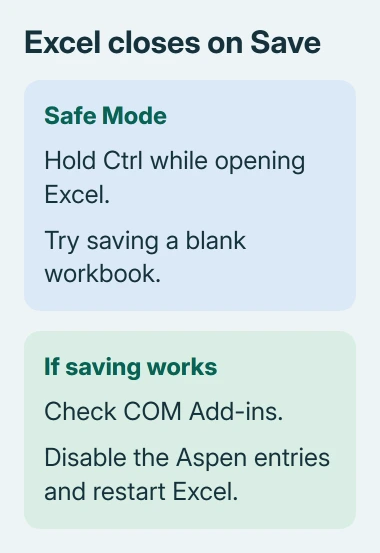
Safe Mode skips startup settings, Excel add-ins and most COM add-ins. COM add-ins are extra programs that load into Excel. A successful save here points toward something loaded at normal startup, rather than a fault in every workbook.
An owner writing in Microsoft's forum found that Safe Mode allowed saving after AspenPlus V7.2 had installed two Excel add-ins. Removing those add-ins restored normal saving, and they later reported that the error hadn't returned.
If a blank workbook still crashes in Safe Mode, keep that result. Another owner reported this with HYSYS V7.2, so Aspen components could still be involved even if saving fails in Safe Mode. Check whether they're installed, then continue.
2. Disable the Aspen entries in COM Add-ins
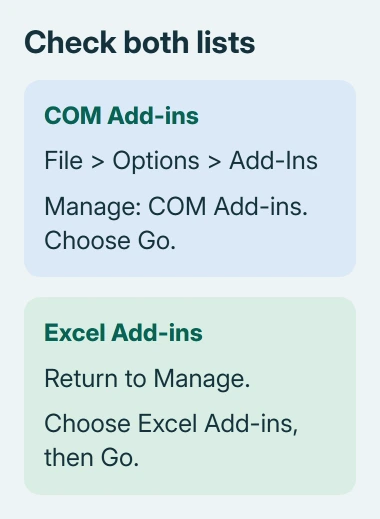
Open Excel normally and choose File > Options > Add-Ins. The main list shows active and inactive components, but selecting an entry there isn't the same as turning it off.
Open Manage near the bottom, choose COM Add-ins, and click Go. Look for Aspen entries. The historical reports name Aspen Plus V7.2 Excel Calculator (ATL) and Aspen Simulation Workbook V7.2.
Clear the boxes beside the Aspen components, then click OK. This keeps your engineering software installed but stops these extensions from loading. Close Excel completely and reopen it before repeating the blank-workbook save.
I'd disable the named components before uninstalling the simulator. That keeps the simulator installed while you check which extension disrupts saving.
If saving works, duplicate the affected workbook and try saving that copy. Check that both the blank file and your real workbook save without closing Excel. If just the original fails, continue with section 4.
An add-in marked inactive can still appear elsewhere in the manager. Check the actual enabled boxes rather than assuming that an inactive entry means every Aspen component is off.
3. Check the other add-in list and access restrictions
Return to File > Options > Add-Ins. This time choose Excel Add-ins in Manage, then click Go. Look for a related Aspen entry and clear its box if it's enabled. Close and reopen Excel after changing it.
The two managers control different kinds of extensions. Checking only Excel Add-ins can leave a COM component loaded, while checking only COM Add-ins can miss a workbook-related extension in the other list.
Checked add-ins that vanish after a Google Drive file opens have a different trigger; follow the Drive-related loading checks for that pattern.
First, note which entries are enabled. An engineering workbook may depend on the Aspen connection for calculations or refreshed results. Restoring saving doesn't mean those functions will work with their add-in disabled.
If Excel refuses a change because it needs administrator access, ask your IT administrator to disable or remove the Aspen components. A follow-up from another owner described this restriction when trying to remove an add-in.
Give IT the actual names in both managers. Asking them to remove an unspecified Excel extension makes it easier to miss one of the two installed components.
If Aspen isn't installed, follow the same Excel Safe Mode and add-in checks for your installed extensions. Turn them back on individually after saving works to see which extension causes another crash.
4. Separate a workbook failure from an Excel failure
Try saving a blank workbook and a copy of a regular workbook that doesn't use Aspen. Then compare those with the engineering workbook. Keep the destination folder the same so you're comparing the files themselves.
If normal workbooks now save but an Aspen workbook doesn't, tell the person maintaining the simulation setup. The file may rely on the integration you disabled. Removing more Office components won't restore that connection.
If only a cloud copy causes the crash, use the separate checks for Excel crashes with OneDrive files. That failure has a different trigger from R6025 appearing on a new local workbook.
An error naming OLEAUT32.dll appeared in the original report. That filename doesn't make replacing a Windows DLL the right next step. The working fix changed the Aspen add-ins, even though the crash report named a Windows component.
For work lost during a crash, check the unsaved Excel recovery locations. Fixing the add-in stops the reported failure, but it doesn't itself restore changes lost before the last successful save.
When the Aspen connection is required
Several later owners needed the Aspen workbook connection and asked how to keep it without the crash. The discussion doesn't include a confirmed way to fix the crash while keeping that connection working.
Ask IT or AspenTech support which simulator and Office releases work together. Include the Office edition (32-bit or 64-bit), both add-in names, the Safe Mode result, and whether disabling each add-in lets you save.
If saving still fails, repair Office through Windows' installed-programs controls. Record whether a new local workbook can save, along with the exact error and Excel version. Those details help support reproduce the failure.
The Short Version
Test saving in Safe Mode, disable the Aspen COM add-ins, and check Excel Add-ins too. A successful save confirms the workaround on that PC. If the workbook needs Aspen, ask for a compatible setup before enabling the integration again.
Checked November 17, 2026.
 If you have any business, I can build it online






