

Windows 7 can label workbooks XLSX File or XLSM File when the settings connecting those file types to Excel are damaged. Open them from inside Excel first. If that works, check how Explorer opens the app instead of changing the extension.
In the old Excel 2007 case, workbooks also opened in separate copies of Excel, making it hard to move sheets between them. That's different from a file Excel can't read, or the separate windows that are normal in newer Excel.
In this guide
1. Open both workbooks inside the same Excel session
Start Excel 2007 from the Start menu. Choose Office Button > Open, select the first workbook, and open it. Repeat from that same Excel session for the second workbook instead of double-clicking it in Explorer.
One owner confirmed that both files opened in the same running copy of Excel this way. You can keep working like this while you repair the file registration.
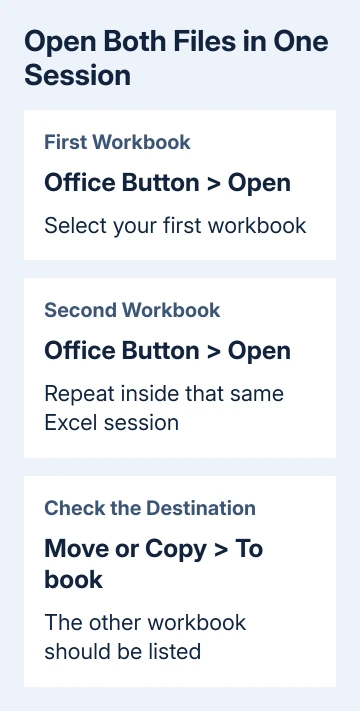
Try the sheet operation you needed. Right-click a worksheet tab and select Move or Copy. Open the To book list and look for the other workbook. Select Create a copy to leave the original worksheet where it is.
If the other workbook is listed, you can transfer the sheet through this session. If it isn't, confirm that you opened both files through the same running Excel window, rather than launching Excel again for the second file.
When Excel can't open the file internally either, switch to the Excel file-opening checks. A bad Explorer description doesn't explain a workbook that Excel itself can't read.
2. Check the extension and default program separately
In Windows 7 Explorer, open Organize > Folder and search options > View. Clear Hide extensions for known file types and choose OK. The filename now lets you check whether you're handling .xlsx, .xlsm, or .xls.
An .xlsx file is a workbook without VBA macros. An .xlsm file can contain those macros. The older .xls format has its own registration, so working XLS files don't mean the other two types are registered correctly.
Don't rename .xlsx to .xls as a repair. A renamed extension leaves the internal format untouched, and it can replace a useful symptom with a format mismatch warning.
Right-click one affected file and choose Open with > Choose default program. Select Microsoft Excel and enable Always use the selected program to open this kind of file. Confirm the selection and try a double-click again.
Repeat for .xlsm if that type is affected too. Each extension has its own default program. Check that the right Excel version opens and loads the workbook. Even with a new icon or Type label, you still need to try opening the file.
The original owner tried choosing Excel.exe as the default program, but it didn't help. If that didn't help you either, check DDE next, then try repairing Office.
3. Check Excel 2007's DDE setting
In Excel 2007, choose Office Button > Excel Options > Advanced. Scroll to General and look for Ignore other applications that use Dynamic Data Exchange (DDE). Leave that box cleared for normal Explorer opening.
DDE lets Windows programs exchange messages. Excel can receive requests to open files through this older system. Ignoring those requests can interfere with opening a workbook from outside the program even when its files are readable.
Close Excel and retry a known workbook from Explorer. Then open another file and check the Move or Copy destination list again. This checks the workflow that failed, rather than only the wording in Explorer's Type column.
Microsoft recommends the DDE check in its blank-opening troubleshooting. The original owner already had DDE cleared, and repair also failed for them.
The menu path changes in later desktop Excel: use File > Options > Advanced > General. Don't look for the circular Office Button in a version that uses a File tab.
4. Repair the installed Office version
Save your work and close Office programs. In Windows 7, choose Start > Control Panel > Programs > Programs and Features. Select Microsoft Office 2007, choose Change, and select Repair in its maintenance window.
Wait for the repair to complete; follow any restart prompt it gives. Then try one .xlsx and one .xlsm from Explorer. Check which Excel version opens and whether you can copy a sheet between the two files.
Office 2007's maintenance screen doesn't use the same Quick Repair and Online Repair choices as a current Microsoft 365 installation. Follow the options for the product actually listed in Programs and Features.
If several Office versions are installed, check whether Explorer opens the version you intend to use. Keep the installers and license details available before removing an older version that you still depend on.
For a newer Windows computer, use the version-specific Office repair steps rather than treating Windows 7 menus as current instructions. The file-opening problem can look similar, even though the repair menus are different.
5. Keep the historical registry repair as a technician job
The original Windows 7 discussion proposed making Excel unavailable through Office maintenance, removing the .xlsx and .xlsm registration entries, and then reinstalling the Excel component.
Those narrow steps failed on the owner's first attempt. They reported success after deleting a broader set of Excel registry entries, but didn't list exactly which extra entries they removed.
I wouldn't turn that report into advice to delete every Excel-looking key. Several Office components can share file registrations. Without that list, you can't repeat exactly what worked for them.
If repair hasn't helped, give a technician the thread. Ask them to back up the registry and repair the settings for the affected file types.
Include the Excel version, affected extensions, and confirmation that opening both files inside one session works.
Also show whether .xls behaves differently from .xlsx and .xlsm. That distinction helps the technician focus on registration rather than repairing an undamaged workbook or changing your spreadsheet data.
6. Plan a supported replacement for the old setup
Windows 7 and Office 2007 are out of support. A registry repair can restore an old workflow, but it doesn't bring security updates back to either product. Consider the lack of security updates before paying for extensive repairs.
Before moving to a supported system, keep copies of the original workbooks and identify any macros or add-ins they require. Keep an .xlsm workbook in its macro-enabled format when you save it on the new system.
Separate workbook windows are normal in Excel 2013 and later. Don't diagnose a current Excel installation as broken just because each workbook has its own window; check the actual opening or sheet-transfer failure instead.
For a company computer, ask IT to reproduce the issue using two harmless sample workbooks. Request either a file-registration repair or a migration plan that preserves the macros and sheet-copy workflow you need.
The Short Version
Open both files inside one Excel 2007 session. Check associations and DDE, then repair Office. The historical registry success involved unspecified extra deletions, so leave that cleanup to a technician.
Checked November 17, 2026.
 If you have any business, I can build it online






