

Press Ctrl + F1 if Word 2010's Home commands disappear as soon as you click back into the document. The ribbon has usually been minimized, so selecting Home only shows its buttons temporarily. Expand it to keep the commands visible.
A colored File tab doesn't mean Word has switched to the File screen. If the document is still visible, check whether the ribbon is minimized first. A genuinely open File screen and a missing Home tab need different checks.
In this guide
1. Expand the ribbon and click back into the document
Click Home once so its font and paragraph controls appear. Press Ctrl + F1, then click in the document and type a few characters. The command groups should remain visible instead of folding away.
If your laptop uses F1 for a hardware function, the keyboard may require Fn + Ctrl + F1. The mouse route avoids that difference: double-click the Home tab to collapse or expand the ribbon.
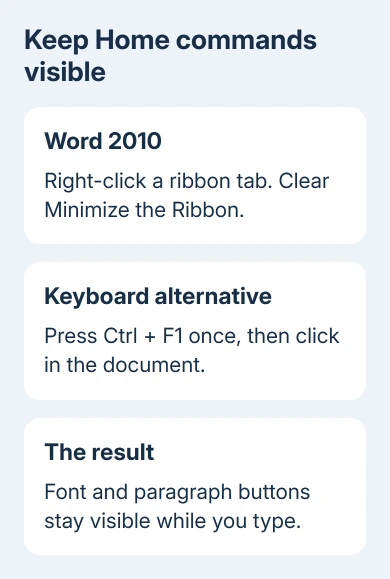
Another Word 2010 route is to right-click a ribbon tab and clear Minimize the Ribbon. These are alternative controls for the same setting. Use one, then check the result before trying another and accidentally minimizing it again.
Several owners in the original Home-tab discussion confirmed that expanding the ribbon fixed this behavior. It doesn't require changing the default tab or repairing the document.
If the buttons now stay open, stop there. If they were already staying open but the selected tab changes during particular actions, check the distinction between the File screen and contextual tabs next.
I'd try the mouse setting before resetting any customizations. It shows whether the ribbon is minimized and avoids removing the personal shortcuts you may have spent time arranging.
2. Tell the File screen from a colored File tab
Click File once to see what the actual File screen looks like in Word 2010. It replaces the editing area with Backstage commands such as saving, printing and opening documents. Press Esc to return to the document.
The File tab keeps its own color while you're editing. Its color doesn't tell you which editing tab you're using. Look at the buttons being shown and whether the document itself is visible.
With the ribbon expanded, select Home. Font, paragraph and style controls should appear. Click within ordinary body text and check that the controls remain there. If they stay visible, you've fixed the disappearing-ribbon problem.
Word shows contextual tabs, extra tools for a selected object. Clicking in a table or selecting a picture can bring its tools into view. These follow your selection, regardless of the tab you started with.
Select Home again when you want its tools. Expanding the ribbon controls whether its command area stays open; it doesn't force every editing action to keep the same tab selected.
If Word really opens Backstage after ordinary keystrokes, you're seeing a different problem. Make a note of the exact key or click that triggers it, then use the Safe Mode check later in this page.
3. Restore Home if the tab itself is missing
A hidden Home tab is different from a visible Home tab with commands that fold away. In Word 2010, right-click a remaining ribbon tab and choose Customize the Ribbon.
In the right-hand list, choose Main Tabs if necessary. Find Home and check its box, then click OK. Word should show Home among the ordinary editing tabs again.
If Home is already checked, don't clear it while trying to expand the ribbon. That would hide the tab and add another problem. Check whether the ribbon is minimized when the tab is visible but its commands vanish.
Ribbon customization controls which tabs appear and their order. Moving Home in this list changes its position. It doesn't control whether the ribbon stays open; that's a separate setting.
Check whether someone has added a custom tab with a similar name before resetting everything. For a shared PC or company-managed installation, those commands may belong to an approved template or an Office add-in.
For a problem with the Tab key rather than the Home ribbon, use the Word bullet-indentation setting. The keyboard's Tab key and Word's ribbon tabs serve different purposes.
4. Use the matching display controls in newer Word
Word 2013 and 2016 also offer a Ribbon Display Options control near the upper-right corner of the application. Choose Show Tabs and Commands to keep the command area open.
Some layouts let you click Home to reveal the commands and then select the pin at the lower-right of that area. An owner using a newer layout confirmed that pinning it solved their case when the earlier controls hadn't helped.
Current Microsoft 365 layouts can use Always show Ribbon instead. The ribbon display instructions explain the choices for those editions. Follow the label your version actually shows.
Don't look for the newer display-options button in Word 2010 if it isn't there. The keyboard toggle, double-click and Minimize the Ribbon command are the relevant controls for the original version.
When the issue is happening in Excel as well, the Excel ribbon checks cover its display choices. Each application can have its own ribbon state, so fixing Word doesn't require changing Excel.
5. Test Safe Mode if Word really keeps opening File
Save and close your documents. Press Windows + R, enter winword /safe, and press Enter. In the new Word window, start a new blank file, then repeat the action that opened the File screen.
If it no longer happens, reopen Word normally and check File > Options > Add-Ins. Use Manage > COM Add-ins > Go to disable an enabled add-in temporarily, then restart Word and repeat the action.
Test each add-in separately and note whether turning it off stops the problem. Restore unrelated add-ins. For the one that causes the problem, ask its maker for an update compatible with your Word version.
If Safe Mode changes nothing, give your Office technician the exact Word version and the action that opens File. Ask them to reproduce the unwanted Backstage opening. Discuss replacing Office 2010, which no longer has product support.
The Short Version
Expand Word 2010's ribbon with Ctrl + F1 or clear Minimize the Ribbon. File's color doesn't mean Backstage is open. Use Customize the Ribbon for a missing Home tab. Follow your version's display labels.
Checked November 17, 2026.






