

Excel freezing when you unfilter data can involve the display or touchscreen. Try scrolling the filtered records out of view, then clear the filter. Temporarily disabling touch is another confirmed workaround on a touchscreen PC.
The original reports involved Excel 2013 and 2016 on Windows. These workarounds are for files that filter normally but hang when you try to show all the rows again. An app that freezes on startup needs a different repair path.
In this guide
1. Clear the filter with the records out of view
Keep a saved workbook copy before trying the action that freezes Excel. If the file opens already filtered, leave that view in place while you prepare the test. Don't repeatedly force Excel closed on the only copy containing your work.
Scroll down far enough that the currently visible filtered records move off the screen. With no filtered data visible in the window, use Data > Clear to remove the filter conditions. Check whether the full list returns without the hang.
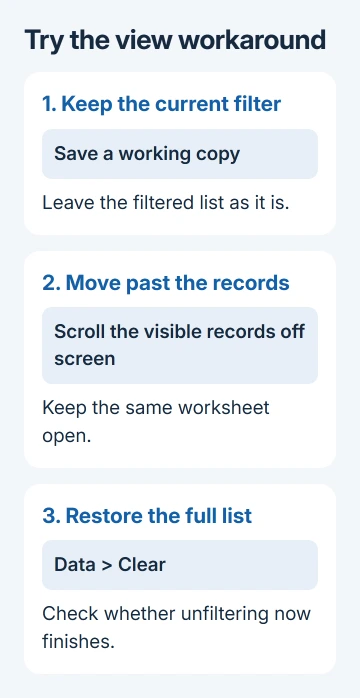
One owner reported that this made unfiltering finish instead of hanging in the original unfiltering thread. They thought the way Excel redraws the screen might be involved, but the discussion didn't pin down a cause for every computer.
If the rows return, save this copy with its filter cleared. Keep working in that usable copy while you check touchscreen behavior and updates. The Not Responding label alone doesn't identify damaged data or formulas.
If scrolling doesn't help, let an active task finish before ending Excel. The bottom status bar may show calculation or another running operation. When Excel remains unresponsive and you must use Task Manager, unsaved changes can be lost.
2. Test the touchscreen device on a touch-enabled PC
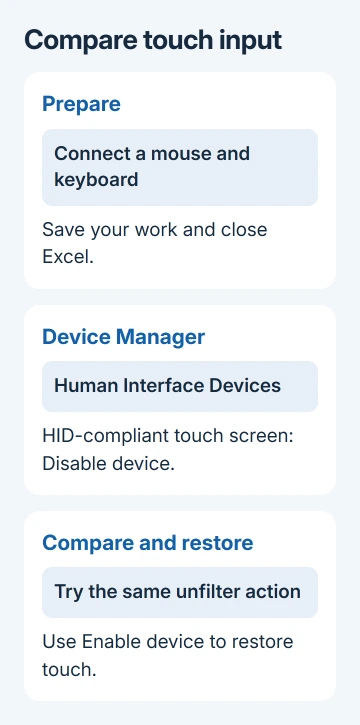
Have a working mouse and physical keyboard ready. Save the workbook, then quit Excel. Disabling touch temporarily removes that input method, so don't proceed if touch is your only way to operate the PC.
Open Start, search for Device Manager, and open it. Expand Human Interface Devices. Right-click HID-compliant touch screen, select Disable device, and accept the prompt. Leave unrelated keyboard, mouse and touchpad entries alone.
If several HID-compliant touch screen entries are listed, repeat for those touch screen entries. The touchscreen device instructions cover both disabling and enabling them in Windows.
Reopen Excel and test unfiltering the same workbook. An owner in the thread said disabling the touch device resolved this exact fault. Try this on a touchscreen PC even if the rest of Excel works normally.
If the hang stops with touch disabled, report that result to IT or the computer maker. Ask about updates for the touch driver and firmware. Tell them unfiltering works with touch disabled so they know which device to check.
Restore touch through Enable device on that entry. If the test didn't help, turn it back on before continuing. Skip this comparison on a computer without the touch screen entry; don't disable a different HID device.
3. Update Excel before changing the workbook's structure
From a new empty workbook, select File > Account > Update Options > Update Now. Select Enable Updates first if offered. Let the update finish, then open your test copy again and repeat the filter-clearing operation.
Missing update controls can mean Office uses a different installation method or your employer manages updates. Give IT the product and build listed on File > Account. Don't bypass an organization's update policy with an old installer.
The source reports date from 2015. Office 2016's support ended on October 14, 2025. Choose a supported release for the longer term rather than an old Excel version for these workarounds.
Keep the workbook, filter selection and clear command the same between tests. That makes the results easier to compare. A small new list that works is useful, but it doesn't show that the larger file's unfiltering problem has been repaired.
If the problem appears only with an exported file, make a small fresh export from the same program. If Excel's own data works but the export keeps hanging, give both examples to whoever maintains that export.
4. Compare one workbook with other large lists
Test a copy of another workbook with a comparable filter operation. If only one file hangs, ask its author to review the formulas, formatting and objects stored in it. Work on a copy so cleanup doesn't remove useful content.
Whole-column formulas, numerous objects and excessive styles can slow Excel. Check what's in the file before removing anything. The row count alone won't tell you what's slowing down unfiltering.
For a broader slowdown while editing and calculating, the Excel performance checks cover workbook overhead. Here, keep the focus on a filter that applies normally but hangs when its hidden rows return.
If the rows return but the result still looks incomplete, check the filter-clearing controls and any remaining column conditions. A second active filter can hide rows even after you clear the first one.
5. Use safe mode and repair only when the fault persists
Close Excel, press Windows+R, enter excel /safe, and press Enter. Open the test file through File > Open, then repeat the unfilter action. Safe mode starts Excel without several add-ins and startup customizations.
If it works there, check File > Options > Add-ins > Manage: COM Add-ins > Go. Note the enabled entries, then test them individually with a normal restart between changes. Ask the maker about the add-in that brings the freeze back.
Safe mode and a clean Office installation had both failed for the asker. The touch-device workaround is still useful if you've already tried both. Repeating an unsuccessful reinstall won't explain why unfiltering hangs.
If multiple files fail after updates, use Settings > Apps > Installed apps > Microsoft 365 > Modify on Windows 11. On Windows 10, select Office in Apps & features and choose Modify. Try Quick Repair if your installation offers it.
Send the help desk an example without confidential data, your Excel build and touchscreen test result. Report whether scrolling the records away or using safe mode changes the hang. Ask for escalation to Microsoft 365 support if needed.
The Short Version
Scroll the records out of view, then clear the filter. On a touchscreen PC, compare with HID-compliant touch screen disabled and restore it afterward. Update Excel; continuing hangs need the workbook and add-ins checked.
Checked November 17, 2026.
 If you have any business, I can build it online






