

OneDrive's incompatible Office products error can clear after pending updates are installed. Try those before removing Office. The original asker confirmed that updates restored opening, saving and syncing.
A conflicting Office installer combination is another possible cause. The error can appear when opening or saving a file. Even if a second attempt opens it, check that saving also finishes instead of remaining stuck uploading.
In this guide
1. Install the pending Office and Windows updates
Save open work, then open Word or Excel with a blank document. Choose File > Account > Update Options > Update Now. If Enable Updates appears first, select it, then run the update check.
Let Office finish updating before opening the affected file again. If the update controls aren't available, note the product shown in File > Account and ask your administrator how that installation receives updates.
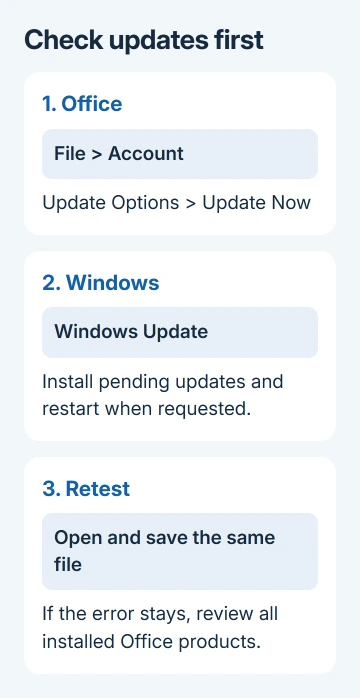
Check Windows Update too. In Windows 11 use Settings > Windows Update > Check for updates. In Windows 10 use Settings > Update & Security > Windows Update. Apply available updates, then complete a requested restart.
In the incompatible-products discussion, the asker said pending updates stopped the error and restored syncing. They didn't say which update fixed it, so there isn't a specific KB number to look for.
Their computer used Windows 8.1 and an Office 365 University subscription in 2015. Updates fixed it on that computer. The same wording on a newer installation can have a different cause.
I'd complete waiting updates before removing a licensed suite, Project or Visio. Uninstalling those can mean a much longer recovery than finishing an update. If the error persists, examine the installed products next.
2. List the Office products and how they were installed
Open Control Panel > Programs > Programs and Features. Look for Microsoft Office or Microsoft 365, plus standalone Visio, Project, Access, or OneDrive for Business entries. Record the names before changing anything.
These products can share Office components. Include standalone apps even if Word and Excel came together in one suite. Don't conclude that there is only one Office installation because the Start menu has only one Word shortcut.
In Word, open File > Account. An Update Options menu is a sign of a Click-to-Run installation, the technology used by subscription Office. Windows Installer, often called MSI, was used for some older licensed Office products.
Microsoft's installation compatibility guidance says the same Office version can't mix these two installation technologies. The restriction also applies to standalone Office applications.
Check each product's version and installer type rather than relying on names such as Office 2013 and Office 365. Office 365 was a subscription name, rather than the exact desktop version on the computer.
Update Options can also be missing because your workplace manages updates. Ask IT to verify how both the suite and standalone applications were installed. Check that combination before deciding a listed product is incompatible.
If there is no conflicting combination, keep the installed apps and continue to repair. If IT confirms a conflict, ask them for a supported installer that matches the other Office products you need.
3. Replace a confirmed conflicting product carefully
Before uninstalling Office software, check where you'll reinstall it from and which account or work license you'll need to activate it. Preserve unsynced edits in a local working file, using File > Save As outside your OneDrive folder.
Use Programs and Features to select the confirmed conflicting product and choose Uninstall. Follow its prompts and restart if requested. On a workplace PC, have the administrator remove and deploy the approved replacement.
Install the compatible edition from your license provider or IT. Its version, installer type and 32-bit or 64-bit edition need to work with the Office products you're keeping. Another copy with the same conflict brings the problem back.
One owner restored normal operation by removing Office 2013 apps and reinstalling Office, Visio and Project. Their steps used an old Fix It tool and the license terms at the time. Use current installation instructions for your license.
That result doesn't show that every PC needs its whole suite removed or a particular installation order. Replace the product involved in the confirmed conflict. Test the original OneDrive file before making another change.
If an Office app now requests activation, use the licensed account for that Office installation. An activation error needs its own account or licensing check; repeatedly removing OneDrive won't activate a desktop Office license.
4. Repair Office when updates and compatibility checks don't help
Close Office applications. On Windows 11, open Settings > Apps > Installed apps, find Microsoft 365 or Office, use its three-dot menu and choose Modify. On Windows 10, use Apps & features, select the product, then Modify.
For Click-to-Run, try Quick Repair first. If the problem continues, Online Repair performs a more complete repair and needs internet access. Windows Installer editions instead offer a Repair option through their change dialog.
Use the Office repair procedure matching the installed product. Repair applies to the suite, so save and close Outlook, Word and any remaining Office applications first.
After repair, open a small existing OneDrive document, make a recognizable edit and save it. Close and reopen it. Check that your edit is still there and Office hasn't left the document waiting to upload.
If the incompatible-products warning is gone but documents still won't upload, use the Office sign-in upload checks for that new message. Follow the message you see now so you don't repeat an installation fix that already worked.
Give support the installed-product list and save result
For a managed subscription, ask the Microsoft 365 help desk to review the suite, Visio, Project and any old OneDrive for Business components together. Send the exact error and the product names recorded in Programs and Features.
For a personal installation, use Help > Contact Support in an Office app when offered. Include whether pending updates changed the error, whether opening works on a second attempt, and whether a saved change reaches the cloud.
If ordinary non-Office files also won't synchronize, continue with the OneDrive sync repairs. Trouble syncing ordinary files needs different checks from Office reporting an incompatible installed product.
The Short Version
Finish waiting updates, then review Office installation types, including standalone apps. Replace a confirmed conflicting product or repair Office if needed. Check that the same document both opens and saves without the warning.
Checked November 17, 2026.
 If you have any business, I can build it online






