

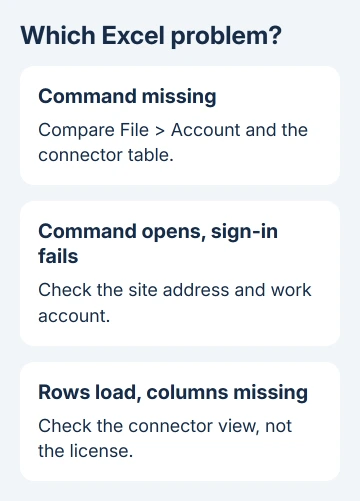
A missing SharePoint list connector in Excel can be down to your Office edition. Compare File > Account with a colleague who has the command before repairing Office again.
A rejected sign-in is a separate problem: the connector exists, but its connection fails. Check the account and site address in that case.
Check whether you need to import list rows, import files from a SharePoint folder, or open an Excel workbook stored in SharePoint. Those are separate connections, even when their addresses begin with the same company name.
In this guide
1. Compare the installed Excel product first
Open Excel for Windows and choose File > Account. Write down the product shown in Product Information, then open About Excel for its version and build. Ask a colleague with the missing command to compare the same details.
Don't compare just the account's email address or the Windows version. Two colleagues can access the same SharePoint site while their computers run different Office products. Site access doesn't add a connector to the installed Excel app.
Microsoft's Excel connector table lists SharePoint Online List for Office 2019 Professional Plus and Microsoft 365 Apps for Enterprise. Its Windows columns don't show that connector for every business or home edition.
Use the table's actual connector row when asking IT about your license. SharePoint List, SharePoint Online List, and SharePoint Folder have separate rows. A checkmark for one isn't a checkmark for all three.
The original report compared Office 365 Business with colleagues' ProPlus installations. Reinstalls and repairs hadn't restored the menu. Check the product difference, though the owner didn't report whether a license change fixed it.
2. Look in the right Get Data category
In a Windows edition that includes it, choose Data > Get Data > From Online Services > From SharePoint Online List. This is the connection for SharePoint Online list items, such as tasks, contacts or inventory rows.
For a company-managed SharePoint Server list, use Data > Get Data > From Other Sources > From SharePoint List. Ask the administrator which SharePoint service hosts your list.
Power Query imports data into Excel and lets you change how it's organized. Other commands in its menu show that Power Query exists, but your edition might lack a particular source. App repairs don't add an excluded connector.
A workbook file inside a document library needs a file connection instead. Confirm whether the thing you're importing has columns and list items or is an .xlsx file. That answer decides which connector to look for.
3. Use the site address when the connector opens
Enter the SharePoint site's root address, such as https://contoso.sharepoint.com/sites/Finance. Don't paste the long list-view address ending in AllItems.aspx or a sharing link copied from an individual item.
Choose the organizational sign-in method and use an account with permission to read the list. The navigator should offer that site's available lists. Choose yours before loading or transforming its rows.
The SharePoint Online connector offers implementations 2.0 and 1.0. With 2.0, All retrieves all columns, while Default follows the list's default view. Missing columns after a successful connection are different from a missing connector.
If the sign-in is rejected, ask the list owner to confirm your read access with that exact account. Changing a worksheet formula or selecting another view won't grant permission to a list you can't access.
From Web isn't an interchangeable repair: it can return a web page rather than list rows, or fail at organizational sign-in. I'd resolve the connector and account mismatch before building a different import.
4. Use list export when you only need its rows
For another way to get the rows, use the list's Export > Export to Excel command. Open the list using your work account, select the view containing the rows you need, and use that command. Open the exported query file in desktop Excel.
Approve a connection prompt only for the list you intended to export. Excel creates a table connected to that view. Use Data > Refresh All to retrieve a fresh copy of the list's data later.
This is a one-way connection. Editing the exported table doesn't update the SharePoint list. Keep changes intended for the shared list in SharePoint, and use the workbook for analysis rather than assuming it is a second list editor.
If the next task is reorganizing the imported table, follow the safe column-moving steps. Moving columns inside Excel is separate from changing which columns the SharePoint query retrieves.
The export starts on a signed-in list page. Your organization controls access, so a public sign-in page won't show the Export command you're trying to use. A list that won't open needs its owner's permission check first.
5. Check the platform before copying Windows instructions
Excel for Microsoft 365 on Mac has its own Data > Get Data experience. The current platform table includes SharePoint List import and refresh. Use the Mac connector list instead of expecting the Windows menu categories to match.
Excel for the web has another set of supported sources and refresh restrictions. Android and iOS don't support Power Query. Opening the same workbook on a phone therefore won't restore a connector missing from Windows.
After data loads, checking for missing numbers can help compare an expected sequence with imported rows. First confirm that the query or exported view includes the records you intended to retrieve.
What to ask IT when the command is still missing
Send the product name, build, platform and the connector you need. Include a screenshot of the Get Data menu and the matching connector-table row. Have IT compare your installed product with its assigned license before reinstalling.
For an access error, send your helpdesk the site address, account and error text. Remove private list contents from screenshots. That gives the helpdesk the details it needs to work on your connection error.
The Short Version
Compare Excel editions before repairing a missing SharePoint command. Use the correct list connector and site-root address when it exists, or export the list to a one-way Excel table when that meets your needs.
Checked November 17, 2026.






