OneDrive's expiration option depends on your account, item and link type. Check those before reinstalling the sync app. Some work accounts now show File link settings and Other links, replacing the older sharing dialog.
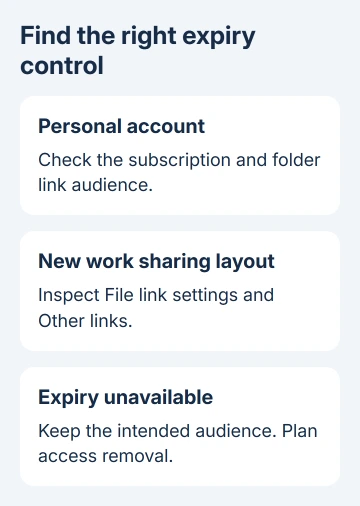
For a personal account, expiration requires a Microsoft 365 subscription. For folders, the documented expiration option applies to Anyone sharing. A work account's permitted link types also depend on the organization's sharing rules.
In this guide
1. Identify the account and the sharing layout
Check which account is signed into the OneDrive website. Personal and organizational accounts can hold identically named files while offering different sharing controls. Select the actual file or folder you own.
Choose Share and read the labels shown. If you see File link settings, you're using the newer sharing experience. If the dialog instead offers a link audience and a separate link-settings panel, follow that layout's controls.
Microsoft's current sharing instructions cover both layouts. The 2018 discussion about this fault predates the newer file-link experience, so its menu paths aren't enough to explain every current account.
Keep the item type in mind too. The sharing options for a folder aren't identical to every option available for an individual file. Check the selected item's name so you don't follow a file-only example for a folder.
2. In the newer layout, inspect additional links
The newer work or school experience uses one main link, called the hero link, for the file. File link settings controls its audience. Additional sharing links, including ones with expiration or passwords, appear under Other links.
In Share, inspect the options for making an additional link. Review its settings before copying it. Adding a deadline to that link doesn't automatically set the same deadline on the main URL.
Older links remain under Other links. Find the exact URL you sent before editing it. Expiration dates apply to supported extra links; the hero link itself doesn't accept an expiration date.
If the dialog offers Set expiration date, select the date and apply the change before copying the intended link. Include the deadline when you send the link. The recipient needs to know when the link will stop being useful.
An account whose layout doesn't offer an expiration control needs the account and administrator checks next. Another organization's Share dialog can have controls that haven't reached your account yet.
3. Check the audience in the older link dialog
Open Share, then open the settings for the selected link audience. Inspect the offered options before sending the link. An Anyone link is different from a link restricted to named people or people inside the organization.
For a personal account, verify that the account has the Microsoft 365 subscription that supplies advanced sharing features. A subscription on your other email address won't add those controls to the account currently holding the item.
For personal OneDrive folders, the help page limits expiration dates to Anyone sharing. If you're sharing a folder with specific people, don't expect the same expiry control just because it appears in an Anyone-link example.
Anyone links are forwardable. Keep confidential material restricted to its intended people, even if a wider audience reveals a date picker. Use access removal when an appropriate expiring link isn't offered.
For a work account, a missing or disabled Anyone option can reflect company policy. Continue with the administrator check instead of searching another app for a way around that audience limit.
4. Ask IT about the policy that applies to this location
Tell IT whether the item is in your OneDrive or a SharePoint site, whether it is a file or folder, and which link audiences appear. Ask whether that location permits the type of expiring link you're trying to create.
Organization-wide and site settings can affect sharing. Resetting the desktop sync app won't let an owner create an Anyone link that company policy blocks. Show IT which controls you can see in the browser.
Ask whether an expiration policy already applies to the offered link. Organizational link expiration and guest-access expiration are separate controls. A guest's access ending isn't the same thing as assigning a deadline to one URL.
If the problem is actually that a paid personal plan hasn't reached the account, use the OneDrive subscription checks. That means the account hasn't received its paid features; changing a folder setting won't fix it.
I'd send IT one cropped screenshot of the Share dialog with private names removed. Include the account type and item location in writing. That gives IT a specific control to check, without requesting every sharing feature.
5. Remove access manually when an expiry isn't offered
Set a reminder for the intended deadline. Select the item in OneDrive and open Manage access, either from its menu or the details pane. Review the people, groups and links that can reach it.
In the newer work dialog, select X beside a person or group to remove that entry. Inspect Other links too. A person may retain access through a group or another link after their direct permission is removed.
In personal OneDrive's link controls, open the relevant link's edit page. Use Remove link to revoke that URL and confirm the prompt. Existing copies of the URL then lose the access supplied by that link.
For a link that already has an expiration date, the personal-account edit page also offers its expiration setting. Check the selected link before changing the date so that a second live link doesn't get overlooked.
The large-file sharing guide covers choosing recipients and checking delivery. A delivery link and a long-term shared working folder need different decisions about how long access should remain available.
When the option remains unavailable
For a managed account, ask the helpdesk to confirm the supported expiration route for your sharing layout and policy. Supply the item type, audience and whether File link settings or the older settings panel appears.
For a personal subscription, use OneDrive support from the sharing help page with the subscription account and a cropped dialog screenshot. Until the correct control is available, set a reminder to remove access at the deadline.
The Short Version
Match the expiry control to your account, item and sharing layout. Look under Other links in the newer experience, respect audience restrictions, and use Manage access to end access manually when the permitted link has no expiry option.
Checked November 17, 2026.