

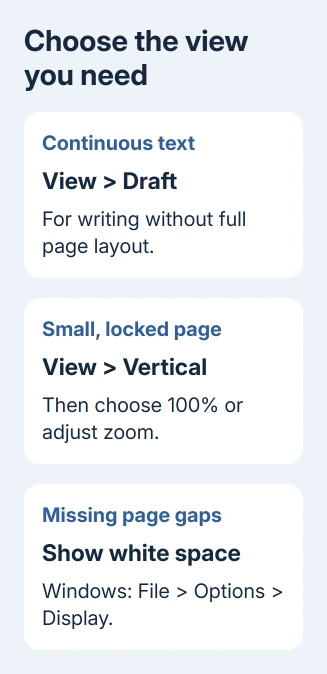
Normal view in desktop Word is now called Draft. Choose View > Draft for continuous text; for a tiny page with locked zoom, choose View > Vertical instead to turn off Side to Side page movement.
Draft simplifies the editing screen; Vertical lets you enlarge a page in Print Layout. A missing ribbon or missing margins calls for a different setting, so check which part is missing before changing the document's formatting.
In this guide
1. Choose Draft for the old continuous editing view
Open the document in the installed Word application and select the View tab. Choose Draft in the Views group. Look on the ribbon rather than relying on the small view buttons beside the zoom slider.
Draft shows the text in a simpler layout instead of arranging everything as finished sheets of paper. It's useful when you're writing or revising a long passage and don't need the printed layout competing for space.
The missing Normal label doesn't mean your document has lost its normal paragraph style. Normal in Home > Styles controls paragraph formatting. Changing that style won't bring back a viewing mode and can alter your text.
On a Windows keyboard, Ctrl+Alt+N switches to Draft. The ribbon command is easier to recognize when a laptop assigns another function to a shortcut.
In Word for Mac, use View > Draft as well. The page-movement steps in the next section apply to Windows. On a Mac, use Word's own view and zoom controls instead.
Draft leaves out the finished page layout
Expect the text to remain editable. Draft isn't a complete preview of pictures, headers, footers or page spacing. Missing visual elements in this view aren't a reason to recreate them in the document.
When you need to check where things sit on the page, return to View > Print Layout. I'd use Draft for writing and Print Layout for the final layout check, rather than trying to make either view do both jobs.
2. Unlock a small page by selecting Vertical
A page stuck around 60% with an unresponsive zoom control points to Side to Side movement in Windows Word. This mode displays pages like a book and stops you from choosing a normal zoom level.
Select View > Print Layout, then find the Page Movement group on the View tab. Select Vertical. Now choose 100% in the Zoom group or adjust the slider on the status bar.
Microsoft's page-movement instructions confirm that Side to Side disables zoom selection. Vertical restores it in Word for Microsoft 365 and supported desktop editions.
One owner confirmed that selecting Vertical restored their zoom slider. Success is easy to see: the percentage changes, the text grows, and pages scroll vertically. The document's font size and printed page dimensions haven't changed.
If the letters are still uncomfortable at 100%, choose a larger percentage. Zoom changes how large the document appears on your display. Increasing the font size would also change the document other people receive.
View > Zoom > Page Width is another useful choice when you want the text area to fit the window. Check that it gives you comfortable text before choosing a whole-page view that makes everything small again.
If Vertical is already selected, move to the next section. Repeatedly clicking 100% won't fix a missing ribbon or restore hidden margins, because those are separate display choices.
3. Leave Read Mode when the editing controls vanish
Read Mode is intended for reading rather than keeping the full editing ribbon in view. On Windows, press Esc to leave it, or use View > Edit Document from the reading interface.
Once the regular ribbon returns, choose Print Layout or Draft. The blinking text cursor and the Home tab's editing commands tell you you're back in an editing view.
If tabs are visible but their commands disappear after each click, the ribbon may be collapsed. On Windows, Ctrl+F1 toggles the ribbon display. Expand it once, then select View again.
A document that says you only have permission to view it needs editing access from its owner. Leaving Read Mode changes the interface; it doesn't grant permission to edit a shared file.
If the page contains unfamiliar paragraph marks as well, those are formatting marks, not another viewing mode. Use Home > Show/Hide to change their display without deleting any text.
4. Restore top and bottom margins in Print Layout
A continuous-looking screen can also be Print Layout with the white space between pages hidden. This removes the visible top and bottom margin areas, making consecutive pages look joined together.
In Windows Word, open File > Options > Display. Under the page-display settings, select Show white space between pages in Print Layout view, then choose OK.
The page gaps, header area and footer area should appear again. Your document hasn't gained larger margins; Word is showing space that was already part of the printed layout.
Use this setting when the page edges have disappeared, rather than adding blank paragraphs to make space for margins. Extra paragraphs move the contents and can leave the printed document with unwanted gaps.
For a contents page you're checking before submission, update the generated contents after the document's real headings change. Switching views doesn't update its entries.
If the entries remain visible but their dots are missing, repair the contents tab stops. That is formatting inside the table, separate from the page-view setting.
5. Find out which Word application is open
Word running inside an Edge, Chrome or Safari tab is Word for the web. Its available views differ from the installed application, so a desktop shortcut or Draft instruction may have no matching browser control.
Use the document's Open in Desktop App command when available and when desktop Word is installed. Keep the same file open, then check the desktop View tab for Draft.
If the installed app still lacks the expected controls, create an empty document, then compare the View tabs. Tell support if the View tabs differ. Don't reset the Normal template just because a view has another name.
When the controls still look different
For further help, use Help > Contact Support where your edition offers it. Include your Word version, whether it runs on Windows or Mac, the View tab and the current zoom percentage. Mention whether Vertical restores zoom.
The Short Version
Use View > Draft for the old Normal editing view. For a tiny page with locked zoom in Windows, select Vertical page movement. Leave Read Mode for editing, and restore white space if only the page margins have disappeared.
Checked November 17, 2026.
 If you have any business, I can build it online






