

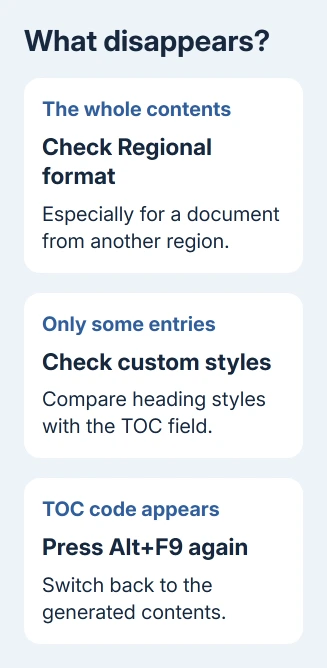
A Word table of contents that disappears during an update can have a mismatch between its field instructions and Windows' regional settings. Check Regional format before rebuilding a document from another region.
One owner got the table updating again by matching that format to the document and restarting.
Missing individual entries are a different case: the table may be looking for styles the headings don't use. Keep a copy of the file, then check the regional settings and the table's instructions in that order.
In this guide
1. Keep the working contents while checking the failure
If the update just erased the table, press Ctrl+Z in Windows Word to undo that change. Make a differently named document copy before experimenting with its regional settings or field instructions.
Use the copy for the checks that follow. This matters with a university or company document because its contents can use custom heading styles that a standard replacement table won't include.
Click in the restored contents and choose References > Update Table. Note whether Update page numbers only behaves differently from Update entire table. The second option rebuilds the entries as well as their page numbers.
If only a complete update removes the table, its existing text isn't the part to repair by hand. Word can't rebuild the table from its instructions or the headings those instructions refer to.
Record what appears in its place: an empty area, an error message or instructions beginning with TOC. Those point to different problems. Tell support which one appears in your copy.
If another computer can update this exact file, keep that comparison. A difference in Windows settings could explain that, so check those before changing all the source headings.
2. Match the Windows regional format to the document
In the confirmed discussion, the owner used German Word with a document created in US Word. Their country was set to the United States, but Regional format was still German.
Changing Regional format to the United States and restarting made the contents update correctly. The owner specifically said the list separator was already correct. Checking only that one character would have missed their fix.
On Windows 11, open Settings > Time & language > Language & region. In the Region section, inspect Regional format. For the same US-created document case, select English (United States).
On Windows 10, open Settings > Time & Language > Region. Find Regional format and choose the format appropriate to the document you're testing. The Country or region selection is a separate control.
Note your original format first because changing it also changes how other applications display dates and numbers. Save open work, restart the computer, then reopen the saved document copy in Word.
Try a complete contents update again. If the entries stay in place and their text and page numbers update, the change worked for your file too. Check a few chapter destinations rather than judging by the table's appearance alone.
This Windows workaround addresses documents created with a different regional format. For a document created under the same settings, check its field and styles next. Changing all computers to US formatting isn't a requirement.
3. Inspect the table's style list and separator
In Windows Word, press Alt+F9 to display field instructions. A laptop may need Fn with those keys. Find the instruction beginning with TOC at the position of the contents table.
A field is Word's instruction for generating a result, such as a contents list. A \t switch inside that instruction lists custom paragraph styles and the contents level assigned to each one.
For example, a table may refer to a custom style named Heading-Chapter. It will collect paragraphs using that style, not every paragraph that happens to look like a chapter title.
Check Windows' classic region dialog by pressing Windows+R, entering intl.cpl, and pressing Enter. On Formats, choose Additional settings and inspect List separator on the Numbers tab.
The regional-settings controls are shared Windows controls. The document's author can compare that separator with the separators in the TOC's custom style list.
In the discussion, an adviser whose system used semicolons had to replace the commas in that list with semicolons to update the file. That explained partial entries; the owner's final fix involved the broader Regional format setting.
I'd have the template author make that edit if the code isn't familiar. Change separators in the custom style list only, preserving the style names, levels and other switches. Keep the original instruction in your saved copy.
Press Alt+F9 again to return to the table's displayed result, then update it. Seeing code instead of entries after the first keypress is expected; it doesn't mean the contents were deleted again.
4. Check styles when only some entries disappear
Click one source heading that isn't appearing. In Home > Styles, check the paragraph style actually applied to it. Compare its name with the custom styles named in the TOC field.
A heading can look correct because someone changed its font directly. That appearance doesn't make it use the style the table expects. Have the document author confirm the intended style before changing a submission template.
For a standard document rather than a custom template, the automatic contents procedure explains how built-in Heading styles supply entries. Keep the links between custom styles and contents levels when the document requires them.
Update the entire table after correcting a heading style. If the entries return but the page-number dots don't, use the separate contents tab-stop repair. Missing dots don't call for another regional-format change.
5. Send a reproducible copy when the update still fails
If the same file fails after the region and style checks, send the document author a small copy with private text removed. Include the TOC field instructions and enough headings to make the disappearance happen.
Ask them to compare the field's custom style list with your Windows Regional format and List separator. Include your Word version and whether a different desktop computer updates the same file successfully.
Use Help > Contact Support where available if the author can't repair it. A copy that fails at a specific Update Table command lets support see the problem without rebuilding your entire document.
The Short Version
For a cross-region document, compare Windows Regional format as well as List separator. Preserve the TOC's custom style mappings. Check styles for lost entries, or toggle the field display for visible TOC instructions.
Checked November 17, 2026.
 If you have any business, I can build it online






