The error A service installation section in this INF is invalid can persist because of damaged Windows files. One Wi-Fi owner fixed it by uninstalling the device, running SFC, restarting, and reinstalling the driver.
Start with the correct hardware package, then repair Windows if that package still fails.
In this guide
1. Match the driver to the actual device
An INF file tells Windows how to install a device. The error means Windows can't use those instructions, but either the driver package or Windows could be at fault.
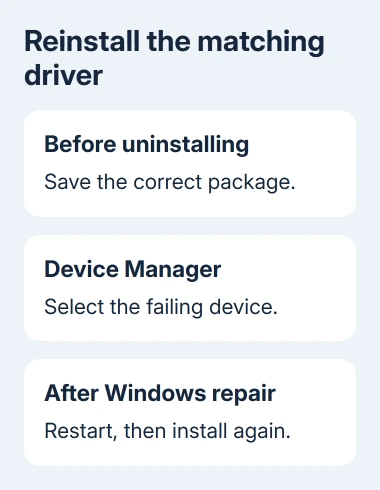
Right-click Start, then choose Device Manager. Find the failing device, right-click it, and choose Properties. Note the name and the text in Device status on the General tab.
For a motherboard's built-in Wi-Fi, use the motherboard model when choosing a package. For a laptop, use its exact model. Two products sharing the same wireless brand can still have different driver requirements.
If the name is unclear, open Details, select Hardware Ids, and copy the first entry for the manufacturer's support team. Give support that identifier if all you see is the generic name Network Controller.
Keep a local copy of the correct package before uninstalling a network device. If Wi-Fi is your only connection, use another PC to download it, then copy it across on USB so you're not left without an installer.
An owner on Microsoft's forum had tried several manufacturer packages and Intel's installer. A different download wasn't enough in their case. If your correct package produces the same INF error, continue with the repair sequence.
2. Remove the failing device through Device Manager
Right-click the affected device and choose Uninstall device. Read the confirmation carefully so you're removing the intended adapter. Confirm the uninstall, then keep the downloaded package ready for the reinstall.
The checkbox for removing the device's driver software can differ between Windows versions and devices. Don't remove unrelated network adapters to make the list shorter. The aim is to reinstall the failing device, not empty Device Manager.
An adapter disappearing from the list after uninstalling is expected. Windows can detect it again after a restart. That doesn't mean the driver repair has finished; the installation still needs to complete without the INF message.
The owner had already tried a thorough driver cleanup and an offline reinstall without success. They then noticed missing OEM INF files (driver instructions stored in Windows) and got it working after repairing system files.
That helps explain why repeating the same uninstall may get you nowhere. I'd move to Windows repair once the correct package has failed again, rather than keep downloading copies of the same driver.
Leave C:\Windows\INF and DriverStore alone. Manually deleting files there can damage other device installations and makes the original error harder to repair.
3. Repair Windows, then restart
Search Start for cmd, right-click Command Prompt, and select Run as administrator. Approve the prompt. An ordinary Command Prompt window doesn't have the access these repair commands need.
The system-file repair instructions put DISM first, followed by System File Checker. DISM repairs components used during the second scan.
Run this repair command and give it time to finish:
DISM.exe /Online /Cleanup-image /RestorehealthKeep using the administrator window for the next command:
sfc /scannowKeep Command Prompt open until the scan reaches 100%. Read the final result rather than closing it as soon as the percentage stops moving. Save that result if the driver still won't install afterward.
If the final result reports repaired system files, restart the PC before installing the driver again. Restarting before the reinstall was part of the sequence that worked for the owner.
If SFC finds no integrity violations, Windows' protected system files passed the scan. If it couldn't repair some files, take that result to support before attempting more driver cleanup.
DISM normally uses Windows Update to get repair files. If it fails because it can't get the source files, use the DISM repair guide for that separate failure before continuing here.
4. Install the package and check the device
After the restart, run the downloaded manufacturer's installer. Follow its prompts and restart again if requested. Check whether the INF error returns, rather than assuming a closed installer means it succeeded.
If the manufacturer supplies extracted driver files instead of an installer, use the device's right-click Update driver command, then select Browse my computer for drivers. Point it to the extracted folder.
Enable Include subfolders when that option appears, then choose Next. Don't point Windows at a ZIP archive; extract it first. The wizard needs to read the actual driver files inside the package.
Return to Properties > General. A working installation should no longer show the installation error. For Wi-Fi, also check that the adapter appears in the network controls and can connect to your usual network.
If the device installs but won't connect, you've moved on to a connection problem. The Wi-Fi connected without internet guide applies after the wireless adapter is available, not while its driver is failing.
If the same INF message returns
Send your PC or motherboard vendor the precise model, Windows version, hardware ID, driver package name, and both repair results. Ask whether that package supports your hardware ID and Windows version.
For a work PC, ask IT to review the failed installation and Windows repair results. When Windows repair hasn't helped the correct package install, give IT those repair results. Don't try undocumented registry edits.
In your report, explain which steps worked and which failed. Say whether uninstall worked, whether SFC repaired files, and whether the installer still displays the same message after restarting. Those details change the next repair.
The Short Version
Get the correct driver first. Uninstall the failing device, repair Windows with DISM and SFC, restart, and reinstall. This sequence fixed a confirmed Wi-Fi case after repeated driver-only reinstalls had failed.
Checked November 17, 2026.