

Word 2013 can show "The operating system is not presently configured to run this application" when its pinned shortcut breaks. Open Word from Start and replace its taskbar pin if that works.
The same message can also appear when Word itself won't start. In that case, try opening a document and starting Word directly before repairing Office. Reinstalling Windows isn't the first step for either case.
In this guide
1. Open Word without the old taskbar icon
Press the Windows key, type Word 2013, and open the matching application from Start. Create a blank document if Word reaches its start screen. If a blank document opens, the old taskbar pin may be the problem.
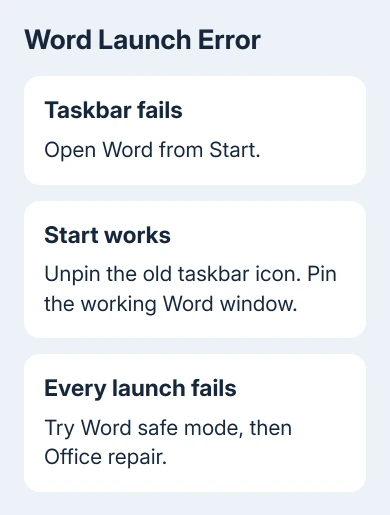
If that opens normally, right-click the old taskbar icon and choose Unpin from taskbar. With the working Word window open, open its taskbar menu and select Pin to taskbar. Close Word and test the replacement pin.
On Microsoft's forum, one owner found that launching from Start and replacing the taskbar pin solved this error. Word still worked when they opened it from Start.
I'd try this before Office repair. Success means the fresh icon starts Word without an error. If Start also fails, compare the other launch methods before changing shortcuts.
2. Compare a document with the Word command
Find an existing .docx file in File Explorer and double-click it. Choose a document you recognize. If Word opens it, check File > Account so you know which Office product actually handled the file.
Next, close Word, press Windows+R, enter winword, and press Enter. This asks Windows to launch Word directly. Check whether Word shows the error at startup or waits until a document is selected.
If the document opens, Word still has a working way to start. Its shortcuts or startup settings can still be wrong. Another owner could open documents while Start and Run launches failed.
If Word won't start directly, try safe mode and then repair Office. If only one document fails and blank files work, follow the steps for a Word document that won't open.
If another installed edition opened the file, that hasn't tested Word 2013. Compare the product names on the Account screen, especially when an old Office suite sits alongside a newer subscription.
3. Try Word's safe mode when direct launch fails
Close every Word window after saving your work. Press Windows+R, type winword /safe, and press Enter. The space before /safe matters. Look for Word opening with safe mode shown in its title area.
This is Office safe mode, so the computer stays in normal Windows. It limits components that Word normally loads, including many extensions. Microsoft's Office safe mode instructions explain this startup option.
If safe mode opens but normal Word doesn't, go to File > Options > Add-ins. At the bottom, select COM Add-ins in Manage, then choose Go. Note which entries are selected, then clear their checkboxes and try starting Word normally.
Restart Word normally. If it works, enable one extension, restart Word, and repeat with the remaining entries. When an extension triggers the error, leave it disabled; request a compatible release from the extension developer.
If the operating-system message also appears in safe mode, stop changing add-ins. Safe mode hasn't helped, so add-ins aren't the next thing to change. Continue with the suite's repair tool instead.
4. Use the repair tool for your Office installation
Save and exit every Office app. Open Control Panel > Programs > Programs and Features, select the installed Office 2013 suite, and choose Change. If you installed Word on its own, select its entry instead.
Office's installation type determines the buttons. A Click-to-Run installation can offer Quick Repair and Online Repair. Start with Quick Repair, then test Word; use Online Repair if the first repair doesn't solve the launch failure.
An older Windows Installer (MSI) installation presents Repair, followed by Continue. Follow that dialog rather than looking for an Online Repair button that isn't offered. The tool repairs the whole suite, including its other apps.
Keep your Office account or license information ready. Before removing an old installation, check that its installer and activation method are available. Preserve any working launch route until then.
Test the direct Word command after the repair, then your pinned icon. In the original discussion, some owners said repair made no difference. If repair hasn't helped, move on rather than running it repeatedly.
5. Choose a supported route if the error remains
Record the exact error, the edition shown in File > Account if you can open it, and which launch methods work. A technician needs to know whether existing files open, whether safe mode starts, and whether repair completed successfully.
Support ended for Office 2013 on April 11, 2023, including security fixes and standard technical support. It can still run. Replacing it with a supported release is a better long-term choice than using a 2022 build.
The old thread contains a rollback command that worked for several owners in 2022. Another needed reinstallation after rollback failed. The same error message doesn't mean that old build is the right fix today.
For immediate access, keep using a working document launch while arranging the repair or upgrade. If the result is actually a Word shortcut-key problem, such as Ctrl+C failing inside an open document, that needs separate keyboard checks.
The Short Version
Replace the taskbar pin when Start still opens Word. Otherwise, compare safe mode and repair Office. Record the launch results for a technician and arrange a supported replacement for Office 2013.
Checked November 17, 2026.






