OneDrive's Free up space clears PC downloads, not cloud storage. If blue-cloud files still seem to fill the drive, check Size on disk. Excluding a stuck folder through Choose folders worked for an affected owner.
Files that turn green again after opening them are a different case. Opening an online-only file downloads it. OneDrive also offers Always keep on this device, which retains its local contents.
In this guide
1. Check which storage total hasn't changed
Open File Explorer > This PC and find the drive holding your OneDrive folder. Note its available space. That's the total Free up space is meant to improve, rather than the storage allowance inside your online OneDrive account.
Right-click the affected OneDrive folder, select Properties, and compare Size with Size on disk. Size counts the files' full contents. Online-only files count toward Size even though their contents aren't all stored on your PC.
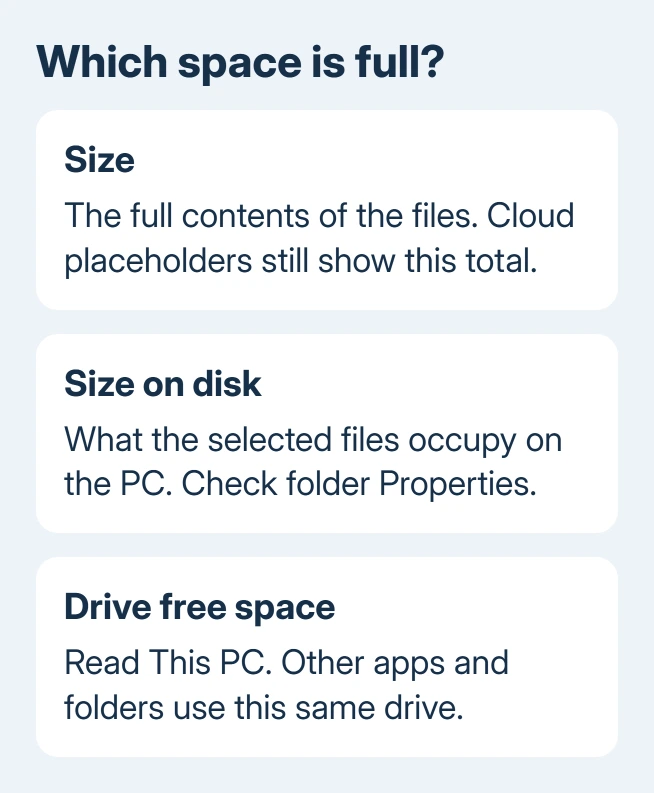
Microsoft's file-size explanation describes the placeholders used by Files On-Demand. Seeing a large Size total alone doesn't mean OneDrive kept every file downloaded.
If Size on disk is small but the drive remains full, check the other storage categories later in this procedure. If the OneDrive folder itself still occupies substantial space, continue with the file states and folder-selection repair.
For a full online allowance, use the OneDrive cloud-storage cleanup. Repeating Free up space won't remove files from the cloud or reduce that account total.
2. Make the intended files online-only
Inside the synced OneDrive folder, right-click your chosen item, then use Free up space. In Windows 11, expand Show more options when the compact menu doesn't offer that command. Wait for OneDrive to finish the change.
A blue cloud marks an online-only file. A green check in an outlined circle marks a locally available file. The Always keep on this device state puts a solid green background behind its white check.
Opening an online-only file downloads it again. If you open every photo to check it right after freeing space, you'll download those photos again. Check the status and drive total before reopening the contents.
Don't use Delete to remove just the downloaded copy. Synced deletions reach the online OneDrive copy too. The OneDrive deletion guide explains that difference and the recovery options.
If the files turn blue and drive space increases, the command worked. Leave a downloaded copy of anything you'll need without internet. Make the larger folders you rarely use online-only.
If the icons are already blue and the OneDrive folder still occupies the space, move to Choose folders. That was the situation in the confirmed report, where restarting and resetting OneDrive hadn't helped.
3. Exclude a large folder through Choose folders
Check that the files have finished syncing and are available in the correct account online. Choose folders removes the folder from this PC's OneDrive folder, so you won't see its online-only files in File Explorer either.
Select OneDrive's notification-area cloud beside the clock. Open its Help & Settings menu, select Settings, and open Account > Choose folders. Expand hidden taskbar icons if you can't see the cloud.
Clear the checkbox beside a large folder you don't need on this PC, then select OK. The folder-selection instructions confirm that it is removed from the computer while remaining online.
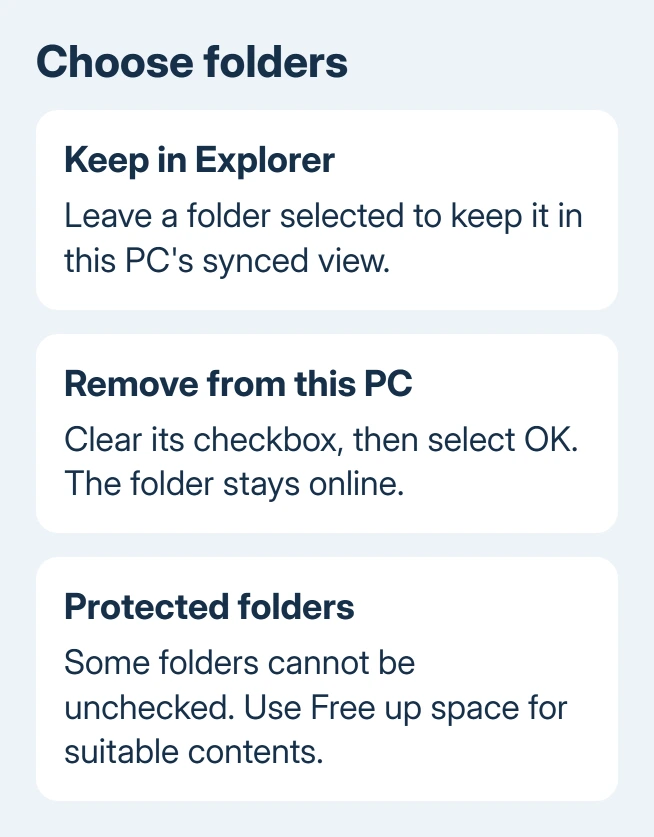
Give OneDrive time to process the change, then check This PC again. The excluded folder should disappear from that account's local OneDrive folder. Verify the online folder remains available before excluding another one.
In the original discussion, an owner reported that this worked after Free up space initially helped but the disk filled again. They confirmed the result in a later reply to the Choose folders suggestion.
I'd try one large folder first. You'll see how much space that frees while the account's other folders stay selected. It also leaves your everyday folders easy to reach.
This setting applies separately to each account and computer. With two OneDrive accounts connected, open Settings for the account containing the affected folder.
4. Handle unavailable folders and repeat downloads
Some important folders can't be unchecked, including backed-up Desktop, Documents, Pictures, and Personal Vault. If you can't clear a checkbox, that doesn't mean Free up space failed. Don't delete the folder to get around it.
Use Free up space on suitable contents instead. Stopping backup to make a checkbox available also changes how that protected folder is backed up.
Open Settings > Sync and back up > Advanced settings in the OneDrive app to review Files On-Demand. Some app layouts show a switch; newer layouts can show Free up disk space and Download all files instead.
The Files On-Demand instructions describe those versions. Download all files brings cloud contents onto the PC, so it won't help free space.
If space returns then disappears again, watch which folders become locally available. Apps can download cloud files, while Always keep on this device keeps them on the PC. Change that setting if you don't need those folders kept downloaded.
5. Check Windows storage if OneDrive is already small
Both Windows 10 and 11 put this at Start > Settings > System > Storage. Compare its categories with OneDrive's Size on disk. Apps, temporary files and other data can fill the drive without belonging to OneDrive.
Use the Windows disk-space checks for those categories. Unchecking more cloud folders won't reclaim space that's being used elsewhere on the drive.
If the folder disappears but drive space doesn't improve, send OneDrive Support the free-space readings and folder properties. Include your OneDrive and Windows versions, account type and sync status.
For a work account, ask IT to review Files On-Demand policies and the specific folder that stays downloaded. For a personal account, report through OneDrive Help and Support that blue-cloud files still have a large Size on disk.
The Short Version
Check drive space and Size on disk. Make files online-only. For a stuck folder, verify sync and exclude it through Choose folders. If OneDrive is already small, check the rest of Windows storage.
Checked November 17, 2026.