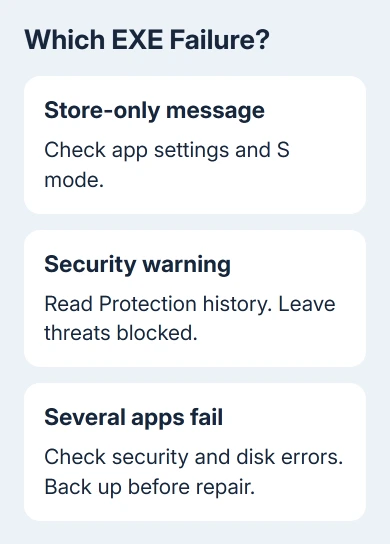
Windows can block EXE files through app restrictions, security checks or disk errors. Start with the message: a Store-only warning differs from a silent failure or an EXE opening in the wrong program.
When installed apps work but downloads don't, check the installer and app restrictions first. A disk check fixed the original owner's case, but other launch blocks need different repairs.
In this guide
1. Compare one downloaded program with an installed app
Open Notepad from Start, then try the downloaded installer again. Record the error. A working Notepad shows some programs still start. Focus first on the downloaded file, its source, and any restriction named in the dialog.
Check that the maker's download finished. Extract a ZIP before running its installer. Right-click the ZIP, choose Extract All, and launch the installer from the extracted folder rather than repeatedly opening the archive.
For an unclear file type, show extensions. In Windows 11 File Explorer, choose View > Show > File name extensions. In Windows 10, use the View tab and select File name extensions. Renaming a file .exe won't make it a program.
For one failing installer, redownload it directly from its publisher. If several installers fail, check Windows' app restrictions next. If installed programs fail too, move toward security and disk checks.
2. Resolve a Microsoft Store restriction
A message that the app isn't Microsoft-verified can come from Windows' app recommendation setting. On Windows 11, open Settings > Apps > Advanced app settings. Check Choose where to get apps.
On Windows 10, use Settings > Apps > Apps & features, then find the same choice. For a trusted program from its maker, select a choice allowing software from outside the Store. Microsoft's app recommendation settings describe these choices.
If the PC is in S mode, that's a separate Store-only limit. Check Settings > System > Activation in Windows 11, or Settings > Update & Security > Activation in Windows 10. Look at the edition and any S mode information.
Use a Store alternative if one meets your needs. Leaving S mode cannot be reversed, so make that decision only if you need desktop software outside the Store. Follow the official S mode switching instructions.
If the setting is managed by your organization, request installation or approval from IT. Changing a personal recommendation setting won't bypass a workplace application policy. Give IT the software name, publisher, and exact block message.
3. Check security reports instead of disabling protection
Open Windows Security > Virus & threat protection > Protection history. Look for an entry matching the file and time you tried to run it. A threat report needs attention before another attempt to open the program.
Leave a suspicious file quarantined and request a clean installer from its publisher. Browser blocks, antivirus detections and app restrictions can all stop an installer, but show different messages.
For sudden failures across unrelated programs, run a Full scan through Virus & threat protection > Scan options. If another antivirus app manages your protection instead of Defender, run the scan through that app.
For suspected persistent malware, save your work, choose Microsoft Defender Antivirus (offline scan) when offered, then Scan now. The PC restarts for the scan. Read Protection history when Windows returns.
Don't import an unknown EXE association file or erase registry entries to fight an unidentified infection. Choose the next action from the scan results, rather than guessing which values to delete.
4. Check disk errors when the failures are broader
An owner confirmed that chkdsk /f /r restored program execution after about two to three hours. It worked on their machine, but that doesn't mean every EXE failure comes from malware or a wrong default app.
Keep important files backed up on another drive before repairing disk errors. If the drive clicks, repeatedly disconnects or loses data, ask a repair shop to assess it before a heavy scan.
On Windows 10 or 11, search Start for Command Prompt, open its context menu and select Run as administrator. For the Windows drive, a read-only check is chkdsk C:. Replace C: only if the affected programs are on another local drive.
Read the report. This command checks the disk and reports errors without repairing them. Microsoft's CHKDSK reference explains that /f repairs file-system errors and /r also tries to recover data from bad sectors.
If the report calls for repair and your backup is ready, run chkdsk C: /f. Windows may ask to run it during your next restart because the system drive is in use. Type Y, press Enter, and restart when you're ready to let the check complete.
Use chkdsk C: /r when you need the deeper check for bad sectors. It includes /f and can take much longer. Connect the power adapter and let it finish, then retry the program and review any remaining disk errors.
5. Escalate an EXE association or system-wide failure
Tell support if EXE files open an editor or ask you to choose an app. A Store warning calls for different checks. Don't assign a text editor to executables or use old registry instructions without checking their Windows version.
If disk repair reports continuing errors, arrange a drive-health check and keep the backup. If the disk checks clean but Windows components fail too, the SFC and DISM repair guide covers system-file repair in the proper order.
For a work PC, send IT the failed program names, screenshots of the messages, security results, and disk-check result.
On a personal PC, use Get Help or a qualified technician and ask them to check application blocking and EXE file associations, the settings Windows uses to choose how a file opens.
If programs stopped opening following a system change, review the Windows System Restore guide before choosing a restore point. Keep a current backup and review the apps affected by your chosen restore point.
The Short Version
Read the message, then check the installer, app restrictions and security history. Back up before a justified disk repair. If an EXE opens the wrong app, ask support to inspect its file association.
Checked November 17, 2026.