

A layout panel that stays on the desktop after Snap windows is turned off can come from your monitor's software. Check Dell Display Manager or another window arrangement app first; Windows' Snap switch can't disable a second app's panel.
In this guide
1. Is the panel coming from Windows or a utility?
Windows 11 can show layouts when you hover over Maximize or drag a window toward the screen's upper edge. Monitor utilities can show a similar panel while you drag or resize a window, so you can't tell which program it is just by looking.
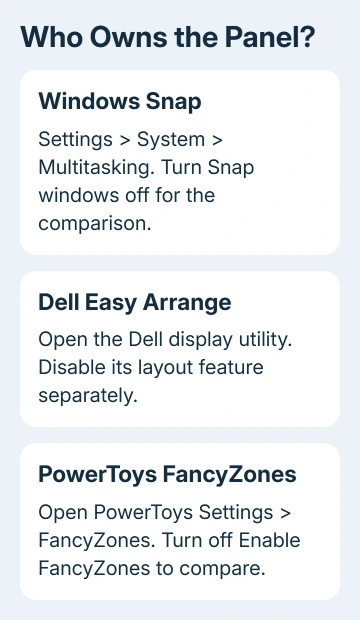
Open Settings > System > Multitasking and check Snap windows. If it's already off, keep it off while testing. Then look in Start and the taskbar's notification area for Dell Display Manager or Dell Display and Peripheral Manager.
One owner traced the panel to their Dell monitor utility in a Microsoft forum discussion. Windows Snap was off and the suggested registry value was zero. They disabled the second layout system once they recognized it.
If the panel stays after you turn Windows Snap off, check the other apps running on your PC. A registry edit or display driver reinstall isn't the first thing to try.
Without Dell software, check for PowerToys or another desktop arrangement tool. Find the app showing the panel before changing settings that affect every window on your PC.
2. Turn off Easy Arrange in Dell's utility
Open the Dell display utility from Start or its notification-area icon. With multiple monitors, select the affected display first. Look for Easy Arrange, which manages the zones that application windows can snap into.
Disable Easy Arrange using your version's layout controls. The exact settings differ between Dell Display Manager and the newer Dell Display and Peripheral Manager, so check the installed app's name first.
If the app presents layout presets, choosing another preset isn't the same as disabling the feature. Look for its disabled state. When the control isn't clear, exit the utility for the comparison in the next step.
Drag the same window by its title bar, then resize it from a corner. The Dell panel should no longer appear during the action that triggered it. Keep Windows Snap off while checking that the Dell panel has gone.
If you can't find the disable control, use the utility's notification-area menu to exit it, where offered. The settings window can close while the utility continues running. Repeat the drag test after exiting.
A panel that disappears only after the utility exits belongs to that program. Record its version from its About screen and use the instructions for that version before you turn off unrelated Windows features.
3. Choose which Windows Snap behavior to keep
Once the extra panel is gone, decide whether you want Windows' own arrangement tools. You don't have to disable all snapping just to hide the layout menu near the screen's upper edge.
In Windows 11, open Settings > System > Multitasking. To keep snapping, enable Snap windows and expand its section to see the checkboxes. Microsoft's Snap settings instructions separate the available behaviors.
To hide the top drag panel, clear the checkbox beginning Show snap layouts when I drag. Clear Show snap layouts when I hover over a window's maximize button if the popup over Maximize is what you want to stop.
The option When I snap a window, show what I can snap next to it controls the suggestions that appear after you place a window. It's a separate choice from the menu shown before placement.
To stop Windows snapping altogether, turn the main Snap windows switch off. Test by dragging a normal window again. If the remaining panel ignores that switch, return to the utility that owns it rather than changing another Snap checkbox.
4. Check FancyZones if PowerToys is installed
PowerToys has its own window arrangement feature called FancyZones. Open PowerToys Settings and select FancyZones. Turn off Enable FancyZones for a comparison, then repeat the same drag or resize action.
The FancyZones controls include zone activation behavior. A key set to activate zones can change when they appear, so a panel triggered while holding Shift can belong to FancyZones rather than the monitor utility.
If turning FancyZones off removes the panel, adjust when its zones appear before turning it back on. Test each arrangement tool separately to see which setting affects the panel.
Normal window switching still works without these layout panels. Our Windows keyboard shortcuts cover switching between apps while you decide which arrangement feature to keep.
5. Clear a frozen panel and check what brings it back
Restarting Windows can clear a frozen panel, but it won't change the setting that makes the panel appear next time. Save your open documents and choose Start > Power > Restart after adjusting the responsible app.
After sign-in, open a resizable window and repeat the action. If the panel stays gone, your setting was kept after the restart. If it returns, check whether the utility restarted with its layout feature enabled.
I'd use that restart after changing the setting, rather than reboot repeatedly while leaving the same utility active. The restart then checks your new setting without repeatedly interrupting your work.
If the whole desktop or taskbar is also unresponsive, that's a wider problem than a layout preference. Our File Explorer recovery steps cover that situation separately.
If the panel returns, send the utility's support team a screenshot, monitor model, Windows build, app version, and the action that brings it up. Include the Snap switch's state and whether exiting the utility removes the panel.
The Short Version
Check Easy Arrange or FancyZones when a layout panel ignores Windows' Snap switch. Disable the responsible utility's layout feature, then keep only the Windows Snap behaviors you actually want.
Checked November 17, 2026.
 If you have any business, I can build it online






