

LifeCam Studio can lose video after a Windows 11 upgrade because its old camera driver doesn't work properly. Remove that driver in Device Manager, reconnect the webcam, and check the preview before opening Teams.
In the reported case, LifeCam appeared under Imaging devices, but Windows showed no preview. Reinstalling restored video for some owners, but others lost it again. A picture that appears briefly and turns gray needs the rollback check too.
In this guide
1. Compare the Windows preview with your meeting app
Close Teams, Zoom and other camera apps. Open Start > Camera and check for a live picture. If your laptop also has a built-in camera, use the camera-switch control to check the LifeCam rather than judging the wrong lens.
If Camera shows video but Teams doesn't, go straight to the permissions and app-selection section. Windows is receiving the picture; check the app's camera selection before removing any device.
If there is no picture anywhere, press Windows+X and select Device Manager. Look under Cameras and Imaging devices for the LifeCam. Its microphone or audio component can also appear under Sound, video and game controllers.
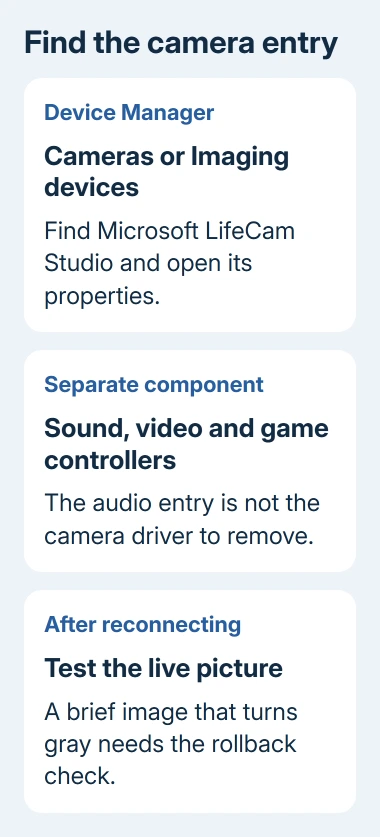
The camera entry is the one to work on. Don't uninstall the audio component just because the same product name appears there. Record which category contains the camera and any error shown in Properties > General.
If the webcam isn't listed, plug its USB cable into the computer itself, then check the device list again. Try another port if necessary. If no camera appears, check its connection or hardware before trying to select a driver.
2. Remove the old camera driver and reconnect
Right-click the Microsoft LifeCam Studio camera entry in Device Manager and choose Uninstall device. In the confirmation, use the driver-removal checkbox beginning Attempt to remove, if offered, then confirm removal.
On older dialogs, that checkbox begins Delete the driver software. The wording differs, but both options let you remove the driver package along with the device entry when Windows offers that choice.
Unplug the LifeCam, wait a few seconds, and reconnect it to your intended USB port. Give Windows time to detect it. If needed, open Device Manager's Action menu and select Scan for hardware changes. Restart afterward.
Microsoft's camera repair instructions cover driver removal, rescanning and the built-in USB video driver. Check whether the preview improves after each repair.
Open Settings > Bluetooth & devices > Cameras, select the camera if listed, and check its preview. Also test Camera from Start. A steady live picture is the result you want before testing your next meeting.
An owner on Microsoft's forum restored their LifeCam this way after upgrading. A later reply confirmed success, but others reported a brief picture followed by a gray preview. Reinstallation didn't last on every setup.
If video stays on, restart once and test again before your next call. If it disappears within seconds or the device returns to its old category, continue with rollback rather than doing another identical reinstall.
3. Roll back when video works briefly, then disappears
Open the LifeCam camera's Properties > Driver tab in Device Manager. Select Roll Back Driver if available, answer the reason prompt, and let Windows finish. Restart and open Camera again.
Rollback puts back a previously installed driver. An unavailable Roll Back Driver button means Windows has no usable earlier driver for that entry. Skip to the USB video-driver option rather than trying to enable that control.
A later reply said rollback kept the picture working after a brief reinstall recovery. They later added that moving the webcam from a front USB port to a rear one brought the fault back, so they had to repair the driver again.
Keep the webcam on the port where you're testing it while you check stability. The report shows that a working preview on one port didn't carry over reliably to another. That doesn't mean front ports work better on every PC.
If rollback restores video, try your meeting app, then check again after a restart. If rollback makes no difference, try the standard Windows driver next instead of repeatedly switching between the same two drivers.
4. Choose USB Video Device if the LifeCam driver still fails
Windows includes a standard driver for compatible USB webcams, called UVC, or USB Video Class. It can provide normal video without the camera maker's extra software. Some device-specific features may not be available with it.
- Right-click the camera entry in Device Manager and select Update driver.
- Choose Browse my computer for drivers.
- Select the option beginning Let me pick to open the list of drivers already on the computer.
- Choose USB Video Device if it is offered, then select Next.
- Finish the installation, restart if requested, and test Camera again.
Don't select an unrelated device or turn off compatibility filtering to make a driver appear. If the list doesn't offer USB Video Device, ask Windows support to check which driver is suitable for the detected camera.
I'd stop changing drivers as soon as you have a steady picture that survives a restart. Installing an old LifeCam software package afterward adds another change before you've confirmed the repair holds.
5. Fix app access when the Windows preview works
Open Settings > Privacy & security > Camera. Enable Camera access, Let apps access your camera, and your app's switch if listed. For desktop meeting software, also enable the switch beginning Let desktop apps.
Open your meeting app's device or video settings and select the LifeCam. Close other camera apps before retesting. A working Windows preview with a failed meeting preview points you toward that app's selection or access settings.
For a browser meeting, check the browser's camera permission too. Permission for Windows and permission for a website are separate controls, so allowing one doesn't automatically allow the other.
If Device Manager shows a warning, record its device error code. For continued failure, open Get Help and request camera-driver support with that code, the Windows build and the driver version.
Try the webcam on another computer if available. If it fails there too, have the cable or camera checked. If video works reliably there, tell support so they can focus on this PC's driver setup.
The Short Version
Reinstall the LifeCam driver by removing it and reconnecting. For brief recovery, try rollback or the offered USB Video Device driver. Once Windows video works, check the meeting app's selected camera and permissions.
Checked November 17, 2026.
 If you have any business, I can build it online






