Deleted PowerPoint guides won't necessarily return when you select the Guides checkbox. Right-click empty slide background, open the Grid and Guides submenu, and add a horizontal or vertical guide there.
That menu is easy to miss because clicking Grid and Guides can open a settings dialog instead. The submenu gives you the commands to create guides when there isn't an existing guide to right-click.
In this guide
1. Reach the context submenu from empty slide space
Open your presentation using PowerPoint's Windows desktop app, then switch to View > Normal. Choose a slide where you can clearly see some empty background outside its text boxes, pictures, and other objects.
Right-click that empty background in the main editing area. Use the slide itself, rather than its small thumbnail on the left. Right-clicking a selected picture gives picture commands; the slide background has its own menu.
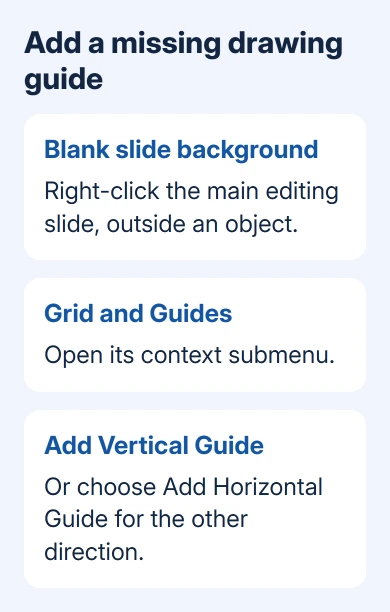
Find Grid and Guides. Move the pointer onto its submenu control and leave it there until the choices open. Choose Add Vertical Guide or Add Horizontal Guide from those choices.
The new guide should appear on the slide you're editing. Add the other direction if you need both. This adds a new guide even if you've deleted the old center guide.
In the original missing-guides discussion, one owner confirmed this route worked after they understood the blank-slide right-click. They were using Windows 11 and already had Guides turned on.
If the menu has no guide commands, check where you right-clicked before changing PowerPoint's installation. Press Esc to leave text editing, then try an unused part of the main slide again.
2. Turn guide visibility on without confusing it with grids
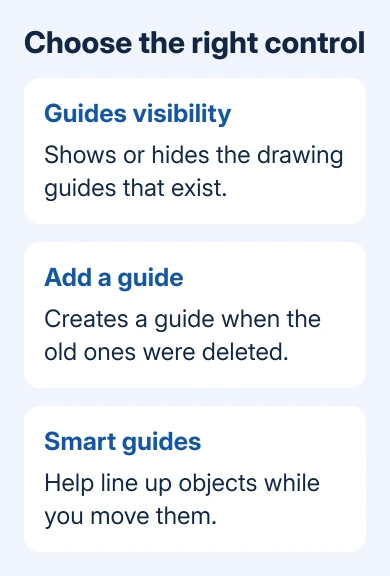
Open View and select Guides if it isn't selected. Where the Grid and Guides dialog is available, check Display drawing guides on screen. These controls show guides that still exist. They won't replace one you've deleted.
Microsoft's grid and guide instructions distinguish drawing guides from the grid and smart guides. So gridlines can be visible even when your drawing guides are missing.
Gridlines form a repeating grid across the slide. Drawing guides are individual horizontal or vertical references you can move. Smart guides appear while positioning objects to help align them with other objects.
Turn on the one you need rather than enabling every option. For a fixed left margin used across several objects, a drawing guide is the clearer tool. For aligning two pictures with each other, smart guides may be enough.
Shapes you drag will snap to the grid, but Freeform points won't in PowerPoint 2010 and later; the freeform snapping workarounds build exact outlines another way.
If a dense grid appears but the two familiar center guides don't, adding more gridlines won't restore those missing guides. Return to the slide's context submenu and create a drawing guide.
Check the slide while you're editing, rather than in a running slide show. Drawing guides aren't visible during the slide show and don't print, so their absence from the audience view is normal.
3. Move the new guide to the position you need
Point directly at the new guide, then move it to your chosen position. PowerPoint shows its distance from the center as you move it. Use that value to place matching margins instead of estimating them by eye.
Move a vertical guide sideways and a horizontal guide up or down. Keep the pointer on the guide itself. Dragging a nearby object moves that object, which can make a working guide seem unresponsive.
Create another guide through the same context submenu when you need a second margin. This is especially helpful when you're rebuilding a template that's missing the guides used for its original layout.
If a guide is difficult to see against the slide background, right-click the guide, choose Color, and select a more visible color when that option is offered. This changes the guide, not your slide's text or theme colors.
Guides help position existing objects. They don't automatically add a footer, resize a text box, or arrange every slide. For a citation that still hasn't appeared, use the PowerPoint footer checks separately.
Try moving one existing object close to the guide and check its alignment. Work on a duplicate slide if the presentation has a carefully approved layout, then discard that duplicate when you're satisfied with the controls.
4. Use the Mac controls when the Windows menu doesn't match
PowerPoint for Mac has its own menu arrangement. On the Mac, start with View > Guides to show or hide guides. Look for the Mac menu names rather than trying to match the Windows layout.
For smart guides, use View > Grid and Guides > Smart Guides. Snap to Grid is a separate choice in that menu. Select it only when you want objects to align with the grid as you drag them.
For fine placement on a Mac, hold Command while dragging an object. This helps you position the object. It doesn't recreate deleted drawing guides or show guides you've hidden.
The owner who got their missing guides back was using desktop PowerPoint on Windows 11. The browser editor has its own controls. Use the desktop application for the Windows context-menu route in section 1.
Changing fonts also won't bring guide commands back. If lettering is the separate problem, check font installation in PowerPoint after you've restored the alignment controls you need.
5. Compare a blank presentation before repairing Office
Create a temporary blank presentation and try adding a guide from its slide background. Keep the original deck open separately. Check whether you can add guides in the new file or whether the same problem happens there too.
If it works in the blank deck, compare the original's view and click target. A slide crowded with pictures can leave very little exposed background. Don't delete a picture just to reach the menu; choose another slide with clear space.
If the command is missing in every desktop presentation, open File > Account > About PowerPoint and note the details. Include the version, operating system, and whether the menu opens from an empty slide in your report to Microsoft Support.
I'd check the context submenu before repairing Office. In this case, the controls were present and working; reinstalling the application would have added a large job without addressing the missed menu.
On a managed PC, send the menu picture to IT with those version details. Ask them to compare the desktop edition and current update channel. A browser screenshot alone won't show which desktop commands are installed.
The Short Version
Right-click empty slide background, open the Grid and Guides submenu, and add the missing guide. Keep Guides visible on the View tab. Grids, smart guides, and drawing guides are separate controls, and macOS uses a different menu layout.
Checked November 17, 2026.
 If you have any business, I can build it online