

Too many different cell formats means Excel has too many combinations of fonts, fills, number formats and other cell settings. Simplify the formatting in a saved copy, then save, close and reopen it before trying another change.
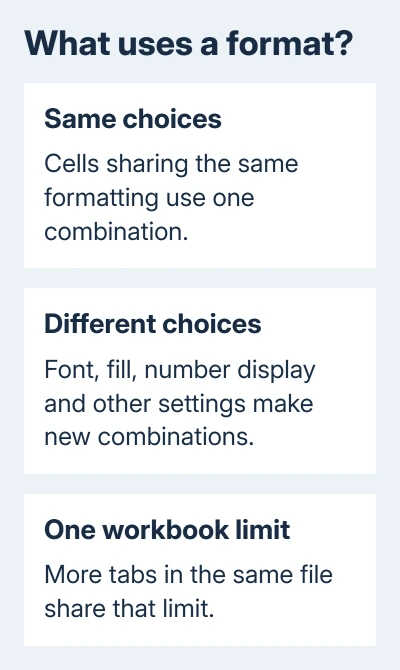
The limit is on formatting combinations, not the number of filled cells. A large sheet with consistent formatting can be fine while a smaller workbook assembled from many differently styled files hits the error.
In this guide
1. Save a separate copy before simplifying styles
Save the workbook with a different filename with File > Save As. Some installations show Save a Copy instead. Work on that copy so you can compare the appearance and calculations with the original afterward.
Keep a macro-enabled file in .xlsm format if you need its macros. Saving it as .xlsx won't retain them. The whole-workbook copy procedure explains the difference between duplicating a tab and saving every sheet together.
Start with the workbook that shows the error. Note whether it happens while opening, pasting, formatting or saving. That detail matters when an imported sheet works until it's copied into a workbook that already has many formats.
Microsoft's cell-format repair guidance explains that copying between workbooks can bring custom styles along. Repeatedly copying the same material into another working file can carry the problem with it.
Check the file extension too. The older .xls format allows about 4,000 formatting combinations; .xlsx allows about 64,000. The limits apply to the whole workbook. Splitting a table into more tabs won't give that file more room for formats.
2. Standardize matching cells instead of adding new formats
Choose a range whose cells serve the same purpose, such as body text in one table. On Home, apply one font and size to that range. Keep headings separate so they still stand out.
Use the same fills and borders for matching areas. A different font, number format or border creates a different combination, even when the cells look nearly identical at ordinary zoom.
I'd start with repeated report sections rather than selecting the entire workbook. That lets you reduce unnecessary variation while keeping the date, percentage and currency formats those cells need.
For a reusable format, select the cells that need that format and choose an existing style under Home > Cell Styles. Apply the same suitable style to similar ranges instead of creating a new style for each section.
Keep in mind that a cell style includes several formatting choices. After applying one, inspect a date, a percentage and a calculated total. A neat-looking table is useful only if the numbers still display the way they should.
Save the simplified copy, close it and reopen it. Retry the change Excel previously refused. If it now works, review the remaining sheets for unnecessary formatting differences before adding more individually formatted cells.
3. Clear formats from ranges that don't need their appearance
For a range whose appearance can be rebuilt, select the cells and choose Home > Clear > Clear Formats in desktop Excel for Windows. This removes formatting but keeps the cells' contents.
This also removes number formats, conditional formatting (rules that change a cell's appearance) and borders. Dates can display as numbers, and rule-based highlighting can disappear. Check the result in your copy before keeping the change.
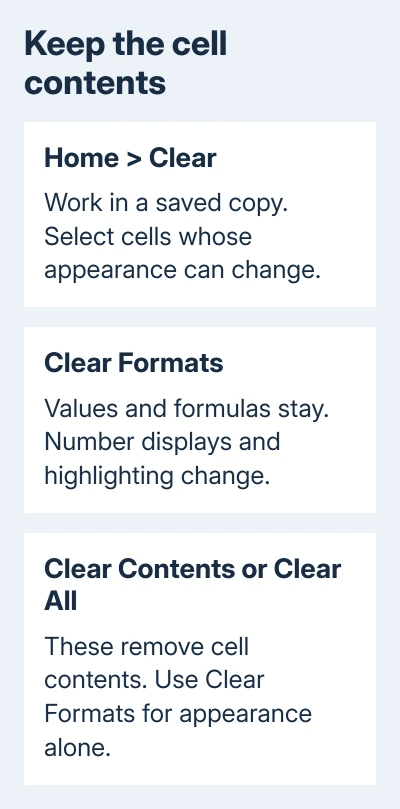
Choose Clear Formats, rather than Clear Contents or Clear All. Pressing Delete removes contents and leaves formats behind, so it doesn't perform this cleanup. Confirm that the formulas remain in the formula bar after the change.
Apply only the formats the cleaned range needs. Use a common font and the appropriate number display for each type of value. Check the important totals against the original file before accepting the new layout.
Removing a table's colored bands is a separate operation. The table-formatting choices explain why clearing a table style, removing the table's behavior and clearing cell formats have different effects.
If the workbook still refuses new formatting, inspect its custom styles next. Cleaning one range doesn't remove all the styles stored in the workbook.
4. Remove unwanted styles and check the result
Open Home > Cell Styles and inspect the styles available in the affected workbook. For a custom style you know is unwanted, right-click it and select Delete.
Deleting a style also removes it from cells using that style. Don't remove an unfamiliar style just because its name looks untidy; first check whether an important sheet relies on its formatting. The built-in Normal style can't be deleted.
After removing unwanted entries, repeat the formatting or paste action Excel refused. Compare the report's headings, number displays and highlights with the original copy.
5. Use Inquire only if your edition includes it
For formatting far beyond actual data, some Windows editions offer Inquire > Clean Excess Cell Formatting. Enterprise plans for Microsoft 365 Apps include it, along with equivalent editions. A home edition may not have it.
If your edition includes it, enable Inquire through File > Options > Add-ins > Manage: COM Add-ins > Go. Select Inquire and confirm. Its cleaning command lets you choose the active worksheet or all worksheets.
Keep a backup before that cleanup because it can't be undone and can sometimes increase file size. It may also remove conditional formatting beyond the last nonblank cell. Review the changed sheets before saving over any working report.
Keep the error from returning
Update Excel through File > Account > Update Options > Update Now, when available. Updates help prevent duplicate built-in styles during workbook copying. Your organization may handle Excel updates instead on a managed PC.
Keep using a small, consistent set of styles when importing reports. Avoid treating a fresh workbook as a cure if you plan to copy every affected sheet and its styles straight back into it.
If the cleaned copy still fails, send Microsoft Support the file extension, Excel version and the command that fails. Ask about excessive workbook styles and provide a short example with confidential details removed.
The Short Version
Reduce format variations in a separate copy, then reopen it. Clear Formats keeps contents; deleting styles affects cells using them. Check your edition before looking for Inquire, then verify formulas and number displays after cleanup.
Checked November 17, 2026.
 If you have any business, I can build it online





