

Unknown private appointments shown only in desktop Outlook can be real items in a shared mailbox. One owner removed them with MFCMAPI, a technical mailbox tool, after a fresh Outlook profile didn't help.
First check which calendar contains the entries. A private label can hide a normal meeting's details, so ask the mailbox owner to identify unwanted bookings before an administrator removes them.
In this guide
1. Identify the shared mailbox and the unwanted entries
In classic Outlook's Calendar view, select only the affected calendar. Clear the selection beside other calendars temporarily so an overlaid personal or shared calendar doesn't confuse the comparison.
Write down the mailbox address, appointment dates, how often they repeat and the wording shown. Ask affected coworkers to confirm they're viewing that mailbox's calendar, since similar calendar names can cause confusion.
In the original case, multiple people saw the private appointments in Outlook 2013 and Outlook 2016. The owner reported a repeating 12-hour entry, correct time zones and no useful right-click deletion controls on the appointments.
A real private booking can look like an unwanted entry when you can't open it. Have whoever manages the shared mailbox check those time slots before anyone changes the appointments.
For a personal-calendar booking, ask its owner to edit it or review sharing rather than removing shared-mailbox items. The calendar-sharing permission choices explain what each level reveals.
2. Check the matching dates in webmail
Ask someone with access to open the affected shared calendar in webmail, then compare the dates you wrote down. Comparing a personal web calendar with a shared desktop calendar won't tell you whether the items are missing.
If the entries appear on the web too, the issue isn't limited to desktop Outlook. Have the owner use normal calendar controls where they can identify and manage the appointments. Keep the mailbox address and affected dates with the report.
Tell IT if the entries appear only on the desktop. Access methods and permissions can affect what webmail shows, so an empty time slot there doesn't mean the desktop appointment should be removed.
Microsoft's private-item access guidance explains that classic Outlook and webmail can access mailbox items differently. Full Mailbox Access doesn't give you the same private-item access in every app.
The original owner had already created a new Outlook profile, and the entries remained. Creating another profile on each affected computer wouldn't have removed those shared-mailbox items.
For stale appointments that you recognize, the shared-calendar update checks cover that separate problem. Use the removal steps only for unwanted items the mailbox owner has identified.
3. Ask the owner to resolve a normal privacy restriction
When the problem is missing details on a legitimate appointment, the calendar owner can decide whether you should see private items. Access to a shared calendar doesn't automatically include permission to read every private booking.
In classic Outlook, the owner can open File > Account Settings > Delegate Access, select the delegate, and review their permissions. The relevant option is Delegate can see my private items in the Delegate Permissions dialog.
This option lets the delegate see private items; it doesn't fix an unknown recurring entry. Let the owner decide who needs that access rather than granting it broadly to make the calendar easier to read.
For a shared mailbox, let the Microsoft 365 administrator choose the correct permission method. They need to check the existing access before using a command meant for a personal calendar delegate.
After an approved change, check a known private appointment with its owner. If you can see its details, the access works. Any unwanted entries still need the separate check in the next section.
4. Have an administrator inspect the mailbox with MFCMAPI
MFCMAPI uses Outlook's connection to the mailbox to let you inspect and change its items. The successful owner found and deleted the shared calendar's unwanted entries there. Have an administrator handle this tool.
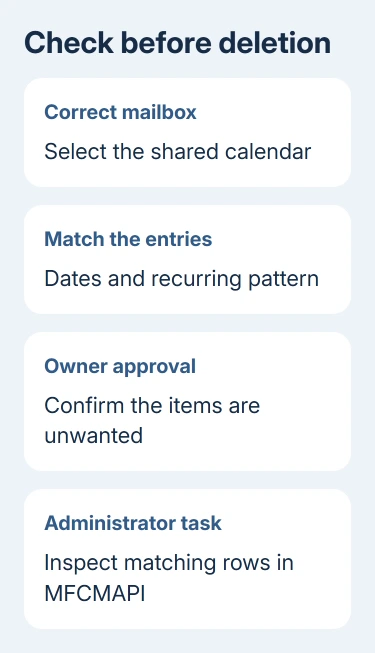
Ask IT to check how deleted items can be recovered before making changes. A mistaken deletion affects the mailbox, not just the appearance of one person's calendar, so agree on the dates and get the owner's approval first.
Use Microsoft's official MFCMAPI project and match its build to Outlook's architecture, not Windows' architecture. Open Outlook's File > Office Account > About Outlook screen to check the edition and whether it's 32-bit or 64-bit.
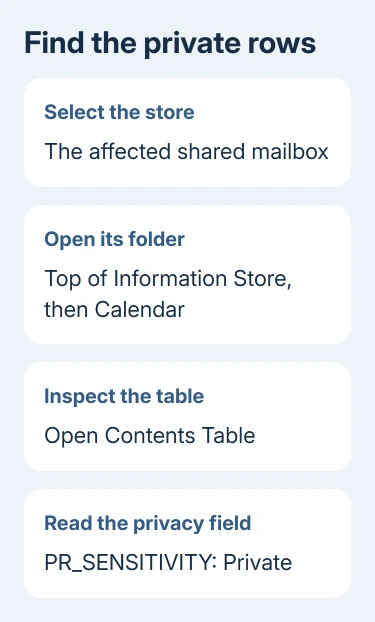
Open a session with an Outlook profile that has mailbox access, then select the shared mailbox's store, its entry in MFCMAPI. The owner stressed choosing the right store. The personal mailbox would show a different calendar.
Their route was Top of Information Store > Calendar > Open Contents Table. Display names can differ between mailbox stores, so IT should verify that the folder is the affected calendar before continuing.
Inspect PR_SENSITIVITY, the internal privacy field, for private entries. Their actual subjects may differ from the Private Appointment label in the calendar, so subject searches can miss the relevant rows.
Check any entries you find against the dates and repeating pattern you recorded, and ask the mailbox owner to confirm them. A private value on its own doesn't distinguish an unwanted appointment from an important legitimate booking.
5. Remove only the confirmed unwanted items and check again
In the reported fix, the owner right-clicked the identified appointment in MFCMAPI and selected Delete. They reported this as the solution after locating the entries through their private sensitivity field.
IT should choose a deletion option that allows the recovery they've planned. Avoid mass removal of private rows: an entry that's inaccessible in the normal calendar view can still be a legitimate appointment.
Reopen the calendar in Outlook after the approved removal. Check the affected dates and recurring instances with the mailbox owner, then have another affected user confirm that the same entries have disappeared from their view.
If the entries return, record when they reappear and whether their recurrence matches the originals. Ask the administrator to check which application or mailbox process is creating them instead of making deletion a recurring cleanup job.
If IT still can't identify the unwanted shared-calendar items, ask them to take the problem to Microsoft 365 support. Supply the build, mailbox address, dates, recurrence, web comparison and failed new-profile result.
Support can then inspect the affected mailbox entries. Switching every user to another Outlook edition or rebuilding all profiles isn't a substitute for identifying what is stored in the calendar.
The Short Version
Identify the shared calendar and get its owner's approval. The reported removal used MFCMAPI and PR_SENSITIVITY after a fresh profile failed. IT should handle the change and verify the affected dates.
Checked November 17, 2026.
 If you have any business, I can build it online






