

An empty Internet headers box on an Outlook Sent Item doesn't mean sending failed. Ask the recipient for headers from their received copy. That copy records the route through the mail servers to their inbox.
A saved outgoing copy can't show server hops after Outlook handed it over. To trace undelivered mail, give support the sender, recipient and sending time. Repeated repairs won't add that missing delivery history.
In this guide
1. Check whether support needs the received copy
Check the Sent Item's recipient, subject and time. Tell support this outgoing copy has an empty Internet headers field. Ask whether they need received headers from the destination or a server-side delivery trace.
The copy you choose matters. Received header entries record a message passing through servers. A copy saved before that journey can't show the complete route to someone else's mailbox.
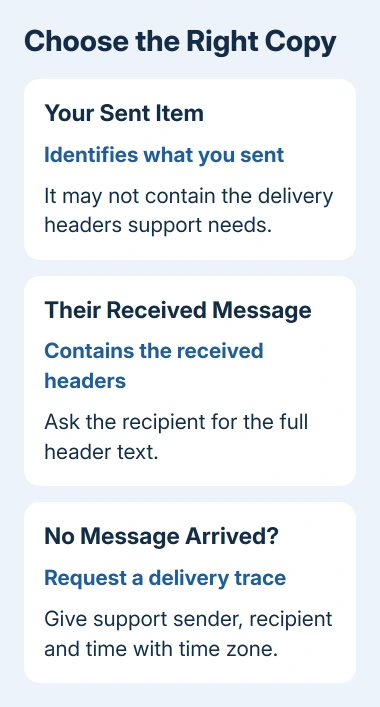
In the original report, the account used POP with a hosted domain. Replies explained that the Sent Item wasn't the source for the requested delivery headers. The thread contains no successful repair that makes those missing headers appear.
Sent headers aren't always empty; it depends on the account type and how the copy was saved. Ask for the copy containing the delivery information support needs. This POP example doesn't apply to every mailbox.
If the message never left Outbox, troubleshoot sending first. A message waiting there hasn't reached Sent Items. Check the Outlook sending and connection error if Outlook also reports that specific connection code.
2. Get the headers in classic Outlook
The recipient needs to start with the original email they received. In the classic Windows version, double-click that email so the message gets its own window. Choose File > Properties and look in Internet headers.
Click inside that field, select the complete contents and copy them. Paste into a text editor to inspect the complete copied block. The small Properties field can display only part of it.
Microsoft's message header instructions describe this route. Headers include technical details beyond the sender and subject you see when reading an email.
Have the recipient provide the headers from the original received message. A screenshot showing only From, To, Date and Subject usually leaves out the server information a delivery team requested.
If the recipient uses a different mail app, ask them to find its full-header or message-source command. The request should be for the original message's full Internet headers, not the normal address summary.
If that received copy also has no usable header information, tell support which app and account type the recipient uses. They can suggest another way to get the original message or check its server record.
3. Use message details in new Outlook or webmail
In new Outlook, open that received email. Select its More actions button, shown as three dots beside the message controls. Choose View > View message details.
Webmail, including Outlook.com, uses the same More actions > View > View message details route. Open the menu belonging to the message, rather than the browser's three-dot menu.
Copy the full header text from the details view. Check that the message's subject and date match the delivery problem before sending it to support. It's easy to pick a neighboring message in a long conversation.
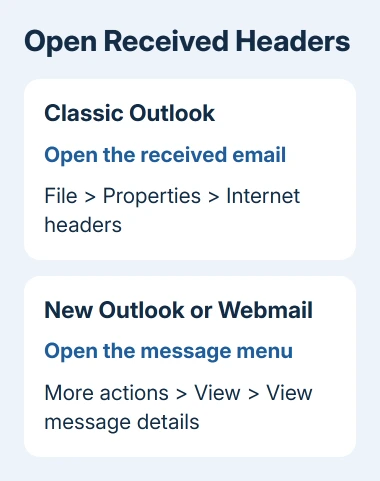
The web route helps when the installed app hides these details. It still needs the received message. Opening your Sent Items on the web won't create the recipient's delivery history.
Send full headers through the provider's support case rather than posting them publicly. They can contain email addresses, server names and other details about the message and its route.
4. Don't substitute a normal forward for the original
A normal forward creates another message carrying the old message's visible content. Its own headers describe that forward's delivery. They aren't a replacement for the original message's complete server headers.
Request a direct copy of the original headers. When support asks for an original file or message attachment, use that format. The Outlook attach-an-email steps explain attaching a message rather than forwarding its text.
Likewise, forwarding your own Sent Item back to yourself tests a new delivery. It can provide useful information about that new trip, but it won't recover the route taken by the earlier message to another person.
I'd ask support exactly which message they want before sending another test. A new test is useful when it's requested and identified clearly, rather than mixed up with the original failure.
If a test is needed, use a recognizable subject and note the time. Tell support it's a separate test message, especially when comparing different recipients or mail providers.
5. Request a trace when the recipient has no message
If the recipient never received the email, they can't supply its headers. Ask the sending provider to trace delivery using the sender address, recipient address, subject and time, including the time zone.
For a work mailbox hosted in Microsoft 365, ask the Exchange administrator for a message trace in the Exchange admin center. The trace can show how the service handled a matching message and whether delivery succeeded or failed.
For a mailbox hosted by another provider, open a case with that provider's email support. Explain that Outlook has a sent copy but the recipient has no received message, and ask for its outbound delivery records to be checked.
Include any non-delivery report you received. Preserve its error text and message details rather than replacing them with a general description that the email didn't arrive.
A Sent Item helps you identify which message you tried to send. That saved copy alone can't confirm acceptance by the destination or placement in the recipient's Inbox.
When support still asks for the blank field
Reply with the account type and say exactly which copy you're viewing. Offer the recipient's original headers if the message arrived, or the sending details needed for a trace if it didn't.
Ask support which item they need: Internet Message ID, full received headers, or an original message attachment. Getting that clear avoids another round of screenshots of the same empty box.
The Short Version
Use the recipient's original received message for delivery headers. Classic Outlook exposes them in Properties; new Outlook and webmail use message details. For undelivered mail, request a trace through your administrator or provider.
Checked November 17, 2026.
 If you have any business, I can build it online






