

An older Outlook bug made the Switch Background button disappear after a second account was added. Updating Outlook restored that owner's missing button, so try updating before removing your account.
In current classic Outlook, check the Black theme and the message background setting too. A dark toolbar alone doesn't mean your messages are set to use a dark background.
The sun and moon controls belong to the message window. They aren't account switches, and removing a working mailbox shouldn't be your first repair.
In this guide
1. Update classic Outlook before removing the account
The original report involved classic Outlook Version 1910, Build 12130.20272. Adding another account made messages white and removed the background button.
Removing that account brought it back, but left the person without their second mailbox.
One owner restored the button by updating to Version 2001, with both accounts still configured. That fix worked in February 2020. Don't install that old version today; use the current supported release for your Office product.
- Open File > Office Account in classic Outlook.
- Under Product Information, note the product name. Open About Outlook to note its installed build.
- Select Update Options > Update Now when that option is available.
- Finish the update, close Outlook, and reopen it. Open an email in the Reading Pane and then in its own window.
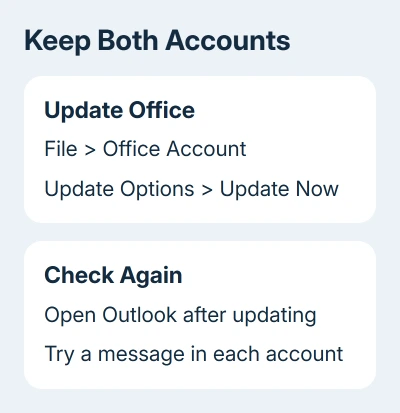
If the background control returns, switch between the two accounts and confirm that it remains available. That's the result you're after: dark messages with both mailboxes still available, without having to remove either account.
Your organization can manage Office updates and hide the update controls. Send IT your version and build, explain that adding the account triggered the change, and request the latest release for your channel.
I'd update before rebuilding the mail profile. The original owner fixed the exact two-account symptom without rebuilding anything. If the installed version is current and the button is still missing, check the display options next.
2. Select Black and allow the message background to change
Classic Outlook separates the Office theme from the message background. The Black theme can surround a white email, so the dark ribbon doesn't tell you whether the sun and moon buttons should be active.
- Choose File > Options > General.
- Find Personalize your copy of Microsoft Office.
- Set Office Theme to Black.
- Clear Never change the message background color if it's selected.
- Select OK, return to Mail, and open a message again.
Microsoft's dark mode instructions explain that selecting that checkbox disables the background controls. Clearing it allows messages to use the dark background again.
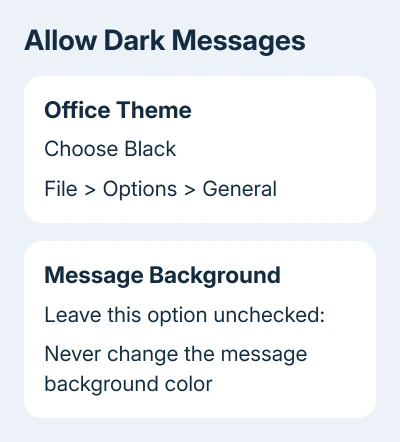
The Office theme also affects other Microsoft 365 desktop apps. A theme change in Outlook can therefore change Word's surrounding interface too; it isn't a change to the colors stored inside your email.
Check the same message after saving the option. If the control returns, that setting was keeping it hidden. If it remains absent, check the product and the window you're using before changing accounts.
3. Look in the message window, not the account list
While reading a message, the sun control switches the message background to white. The moon control switches it to black. The visible icon offers the other appearance, so you won't see both choices offered at once.
Double-click an email to open it separately when the Reading Pane isn't showing its background control. When composing a message, look on the Message toolbar for the dark-mode control instead of expecting the reading-window layout.
Try another ordinary email as well. A newsletter's own images and formatting can make its appearance different from a plain message.
Check whether the control appears. Don't expect every part of a newsletter to turn black.
The background control changes how you read or compose on your screen. Don't use message font colors or page colors as a substitute for finding it. Those settings change something else and can affect the content you're preparing.
If Outlook opens the wrong app when you follow these steps, switching back to classic Outlook gets you to the version with the File menu. New Outlook has its own appearance settings.
4. Check the license and the Outlook version
Another owner in the old thread had Office Home and Business 2019. That person had a dark application theme but didn't have the Microsoft 365 message-background feature. Their second account wasn't the explanation.
Read File > Office Account > Product Information rather than relying on a build number alone. Different Office products can display similar version information while offering different features.
The current dark-mode help page lists Outlook for Microsoft 365.
For new Outlook, open Settings > General > Appearance, choose Dark under Dark mode, and select Save. The classic File > Options checkbox doesn't apply to that app.
For Outlook on the web, the route is also Settings > General > Appearance > Dark mode. Its reading controls can appear as Turn on the lights, with additional commands under More. This isn't the classic Outlook sun/moon toolbar arrangement.
Check which Outlook you're using if the settings don't match. A menu path for another version won't get you to the right controls.
For a classic Outlook fault that also prevents the app from opening, use the startup-specific checks instead of changing appearance options repeatedly.
When the button still doesn't return
Keep both accounts configured and collect the product name, build, update channel, and a screenshot of the missing control. Note whether the problem affects both mailboxes and both the Reading Pane and separate message window.
For a work account, ask IT to check which Microsoft 365 product is installed and how its updates are managed. For a personal subscription, take those details to Microsoft Support through the support options in your Microsoft account.
Explain that Black is selected and the background checkbox is cleared.
The Short Version
An Outlook update comes first when adding a second account removes Switch Background. Then choose Black and clear the checkbox that keeps messages white. Check the license and app version before removing any mailbox.
Checked November 17, 2026.
 If you have any business, I can build it online






