

Contacts in Windows People or local Windows files don't automatically appear in Outlook with the same email address. Move them into Outlook through a contact import, or connect the online account where they're already saved.
IMAP mail settings alone don't synchronize an address book. Start by checking where one missing contact actually exists. That tells you whether to import contacts or fix how Outlook shows them, and helps you pick the right account.
In this guide
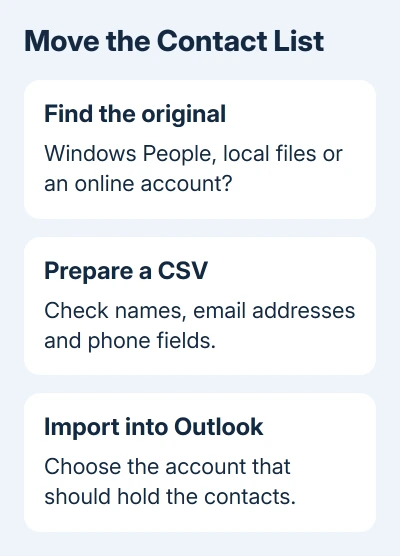
1. Find the contact's original location
Open People in Outlook and select the account where you expect the contact. Search for one exact name, then compare it with the app or folder where that person still appears.
Windows contacts can mean several things. The old Windows People app held contact lists. A .contact file in a Windows folder holds one person's details. Outlook keeps contacts in its own account folders.
If the person already appears in Outlook People but disappears when selecting To, use the Outlook Address Book checks. Importing another copy won't repair that separate list-selection problem.
If the contact exists only in Windows, continue with exporting it. If it's already in an online account, add that account to Outlook using its supported account setup rather than assuming a local file needs importing.
Keep the original contact files until you've checked the imported names and numbers. A successful email connection doesn't tell you whether a contact list has moved with it.
2. Export the old People list when it's available
Microsoft's Windows People export instructions describe a migration route through the old Windows Mail and Calendar export prompt. Select Export Data there to open People.
In People, select Download at the top. In Export all contacts, choose Export, then choose a location in Save As and select Save. Make a note of the resulting file's location.
These are instructions for the retired apps' migration controls, not a requirement to reinstall them. If your computer no longer offers that export screen, use an existing export or the online account that still holds your contacts.
Don't confuse the mail export with the contact export. Saved messages use .eml files, calendar events use .ics, and a contact import normally uses a .csv file, a table of names and fields separated by commas.
Open the contact export in Excel before importing. Check that it contains contacts, rather than just column headings. Look at one name with a phone number and another with an email address to catch missing details before you import.
If only individual .contact files remain, the new Outlook CSV importer can't use those files directly. Keep those files and prepare a CSV with the fields you need, or ask IT to convert a large collection while keeping the originals.
3. Put the CSV contacts in your chosen account
Open People from new Outlook's navigation pane on Windows. Choose the destination account for your imported contacts, then open Manage contacts > Import contacts.
Select Browse, choose the saved .csv file, and complete the import. Return to the same account's contact list and search for the sample names checked in the export.
In classic Outlook for Windows, open File > Open & Export > Import/Export. The wizard's first choice is Import from another program or file. Continue with Comma Separated Values, then browse to the CSV.
Choose how duplicates should be handled, then select the destination Contacts folder. Finish the wizard. With several mailboxes present, check which account contains that folder.
These CSV import methods differ between Outlook editions. A classic wizard with an Open & Export menu isn't a missing feature you need to find inside new Outlook.
Importing copies the contacts from that file into Outlook. Later edits to the old Windows list won't keep flowing into Outlook just because the import succeeded. Choose one account as the place where you maintain the contacts afterward.
4. Correct fields that didn't survive the import
Open a few imported contacts instead of just counting the names. Compare their email addresses, phone numbers and important notes with your original list.
If names arrived but email fields are empty, open the CSV again. Importing the same file again can't bring back details it doesn't contain. Return to the original records or export settings to recover those fields.
If the data exists but landed in the wrong fields, classic Outlook's import wizard includes Map Custom Fields. Match the source column to the correct Outlook field before finishing another import.
For a small list that has no usable export, a sample Outlook CSV gives you the expected headings. Enter your records under those headings instead of giving a .contact file a .csv ending.
I'd check a small group before repeating a large import. Include a person with several numbers or an accented name if possible. That can catch formatting errors before they affect hundreds of contacts.
Use the importer's duplicate choice carefully when repeating a transfer. Keep the original export so a correction doesn't depend on reconstructing the contact information from an already damaged imported list.
5. Make the same contacts available on iPhone
Once the names are in the intended account, decide how the iPhone should receive them. Contacts saved in your online account can sync to other devices. Contacts kept only in a local Outlook folder stay on that computer.
For an Exchange-backed account, use that account's supported iPhone setup with contact synchronization enabled. IMAP carries mail. Using the same email address doesn't make it sync contacts too.
If you use Outlook for iPhone and want its contacts in the phone's Contacts app, follow the separate Outlook contact export and iPhone permission steps. That is different from importing a CSV on the PC.
Check the same sample person on each device after synchronization. If Outlook on the PC has the person but the phone doesn't, continue with the phone's account or export controls rather than importing the PC list repeatedly.
When the only remaining copy won't export
Give IT or Microsoft 365 support these details: the remaining file format, the app that still shows the contacts, and your Outlook edition. Include one sample contact without private details and the exact import error.
For local .contact files, ask specifically for a CSV conversion that preserves names, email addresses and phone fields. Repairing account sync won't move those local files into your online contact list.
The Short Version
Find the contact's actual home, export a CSV if needed, and import it into the intended Outlook account. Check the fields before repeating the transfer, then set up the phone to use that same account's contact list.
Checked November 17, 2026.
 If you have any business, I can build it online






