

Outlook's logging checkbox can be grayed out by policy or a problem in its profile. Ask IT to check policy on a work PC, or try another profile on a personal PC. One owner needed a profile reset after repair and reinstalling hadn't helped.
First check which files are growing. Normal troubleshooting logs and advanced trace files ending in .etl aren't controlled in exactly the same way. An unchecked box doesn't always explain every file in the logging folder.
In this guide
1. Clear troubleshooting logging when the box responds
With Windows' classic Outlook open, choose File > Options > Advanced. Scroll to Other and find Enable troubleshooting logging (requires restarting Outlook). If it's available and checked, clear it and select OK.
Close Outlook fully and open it again. Outlook needs that restart to apply the change. If logging was enabled, the title bar can show Logging Enabled after restarting.
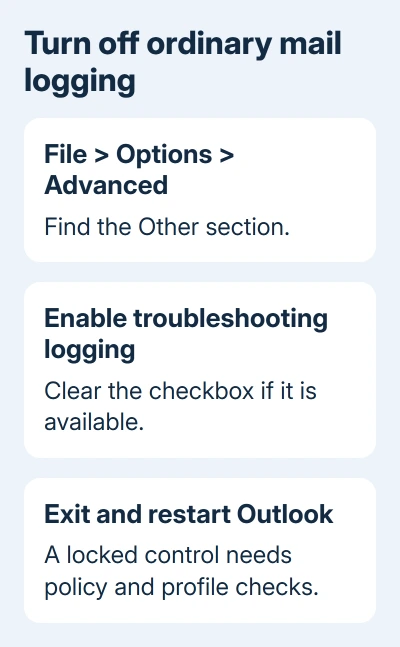
Microsoft's logging controls warn that log files keep growing when logging remains enabled. Turning it off stops the logs controlled by that option, but it doesn't erase existing files.
If the checkbox is checked but unavailable, stop trying to click it. Take a screenshot of that section for IT or support, then check whether it's enforced by work or limited to this profile.
The File > Options dialog belongs to classic Outlook, not new Outlook. Confirm which app you're opening before following registry or profile advice meant for classic Outlook.
2. Identify what is still being written
Press Windows key + R, enter %temp%, and open the Outlook Logging folder if it exists. Switch File Explorer to a details view and inspect Date modified, Type and Size.
File extensions such as .log and .etl help distinguish ordinary logs from event traces. Note the names of the files that changed after your restart, rather than assuming everything in the folder was created today.
Advanced event tracing records diagnostic details in ETL files and can run separately from ordinary logging. Outlook can write these without Logging Enabled in its title bar. Report the file type and checkbox state.
Close Outlook before comparing the final file times. Some log data is written when the program exits. Then reopen it for a normal session, close it, and check which files received new timestamps.
Keep any logs currently needed by a support case. Clearing a folder may reclaim space, but if logging stays on, the files will return. Check whether using Outlook again creates more unwanted logs.
3. Have IT review enforced logging on a work PC
An organization can configure logging through policy. If a managed PC won't let you clear that box, ask IT whether a troubleshooting policy or an active support collection is enforcing it.
Give them the checkbox screenshot, the growing file names and the folder path. Ask for the collection to be stopped at its source once the support team has what it needs. A policy can put a setting back after a local change.
The documentation describes both registry-based logging and Group Policy controls. Its policy-template example uses older Outlook labels, so an administrator should check it against the Office policy templates your organization uses.
Leave policy removal to the administrator responsible for the PC. IT should check whether the setting is intentional and remove the approved collection through the same management system that enabled it.
If Office also shows other managed controls, checking classic Outlook performance can help you describe the wider symptoms. That doesn't make every slow session a logging problem.
4. Try a separate profile instead of deleting registry keys
The original logging report describes a checked, unavailable option and large daily logs. Adding an EnableLogging value set to zero didn't fix it. Neither did Online Repair or reinstalling Office.
The owner then removed existing profile registry entries and reported that this corrected the problem. They had noticed that reinstalling Outlook reused the old profile, so reinstalling hadn't reset the relevant settings.
Outlook's profile picker lets you create a comparison profile and keep your current setup. Close Outlook and press Windows key + R. Type outlook.exe /profiles and press Enter, then select Options.
Choose New and enter Logging comparison as the name. The picker also lets you switch back to your original setup. Add your email account, start Outlook with that profile, and inspect the logging checkbox again.
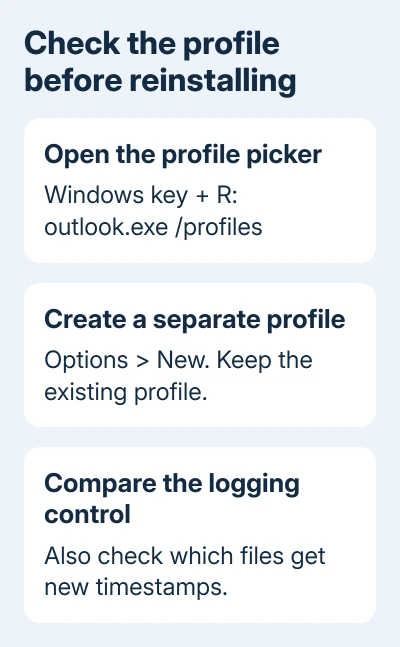
Compare the checkbox and newly written files. If the control unlocks and logging stops, ask support about moving to this profile. If they don't, tell support so they can check policy and advanced tracing.
Keep the original profile until local mail, tasks and contacts are backed up or transferred. A cloud sign-in doesn't automatically bring back content stored only in a PST on the PC.
I'd make this comparison before another reinstall. It checks whether the settings kept from the previous installation are responsible and leaves the original setup available if you need it.
5. Treat the ETL-specific registry advice separately
A later reply in the 2020 thread described DisableDefaultLogging, a registry number (DWORD) set to 1, under HKEY_CURRENT_USER\SOFTWARE\Policies\Microsoft\Office\16.0\Outlook\Logging.
That reply tied the control to a particular 2020 Outlook build and discussed saved logging entries as well. The thread doesn't contain an owner's later confirmation that this separate registry method fixed their PC.
If ETL files keep appearing with ordinary logging off, give IT that detail. Ask them to check your build and advanced-tracing settings before using a registry change meant for a different kind of logging.
The earlier failed EnableLogging = 0 attempt is important: a single value wasn't enough for the original profile problem. It also doesn't mean every ETL file must disappear when the ordinary checkbox is cleared.
For Office installation trouble beyond this setting, finding the correct Outlook repair tool explains the data-file tool. That tool isn't a switch for diagnostic logging.
Get support to stop the collection that remains
Record the version and build under File > Office Account > About Outlook. Send support that information, whether work manages the PC, and what happened with a separate profile.
Send an example file name, extension and timestamp. Ask which collection created it: global mail logging, advanced event tracing or policy. Removing Temp files repeatedly won't switch that collection off.
The Short Version
An available checkbox needs clearing and an Outlook restart. A locked one needs policy and profile checks. Identify whether new files are ETL traces or ordinary logs before IT selects any registry change.
Checked November 17, 2026.
 If you have any business, I can build it online






