

An Office update restored Focused Inbox for an owner whose Outlook 2016 tabs disappeared. Start with View > Show Focused Inbox in the affected inbox. If the command is missing, check that your account supports it before changing the ribbon.
Windows Outlook supports Focused Inbox for Microsoft 365, Exchange and Outlook.com. An unsupported mailbox won't gain the feature through an update. If your work inbox had Focused Inbox before, continue with the repair checks.
In this guide
1. Turn the inbox tabs back on if the command is present
Select Mail, expand the affected account and open its Inbox. Open the View tab in classic Outlook, then choose Show Focused Inbox if it's available.
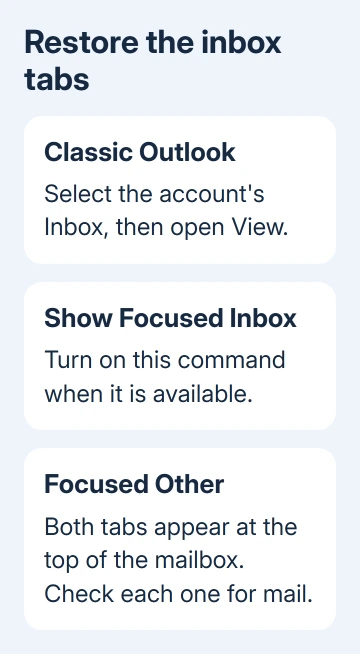
When enabled, Focused and Other show at the top of that inbox. Click each tab to check its messages. Turning this view on doesn't require moving all your email into new folders.
If the command exists but the tabs were simply turned off, that's the fix. If it's missing or gray, continue with the account check. Clicking the same place on the ribbon again won't make an unsupported mailbox work with the feature.
Missing tabs can make familiar email harder to locate, but they don't by themselves mean the messages were deleted. For mail that's absent from the account too, use the missing Outlook email checks.
For missing messages, search your mail and check its folders. If the messages are there but the tabs aren't, continue with the Focused Inbox checks.
2. Does this account support Focused Inbox?
Open File > Account Settings > Account Settings and find the affected address in the Email list. Read its Type column. An IMAP or POP account isn't the same as an Exchange account, even if Outlook displays both together.
Microsoft's own steps say the Windows Focused Inbox feature works only with Microsoft 365, Exchange and Outlook.com accounts. Adding a custom button won't make it work for an unsupported mailbox.
Select the supported account's own inbox before testing the command again. This matters on a laptop with several addresses: a control that applies to one work inbox can be unavailable when you switch to a personal address.
Shared mailboxes need separate handling. They don't support the same Focused Inbox classification, the system that sorts messages into the two tabs. Outlook can still show unexpected Focused Inbox hints for those mailboxes.
If you're using a shared mailbox, ask your administrator about that limit. Seeing the command in someone's personal inbox doesn't mean it will work in the shared one.
3. Install available Office updates
In classic Outlook, open File > Office Account > Update Options > Update Now. Let Office check for an update, save any open work when prompted and reopen Outlook when the installation finishes.
One owner confirmed that updating Office brought back Focused Inbox when Outlook restarted. They hadn't recreated the profile. That makes updating a better next step than replacing a working mail profile.
Go back to the same supported account's Inbox and check View > Show Focused Inbox. If it has returned, turn it on and check that Focused and Other both open normally.
If Update Options is unavailable or your organization manages Office updates, give IT the version shown under File > Office Account > About Outlook. Ask them to check the approved build for that installation.
The 2018 report gives no specific build to install as a present-day fix. Don't copy an old downgrade command or disable updates just because a feature disappeared after one update.
4. Avoid rebuilding the ribbon around a disabled command
The original asker tried adding Show Focused Inbox through File > Options > Customize Ribbon. The command remained disabled, and a restart didn't restore a working button. Adding the button didn't fix it.
I'd leave a normal ribbon alone when the feature is missing for the account itself. Customizing a tab changes where commands appear; it doesn't repair the account connection or replace an Office update.
If you added a custom group while testing, it can be removed through Customize Ribbon by selecting that group and choosing Remove. Keep any unrelated customizations you use rather than resetting the whole ribbon.
For a broader layout problem, the Outlook view settings explain controls for reading mail and arranging its list. Changing Compact or Preview view isn't the same as restoring Focused Inbox.
If a supported, updated account still lacks the feature, record whether it's missing on every inbox or only one. Include that difference when asking the mail administrator to check the mailbox configuration.
5. Move beyond Outlook 2016 if the fault remains
Office 2016 reached its support deadline on October 14, 2025. The old app can still run, but it no longer has the normal stream of security and feature fixes. A 2026 repair plan needs to account for that support limit.
Discuss a supported Outlook installation with IT. For a personally managed computer, check which current Outlook option supports the account and features you need before replacing the old desktop program.
New Outlook has a different route: View > View Settings > Mail > Message List. In the Focused Inbox area, choose the option to sort messages into Focused and Other, then save. It doesn't use classic Outlook's ribbon button.
If your own mailbox supports Focused Inbox and you're using a supported app, ask IT to check its Focused Inbox settings. Include your account type and Outlook version, plus the results of your View and update checks.
Keep your local mail files and existing profile until you've checked the replacement setup. An update fixed the original owner's problem. Removing a profile isn't a required step for restoring the tabs.
The Short Version
Select a supported account's Inbox and try View > Show Focused Inbox. Update Office if the command disappeared; adding a disabled button to the ribbon didn't fix the original report. For Outlook 2016, choose a supported replacement with IT.
Checked November 17, 2026.
 If you have any business, I can build it online






