

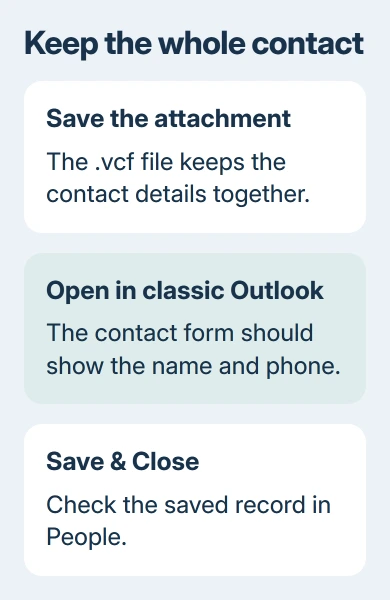
A VCF attachment can open in Windows' People app instead of classic Outlook, leaving you without the contact-saving controls you expected. Set the .vcf file type to classic Outlook, then open the card and choose Save & Close.
That fix applies to the installed classic app. New Outlook and cards opened in a browser can behave differently, so check which Outlook opens the file before retyping the person's details.
In this guide
1. Send the contact file to classic Outlook
Save a trusted VCF attachment in a clearly named folder. In classic Outlook, right-click the attachment and choose Save As. In new Outlook, use its attachment menu and Download. Keep the original email until the contact is saved.
A VCF, also called a vCard, carries contact details such as a name, phone number and email address. Saving the file to Downloads keeps a copy of the card, but it doesn't add the person to your address book.
Open Settings > Apps > Default apps in Windows. The next controls depend on your version:
- Windows 11: Search for .vcf in the file-type search box. Select the result, choose Outlook (classic) or the installed classic Outlook entry, and confirm with Set default if shown.
- Windows 10: Select Choose default apps by file type, find .vcf, and change its assigned application to the installed classic Outlook.
The Windows default-app controls let you choose which app opens each file type. Your default email app and the app that opens .vcf files are separate choices.
Double-click your saved card. Look for a contact window containing the person's details and Save & Close. If a different app still opens, right-click the saved file and check Open with for the classic Outlook entry.
An owner confirmed this fixed their contact import in the original Outlook discussion. A later reply reported failure with new Outlook, so matching the application matters more than its familiar Outlook name.
If the classic app is missing from Windows' list, go to section 4. Changing the default again won't add an import feature to a different app.
2. Save the full card instead of the sender's email address
In classic Outlook, open the message containing the card. Select the vCard itself, then right-click and choose Add to Outlook Contacts when that command is available. A contact window should open with the card's stored details.
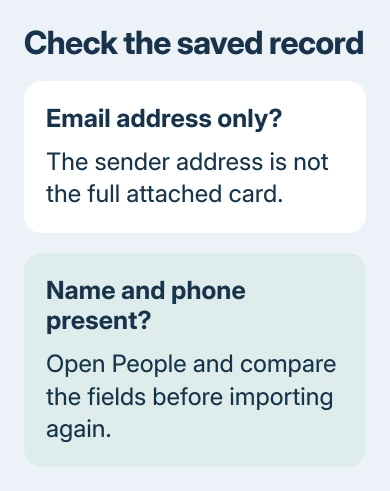
Review the name, email address, phone numbers and company, then choose Save & Close. Repeat for each separate card you need. The vCard import procedure handles these attached cards individually.
If the menu still offers only Preview, Open, Save As, and Save All Attachments, use the saved-file route from section 1. The absent right-click command doesn't mean you need to type every field by hand.
Right-clicking the sender's email address is a different action. It can create an entry from the address in the message, but it doesn't import all the phone, address and company fields stored inside the VCF attachment.
I'd start with one card whose phone number you recognize. Compare that number after saving. An email-only entry can look correct until you need its missing phone or company details.
For a card absent from the message, use the Outlook attachment checks first. You'll need the attachment before you can choose which app opens it.
3. Look in People before importing the card again
Open People in classic Outlook, or use Ctrl+3 to open Contacts. Search for the person's name and inspect the saved record. Compare the phone and company fields, too.
For multiple accounts, select the contact folder that received the card. Searching another folder can hide an entry that was successfully saved.
One participant in the discussion found their trial contact after using Import/Export even though the process hadn't appeared to finish. Checking People first avoids importing an already saved card again.
A saved VCF file sitting in Downloads isn't a saved Outlook contact. A name appearing in email address suggestions doesn't confirm that the full card is saved in People, either. Open the actual record and compare its fields.
If the entry is correct there but missing from your phone, stop repeating the desktop import. The Outlook-to-iPhone contact settings cover the separate export and account-sync routes.
If a field is already absent from the opened card, ask the sender to export and resend that person's full contact. Changing Outlook's default handler can't recover a phone number that the attachment doesn't contain.
4. Use the available contact route in new Outlook
Classic Outlook has File > Open & Export. The new version arranges its controls differently. A browser-installed Outlook shortcut can look like a desktop app without supplying classic Outlook's tools.
The original thread includes reports of a disabled Save control and unsupported-file messages outside the working classic route. Choosing an app named Outlook won't necessarily fix this in every edition.
If your new Outlook copy won't import the VCF, use classic Outlook for this card when it's available. After saving it, confirm which account and contact folder received it before expecting it to appear elsewhere.
Without classic Outlook, use People > New contact to enter the card's details manually. For a larger list, ask the sender for an Outlook-compatible CSV export and import it through the contact-import controls in your version of Outlook.
A CSV stores contacts as rows and columns. Renaming .vcf to .csv won't create that structure; ask for an actual CSV export.
For a work account, ask IT whether classic Outlook and its contact folders are available under your license. Give them the app name, the .vcf extension and the exact unsupported-file message or what happens when Save is disabled.
If a known-good card still won't save in classic Outlook, use Help > Contact Support there. Send a card containing invented details, your Outlook build and the result of opening it from disk. Keep private contact data out of the sample.
The Short Version
Assign .vcf files to classic Outlook, open the card and save the full contact. Verify its fields in People before importing again. New Outlook and browser Outlook need their own available import route or a manual contact entry.
Checked November 17, 2026.
 If you have any business, I can build it online






