

Classic Outlook's Excel previewer can fail when its display setting doesn't match Excel's. Set both apps to Optimize for compatibility, restart them, and retry the attachment. Owners confirmed this restored previews.
If the attachment won't open in Excel either, the problem goes beyond Outlook's preview. Start with the display fix when the workbook opens normally and only Outlook's preview shows the error.
In this guide
1. Match the display setting in Outlook and Excel
In classic Outlook, open File > Options > General. Find the User Interface options group, then its When using multiple displays setting and select Optimize for compatibility. Confirm with OK.
Open Excel and follow File > Options > General. Select the same compatibility option there. Close both programs completely, including any separate message and workbook windows, then reopen Outlook.
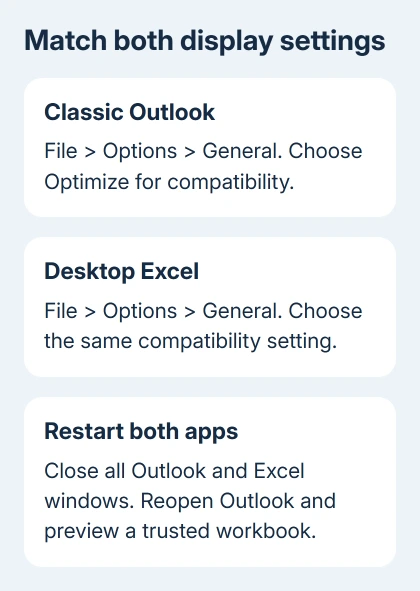
Open the email and select its Excel attachment once to preview it. A working preview shows the workbook inside Outlook instead of the Excel previewer error. Use a workbook from a sender you trust for this check.
One owner fixed it with this setting; another confirmed success. Earlier in the discussion, updates and an enabled Excel previewer hadn't helped. I'd compare the settings before repeating an Office repair.
The option is a display preference inside Office. It isn't Windows compatibility mode on the Outlook shortcut. Don't change the program's Windows compatibility properties to follow this step.
Outlook and Excel need matching display settings for attachment previews. If you can't find those controls, check the preview permissions and Office versions next. Skip the search for another switch in Windows.
2. Turn on the Excel attachment previewer
In Outlook, open File > Options > Trust Center > Trust Center Settings > Attachment Handling. Make sure Turn off Attachment Preview is cleared, then select Attachment and Document Previewers.
Find Microsoft Excel previewer in the list and select its checkbox. Choose OK to close the dialogs, then test the attachment again. If that checkbox was already selected, leave it selected and move to the next check.
Microsoft's attachment-preview instructions cover these controls, matching interface settings and the need for matching Office application versions.
A missing Excel previewer entry is different from an unchecked one. Check that desktop Excel is installed with the Office suite used by Outlook. The web version of Excel doesn't supply that Windows component.
This is a classic Outlook route. The new app and Outlook's web version don't have this Windows Trust Center previewer list. Record their own attachment error instead of applying desktop component fixes to them.
3. Check whether Excel can open the workbook
Save the trusted attachment locally and open it in Excel. If it opens normally but won't preview, keep checking Outlook's preview settings and components. If both attempts fail, the workbook or Excel needs attention.
Try another Excel attachment that you know opens correctly too. If only one workbook fails, request a fresh attachment after the sender checks their original. Keep the failed file unchanged so you can compare the replacement with it.
A password-protected or restricted workbook can require interaction in Excel that isn't available in the small preview. Open it in Excel and complete the password or permission request rather than removing its protection.
If the attachment isn't visible at all, use the missing Outlook attachment checks. That problem starts before the previewer receives a file and needs a different route.
When a downloaded file opens with a security warning, read that warning before choosing any action. Don't disable Protected View across Office to clear a preview error. That changes how other incoming documents are handled too.
4. Check the Office installation and update it
Open File > Office Account > About Outlook and note the product version. In Excel, use File > Account > About Excel. Check the product details in both apps. Similar icons don't mean they're part of the same Office installation.
With supported Microsoft 365, use Update Options > Update Now from its account page. Close the apps when the updater asks, then test the same trusted attachment after the update finishes.
Company IT can control Office updating. Send both version numbers to your help desk if the update button is missing or disabled. Ask them to check that Outlook and Excel belong to a compatible installed Office suite.
Word attachments failing alongside Excel can help IT recognize a wider preview problem. A separate Word previewer error also has checks for Word's file dialog and Explorer, which aren't this attachment fault.
5. Check a stopped firewall service on affected older Windows
A separate documented cause affects Outlook on Windows 10 and the older Windows versions listed in the firewall-service repair. It occurs when the Windows Firewall service isn't running.
On an affected Windows 10 PC, press Windows + R, enter services.msc and select OK. Find the Windows firewall service and check its status. The name can appear as Windows Defender Firewall on Windows 10.
If it's stopped, open its Properties, set Startup type to Automatic, confirm, and choose Start. Try the preview again. If the service already runs, this repair doesn't explain your failed preview.
Leave a company-managed firewall configuration to IT. Tell IT if the service is stopped or won't start rather than changing security policies. This older Windows-specific cause isn't a reason to alter a healthy Windows 11 installation.
When Excel previews still fail
Keep opening trusted workbooks in Excel while support checks the preview component. Give your IT desk the exact error, Outlook and Excel versions, and whether all workbooks or one attachment fails.
For a personal supported Office installation, open Windows Settings > Apps, locate your installed suite and open its Modify action to reach its repair options. Windows 11 calls the list Installed apps; Windows 10 uses Apps & features.
Save your work before repair. Start with Quick Repair; if it doesn't help, discuss Online Repair with support, including sign-in requirements. Quick Repair didn't help one owner in the thread, so move on if your preview still fails.
The Short Version
Match Optimize for compatibility in Outlook and Excel, restart both, then check Trust Center. Test another workbook. A stopped firewall service is a separate cause on the older Windows systems listed in the support article.
Checked November 17, 2026.
 If you have any business, I can build it online






