

White space that won't delete in Word is often paragraph spacing or a page-layout setting, rather than empty lines. Turn on Home > Show/Hide, then check the paragraphs on each side of the gap before pressing Backspace again.
Paragraph marks filling a gap point to empty paragraphs. A blank area without marks needs spacing and layout changes instead. Text inside a table, a forced page break, and the page's margins can also leave space that you can't click into.
In this guide
1. Show what is actually taking up the space
Choose Home > Show/Hide, the button with a backward P shape. In desktop Word for Windows, Ctrl+Shift+8 toggles it. On a Mac, use Command+8. These marks help you edit; they won't appear when you print.
Look at the gap without selecting your entire document. Repeated paragraph marks mean someone pressed Enter several times. Select only those empty paragraphs and delete them, keeping the paragraph that holds the text you need.
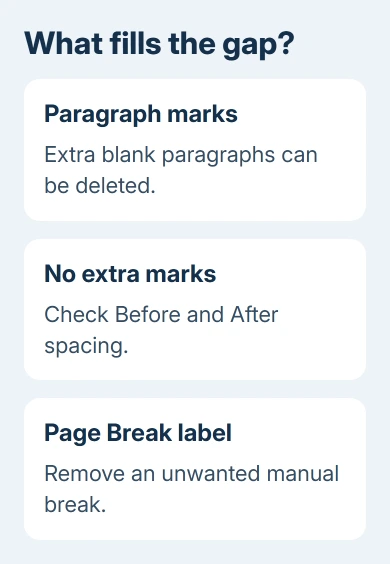
An owner on Microsoft's forum fixed a CV after these marks revealed unused space inside its tables. Other replies said showing the marks alone didn't remove their gap. The button reveals the cause; it doesn't change the layout itself.
If no extra paragraphs appear, stop trying to delete invisible characters. Check the paragraph spacing next. For help recognizing the symbols, use the Word paragraph marks guide.
2. Reduce spacing on the two surrounding paragraphs
Place the cursor in the text just before the gap. On Windows, use Home > Paragraph and its small dialog launcher. On Mac, choose Format > Paragraph. Use the Indents and Spacing tab.
Check After under Spacing, then check Before on the paragraph following the gap. A large value on either paragraph creates empty space that Backspace can't remove as a blank line.
Change the unwanted value to 0 pt, choose OK, and look at the result. This lets you see whether paragraph spacing caused the gap. You don't need to remove spacing from every paragraph. Keep the gap your layout needs.
Check Line spacing in the same dialog if the space is between lines within one paragraph. An oversized Exactly value or a large Multiple setting affects those lines, rather than the gap between separate paragraphs.
Microsoft's paragraph spacing controls separate these settings. Try Single for excessive line gaps, then choose your intended spacing.
If that fixes one paragraph but others with the same style still have gaps, check the paragraph style. Don't select the entire document just to repair one unusual paragraph; that can change headings, lists, and captions too.
3. Release text that Word is forcing onto the next page
Word's settings for keeping text on a page can leave a page half-empty and push text onto the next one. Click in the first paragraph after the gap, reopen Paragraph, and select Line and Page Breaks.
Review these settings one at a time:
- Page break before makes that paragraph start on a new page. Clear it when that new page isn't intentional.
- Keep with next holds the paragraph beside the following one. Clear it on ordinary body paragraphs that don't need that connection.
- Keep lines together prevents a paragraph from splitting across pages. Clear it when a long paragraph should be allowed to continue on the next page.
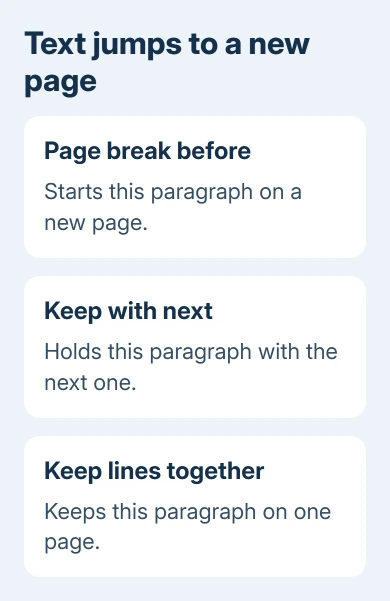
On a Mac, these controls are also in Format > Paragraph > Line and Page Breaks. If the first paragraph doesn't explain it, check the paragraph before the gap and any connected body paragraphs.
A heading should usually stay with its first paragraph. I'd remove an accidental chain of linked body paragraphs before changing the heading's useful keep setting. Watch whether text moves back into the empty area after each change.
If a visible Page Break marker appears instead, select that manual break and delete it. A Section Break is different: removing it can change section formatting, including headers and page numbering. Save a copy before changing one.
If a heading needs more space at the top of a page, use the chapter spacing checks. A forced break can make unwanted white space larger.
4. Look for an empty table row
Click inside the nearby text and look for Word's table tabs. A resume or form can use a table whose borders don't print. Its empty rows still occupy space even though the document looks like ordinary paragraphs.
Turn on View Gridlines from the table layout controls to see the cells. In newer Word versions, look for Table Layout; older versions place Layout under Table Tools. Gridlines help while editing and don't print.
Right-click a row that has no content, open Delete on the mini toolbar, and choose Delete Rows. The keyboard's Delete key can clear cell contents while leaving the row in place.
For a row with useful text, right-click it and choose Table Properties > Row. If the row shouldn't have a fixed height, clear Specify height, then check the layout. That setting can reserve space the contents don't need.
If the gap lies beside a floating picture rather than inside a cell, check that object's wrapping. A picture can reserve empty-looking space. Change the picture's layout settings rather than deleting nearby text.
5. Separate page margins from empty paragraphs
Space repeated at the top and bottom of every page can be the margins. Open Layout > Margins > Custom Margins in current desktop Word. Older Windows editions use Page Layout > Margins.
Check whether the top and bottom values match what your document needs. Check Apply to before accepting a change, since one section may have different page settings from the rest. Margins sit outside the area where you normally type.
Gray paragraph marks in a header or footer belong to another editing area. Double-click that header or footer to edit its contents, then remove only unwanted empty paragraphs. Double-click the main text when you're finished.
When the gap survives these changes
Give the document's creator or Office support a copy without private text. Include your Word version, Windows or Mac, and a screenshot with Show/Hide enabled. Ask them to inspect pagination, tables, and anchored objects.
Leave the footnotes and section formatting you need in place for them to inspect. If the gap only appears in one complex document, they need to examine that file; reinstalling Word won't remove a layout instruction stored in the file.
The Short Version
Show the formatting marks, remove genuine empty paragraphs, then inspect paragraph spacing and pagination. Check table rows and margins when the gap contains no deletable text.
Checked November 17, 2026.






